
What students see in RootWright LMS
Students learn in the course player. It opens from Continue Learning on the course page, or from their dashboard. This page follows a student through a course, using a demo student account.
1. The course page
An enrolled student sees Continue Learning in the price box on the course page.
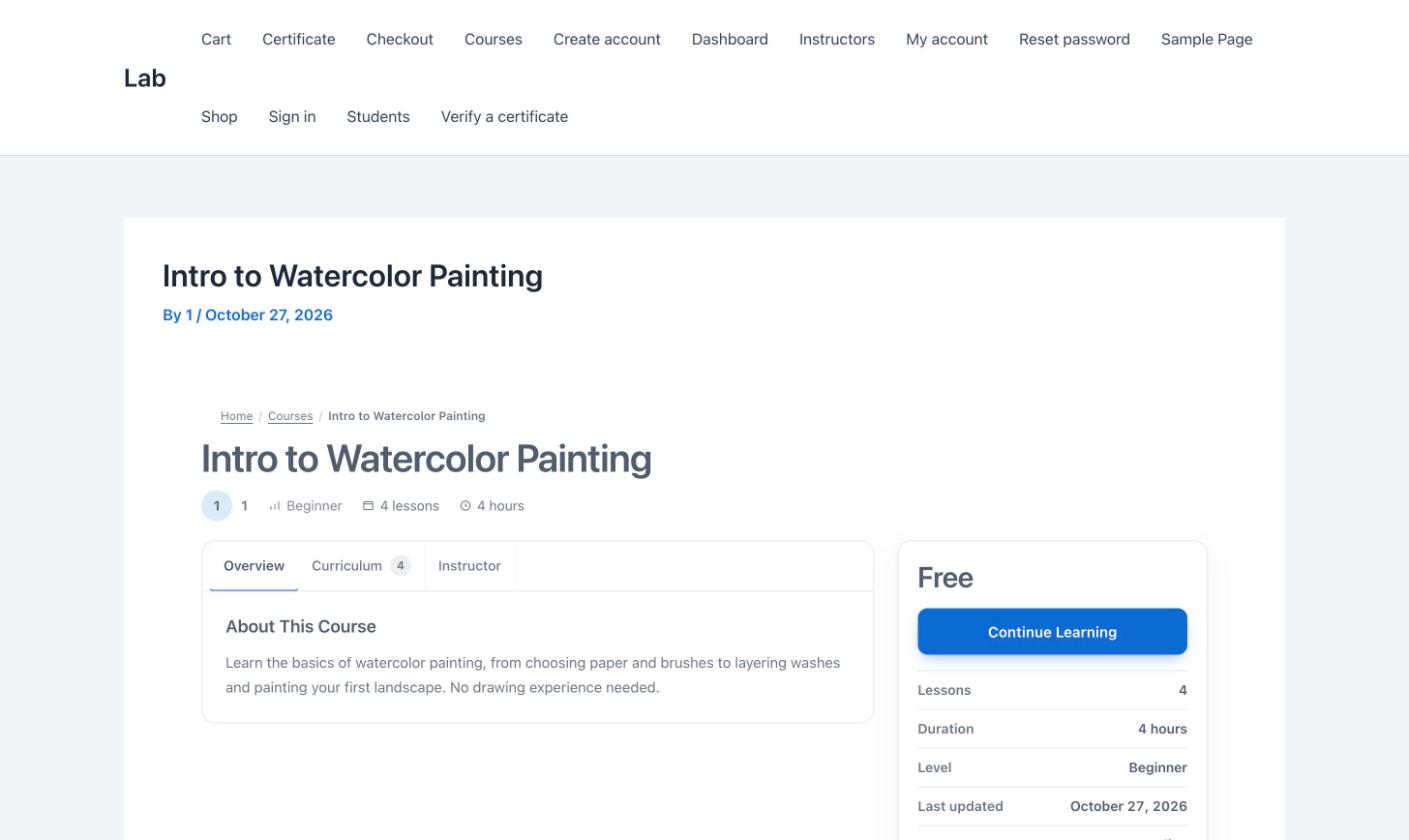
Enrolled students see Continue Learning in place of the enroll action.
2. The course player
The course player has a sidebar and a main area.
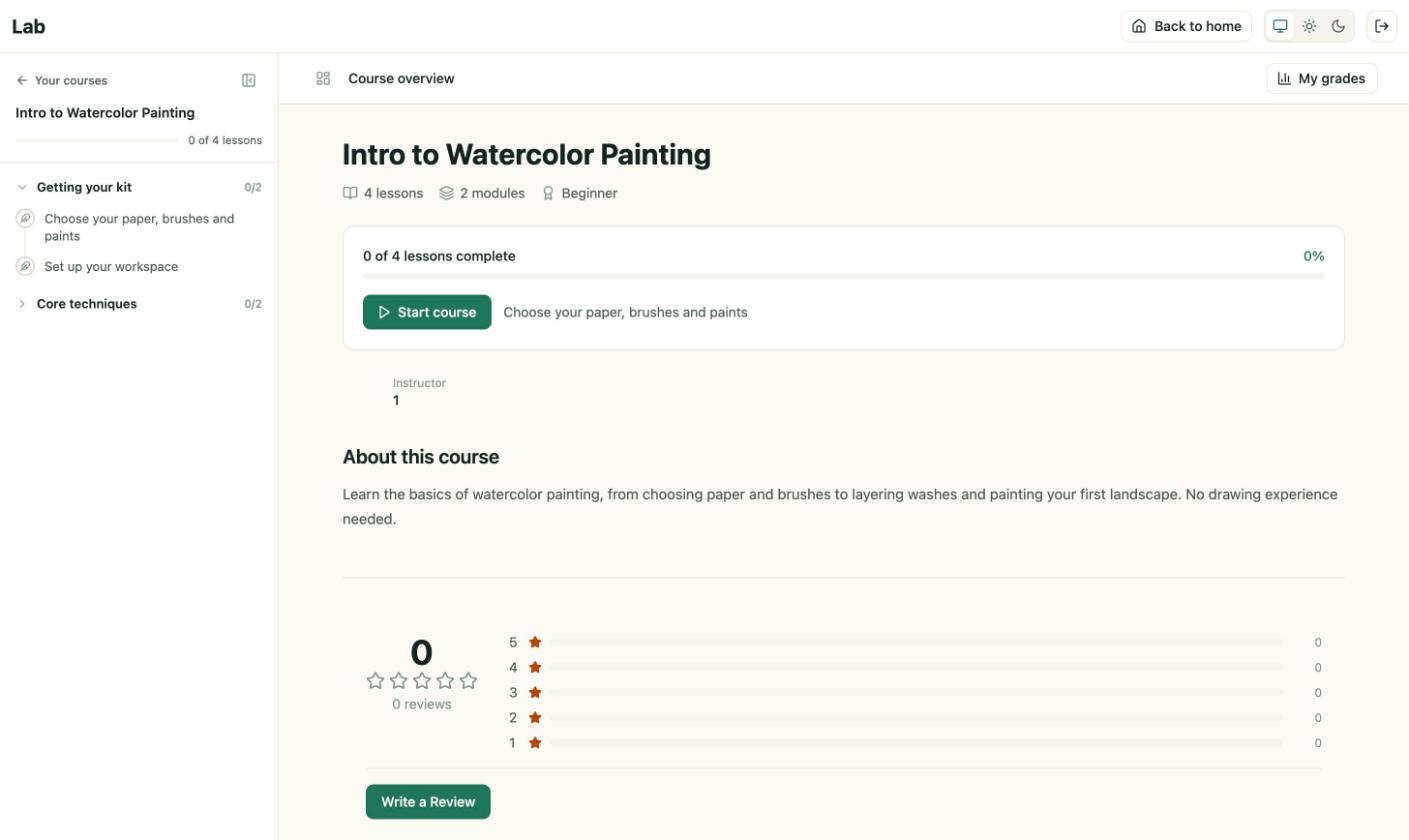
The course overview: lessons complete, Start course and the module list.
- Sidebar. Lists the modules with a count of complete lessons, and each lesson with its icon.
- Progress card. Shows "N of M lessons complete" and a percentage.
- Start course opens the first lesson.
- My grades in the top bar shows the student's results.
- Write a Review appears under the course description.
3. A lesson
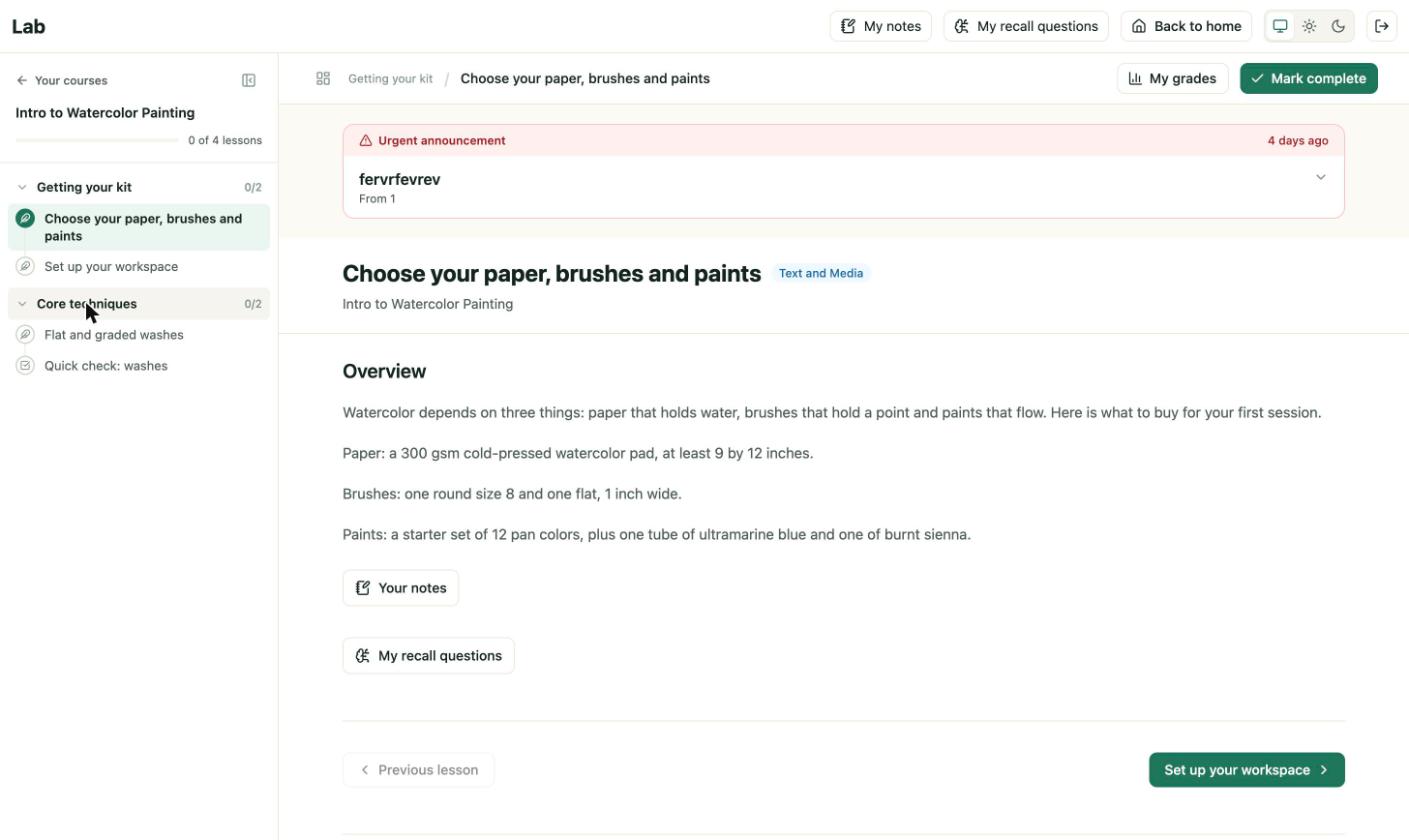
A lesson. The module expands to show each lesson, and the current lesson is highlighted.
Each lesson shows its title, its type badge and its content. Under the content are:
- Your notes, a private note for the lesson.
- My recall questions, the recall items for the course.
- Previous lesson and Next lesson buttons.
- Mark complete at the top right. See Lesson completion for the open issue with this button on the 1.0.0 build.
4. Quizzes
Quizzes open as their own lesson. Students answer each question and submit. Results follow the feedback setting in the quiz. See Create a quiz.
5. Grades and certificates
My grades lists the student's scores. Certificates appear in the student's account when they are issued. See Certificates.