
How to duplicate, unpublish or delete a course in RootWright LMS
You manage a course from its card on the Courses screen. The card has a menu with the actions for that course.
Open the course actions
- Go to RootWright LMS → Courses.
- Find the course. Use the search box to narrow the list.
- On the course card, click the ⋮ button at the bottom right.
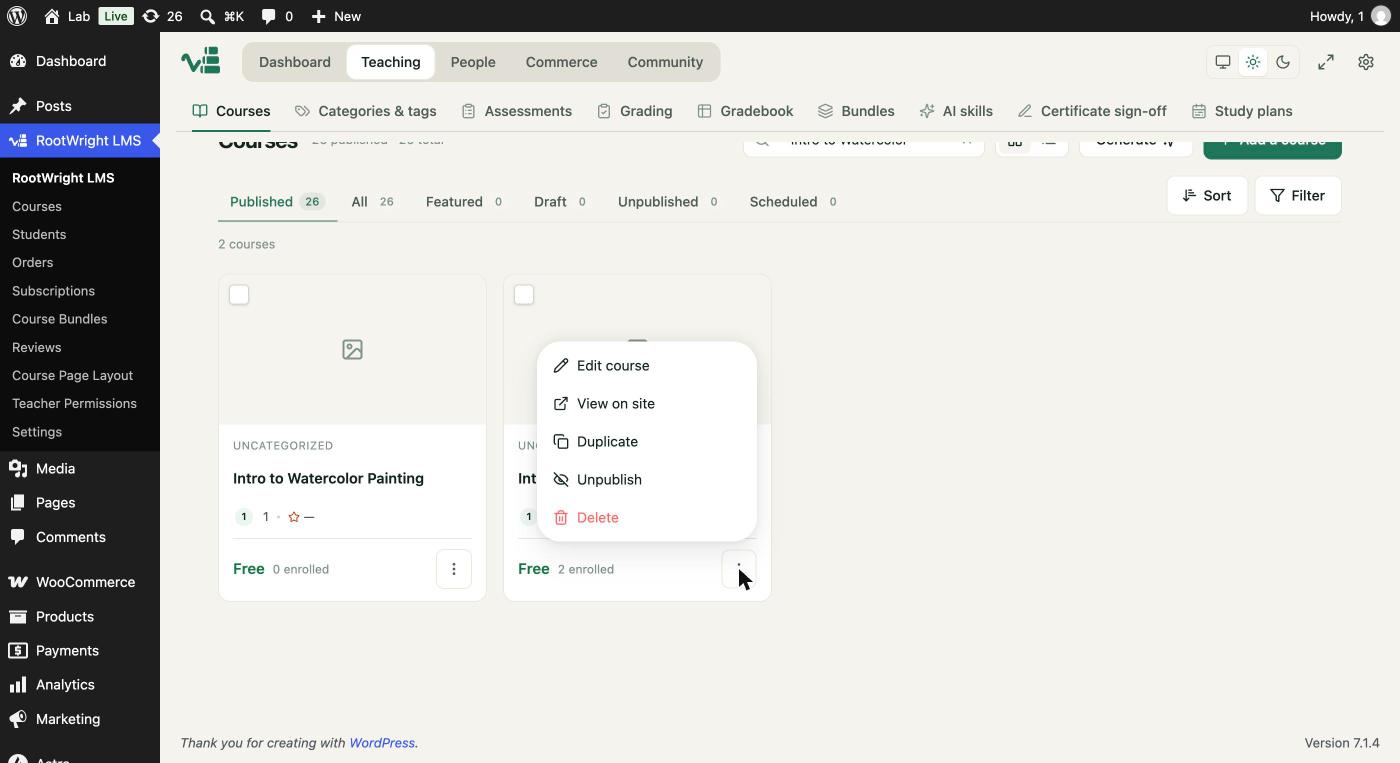
The menu for a published course shows Edit course, View on site, Duplicate, Unpublish and Delete.
The actions
| Action | What it does |
|---|---|
| Edit course | Opens the course in the course builder. |
| View on site | Opens the course page on your site. |
| Duplicate | Makes a copy of the course. |
| Unpublish | Takes a published course off the catalogue. The menu shows this option on a published course. |
| Delete | Deletes the course. It is shown in red. |
What Duplicate copies
Duplicate creates a new course named after the original with " (Copy)" added, for example "Intro to Watercolor Painting (Copy)". The copy is saved as a Draft, so students do not see it until you publish it.
| Copied | Not copied |
|---|---|
| Topics, lessons, quiz questions and answers, and lesson files | Enrollments and student progress |
| Course details, categories and tags | Sales, ratings and review counts |
| Active prices and the course discount | The Featured flag |
| The cover image and intro video |
The person who clicks Duplicate becomes the copy's creator.
Delete a course
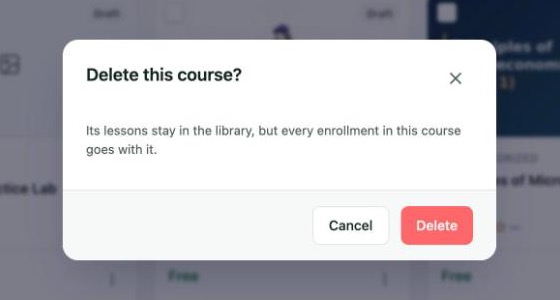
Delete asks "Delete this course?" first. The course's lessons stay in the library, but every enrollment in the course goes with it. Click Delete to confirm, or Cancel.
On a draft course, the menu shows Publish in place of Unpublish.
Find courses by status
Use the Status menu above the course list to show courses by status: Published, All, Featured, Draft, Unpublished and Scheduled. Each option shows how many courses it holds. Find a new copy under Draft.