
Course marketing, listing and learning options in RootWright LMS
Below the main fields on a course's Details section, RootWright LMS has three collapsed groups: Marketing details, Listing and sales and Learning. Click a group's title to open it. Click Save at the bottom of the page to keep your changes, unless the option says it is saved as soon as you change it.
For the main fields, such as the title, description, category and level, see Add a course.
Marketing details
These fields are optional. They are shown on the course page.
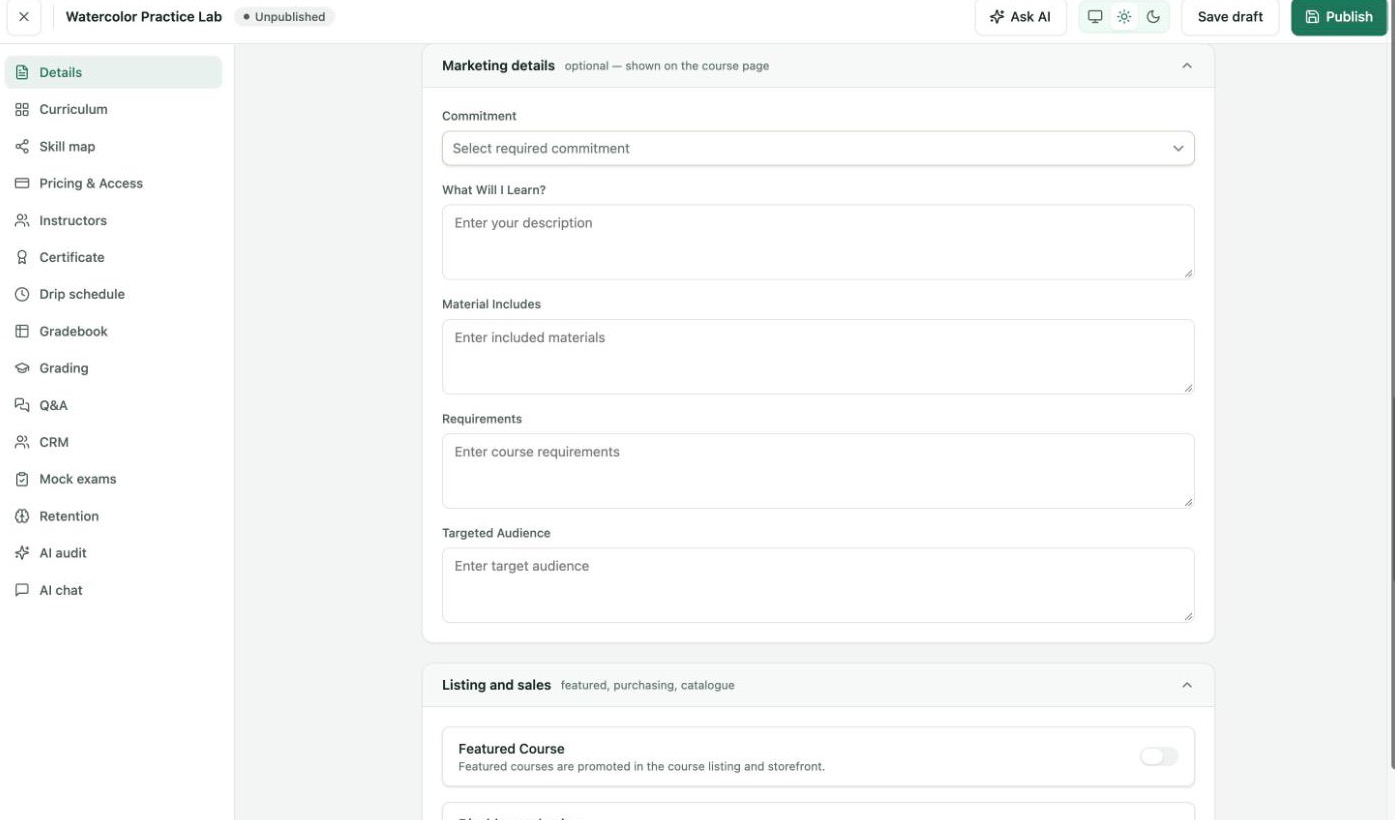
Course builder → Details → Marketing details.
| Field | What it is for |
|---|---|
| Commitment | Part-time, Full-time, Self-paced or Fixed schedule. |
| What Will I Learn? | What students will be able to do by the end. |
| Material Includes | What comes with the course, such as worksheets or videos. |
| Requirements | What students need before they start. |
| Targeted Audience | Who the course is for. |
Listing and sales
| Option | What it does |
|---|---|
| Featured Course | Promotes the course in the course listing and storefront. |
| Disable purchasing | Nobody can buy the course while this is on, and Pricing & Access is closed. |
| Hide from catalogue | The course stays published and keeps its link, but stops appearing in course listings. |
Learning
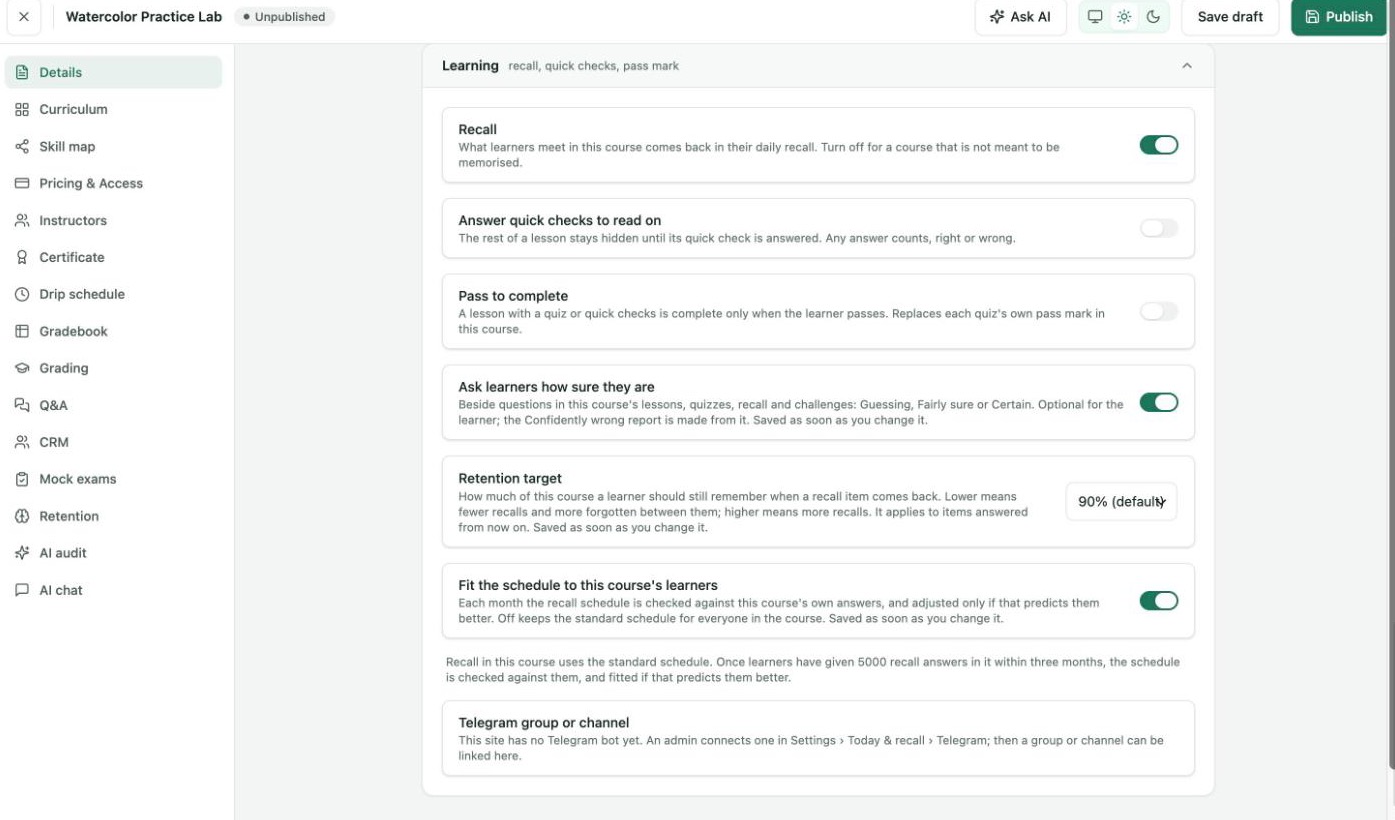
Course builder → Details → Learning. The Telegram card here says no bot is connected yet.
| Option | What it does | Default | Plan |
|---|---|---|---|
| Recall | What learners meet in this course comes back in their daily recall. Turn it off for a course that is not meant to be memorised. See Daily recall. | On | Free |
| Answer quick checks to read on | The rest of a lesson stays hidden until its quick check is answered. Any answer counts, right or wrong. | Off | Free |
| Pass to complete | A lesson with a quiz or quick checks is complete only when the learner passes. When on, a Score needed field appears (default 70%). It replaces each quiz's own pass mark in this course. | Off | Free |
| Ask learners how sure they are | Shows Guessing, Fairly sure or Certain beside questions in this course's lessons, quizzes, recall and challenges. Optional for the learner. The Confidently wrong report is made from it. Saved as soon as you change it. | On | Pro |
| Retention target | How much of this course a learner should still remember when a recall item comes back, from 80% to 95%. Lower means fewer recalls and more forgotten between them. Higher means more recalls. Applies to items answered from now on. Saved as soon as you change it. | 90% | Pro |
| Fit the schedule to this course's learners | Each month the recall schedule is checked against this course's own answers, and changed only if that predicts them better. Off keeps the standard schedule for everyone in the course. Saved as soon as you change it. | On | Pro |
Under Fit the schedule, a note says which schedule the course uses. The schedule is only fitted once learners have given 5,000 recall answers in the course within three months.
Telegram group or channel
Pro
Telegram groups need RootWright LMS Pro and a Telegram bot connected under Settings → Today & recall → Telegram.
You can link a Telegram group or channel of your own to a course, for its learners only. In a group, learners talk together. In a channel, only admins post. Telegram does not let a bot create one, so you pick or create it in Telegram, and the site's bot joins it as an admin.
Until a bot is connected, the card says "This site has no Telegram bot yet." To connect one, go to Settings → Today & recall → Telegram, create a bot with @BotFather in Telegram, paste its Bot token, and click Connect bot.
The steps below are from the plugin code. They were not walked on lab.test, because no Telegram bot is connected there.
- Open the course's Details, then Learning, and find Telegram group or channel.
- Click Connect a group or Connect a channel.
- For a group: pick or create the group in Telegram and add the bot. The link works once, for 10 minutes.
- For a channel: first connect your own Telegram by opening the bot and pressing Start. Then pick your channel in Telegram and add the bot as an admin within 10 minutes.
The card then says "Linked to name. Enrolled learners can ask to join from the course page." Enrolled learners see Join the course group or Join the course channel on the course page, and Telegram lets them in as learners of the course.
To unlink, click Disconnect group or Disconnect channel, then Yes, disconnect. The bot leaves and the course forgets the group. The people in it stay, because it is your group.