
title: "Course builder: modules, lessons and lesson types" description: "Build a RootWright LMS course curriculum: create modules, add lessons, choose a lesson type and reorder items with the course builder." plan: Free + Pro tested_with: RootWright LMS 1.0.0 (Free), 1.0.0 (Pro) last_verified: 2026-10-28
Course builder: modules, lessons and lesson types
The course builder is the Curriculum section of the course editor. Use it to group lessons into modules, add lessons and quizzes, and open each lesson in the lesson builder.
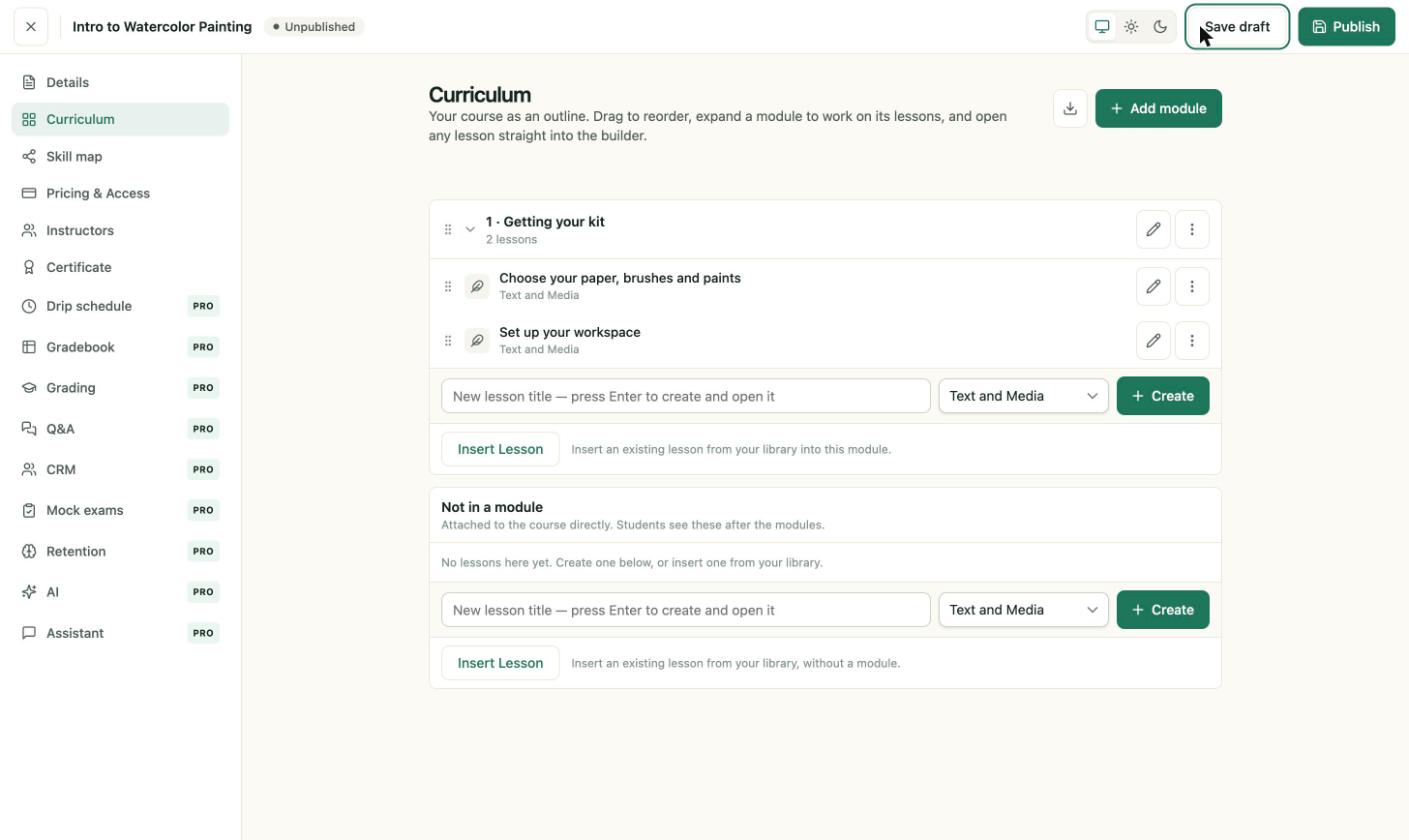
Two modules. Each lesson shows its type under its title.
Modules and lessons
A course has two kinds of items:
- Modules group related lessons. A module has a title and an optional description of up to 255 characters.
- Lessons hold the content. Lessons can sit inside a module or in Not in a module, which students see after the modules.
To add a module, click Add module, enter a Module title, and click Create module.
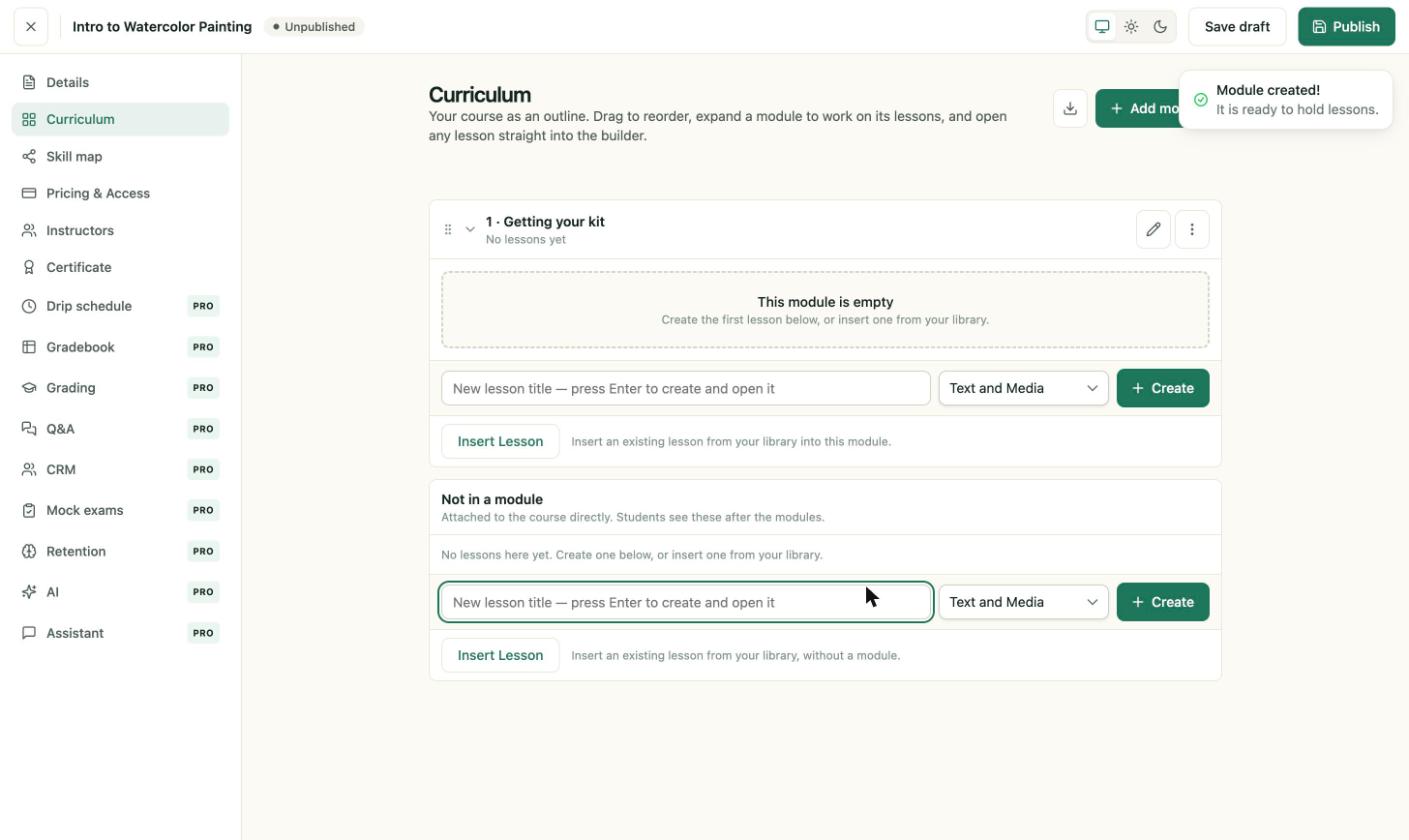
The module appears as "1 · Getting your kit" with the lesson field below it.
Add a lesson
- Choose the lesson type from the dropdown next to the lesson field.
- Type the lesson title.
- Press Enter. The lesson opens in the lesson builder.
Lesson types
| Type | Use it for |
|---|---|
| Text and Media | Written lessons with images and embedded media. |
| Video with Caption | A lesson built around one video. See Video & storage. |
| Quiz | Questions students answer. See Create a quiz. |
| Question and Answer | A lesson where students answer a prompt. |
| Assignment | Work students submit for grading. |
| Exam | An assessment with an exam window. |
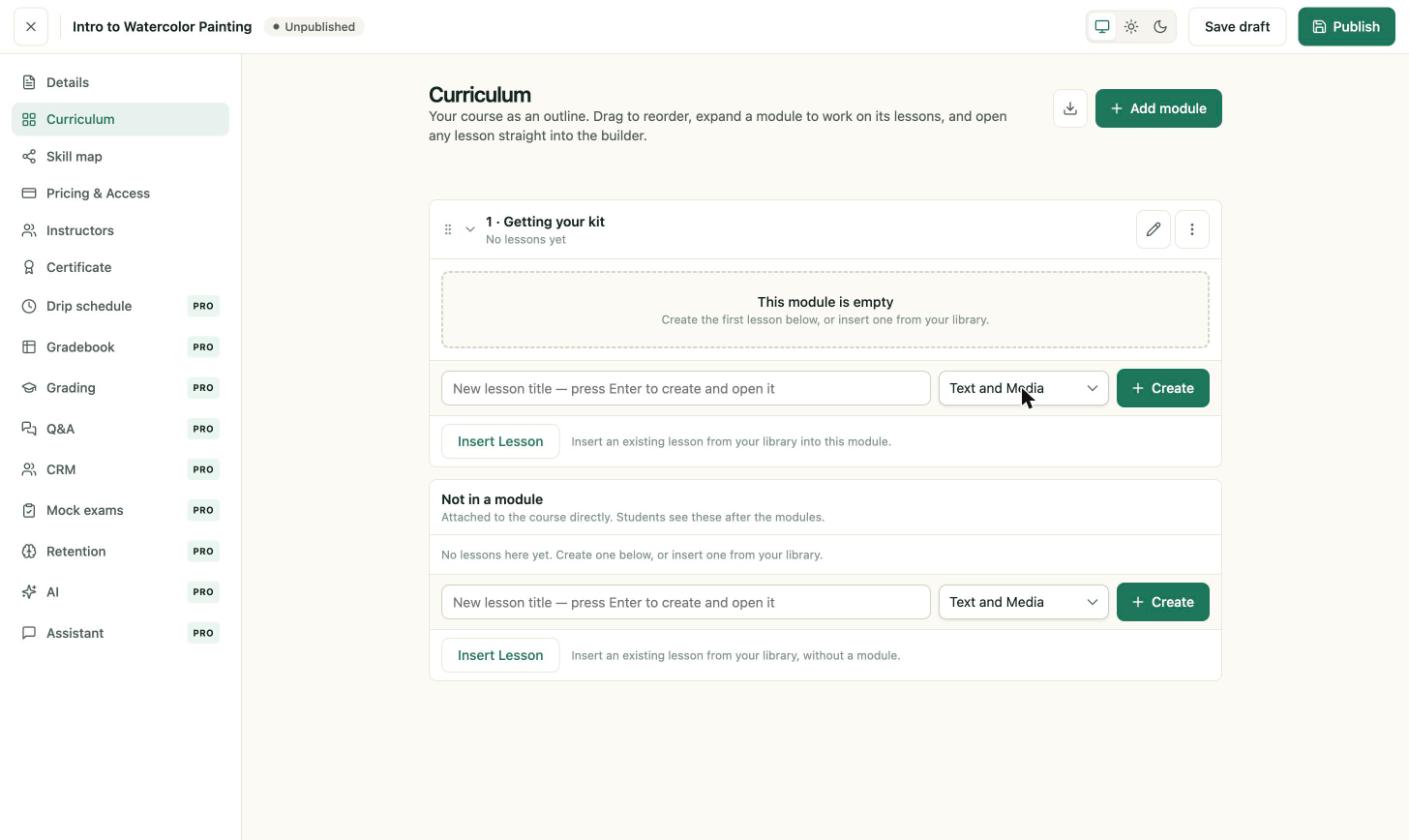
The dropdown shows these six choices in this order.
Reorder and manage items
- Drag a module or lesson by its handle to move it.
- Use the pencil icon to rename a module or open a lesson.
- The ⋮ button on a row opens more actions for that item.
- Insert Lesson adds an existing lesson from your library instead of creating a new one.
The lesson builder
Clicking a lesson opens the lesson builder. It has these controls:
- Lesson Type, Lesson status and Completion mandatory at the top.
- Selling, which decides whether the lesson is included with the course or sold separately.
- Lesson Content, a block editor.
- Blocks for quiz, image, video, file and assignment blocks.
- Recall, for prompt and answer pairs that students review later.
- Settings & summary, for the short description and the lesson thumbnail.
Use Save lesson to save and stay in the builder, and Save & close to save and return to the course.
Note
Lesson status has two values: Locked (the default) and Public Access. The Selling dropdown offers Included with the course, Sold separately — students pay too and Sold separately — free for enrolled students.