
How to send an announcement in RootWright LMS
An announcement shows a message to your learners on their dashboard, at the top of a course, or in a dialog on their next visit. In RootWright LMS, write announcements under Community → Announcements, choose who sees them, and track who read them.
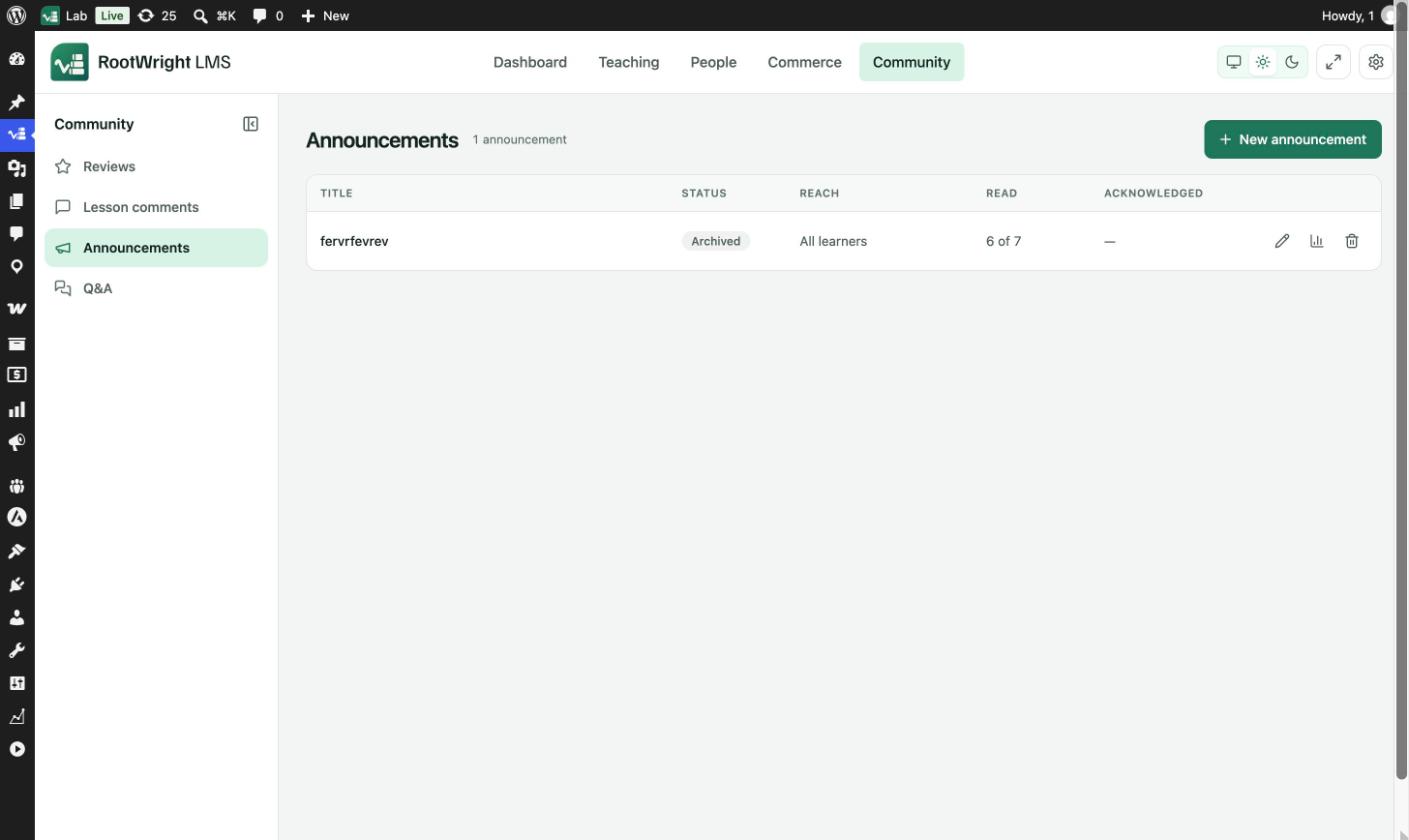
Community → Announcements. Each row shows the status, the reach, and how many learners read and acknowledged it.
Write an announcement
- Go to Community → Announcements and click New announcement.
- Under Message, enter a Title and write the message. Type / to choose a block. Standard, Focus and Full screen change the editor view.
- Under Who sees it, choose Every learner (everyone enrolled in any course) or Only some learners.
- Under When, set Starts and Ends. Leave them empty to start now, or to never end.
- On the right, choose a Priority: Normal, Important or Urgent.
- Under Where, choose where it shows. See below.
- Under Also send by, switch on Email or Telegram to send it outside the site too.
- Click Publish, or Save draft to finish later.
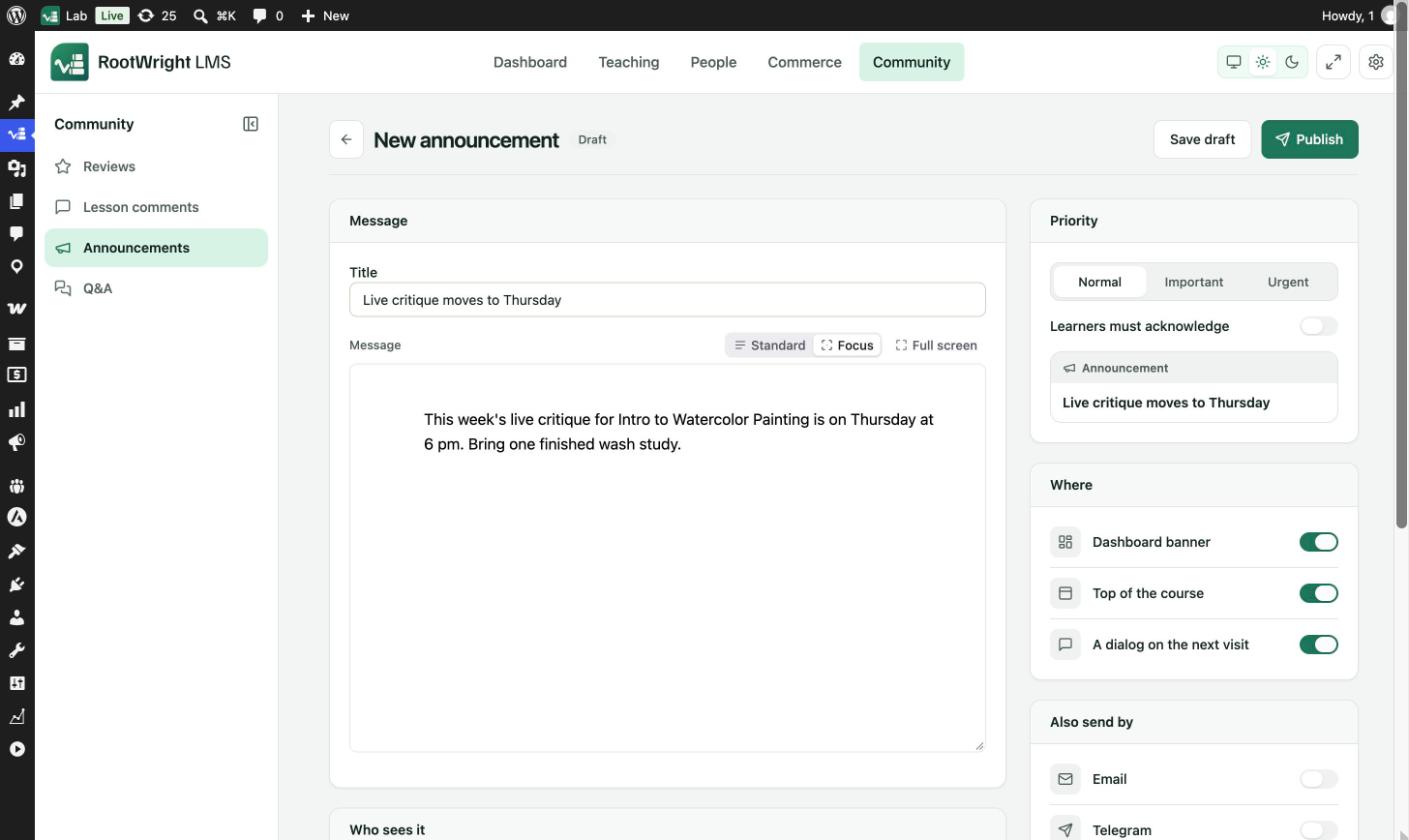
The editor. The Announcement preview on the right shows the title as learners will see it.
Choose who sees it
With Only some learners, open Add condition… and pick one or more conditions:
- Enrolled in any of these courses
- Completed any of these courses
- Course progress between
- Days since enrolment
- Enrolled between
- Finished any of these lessons
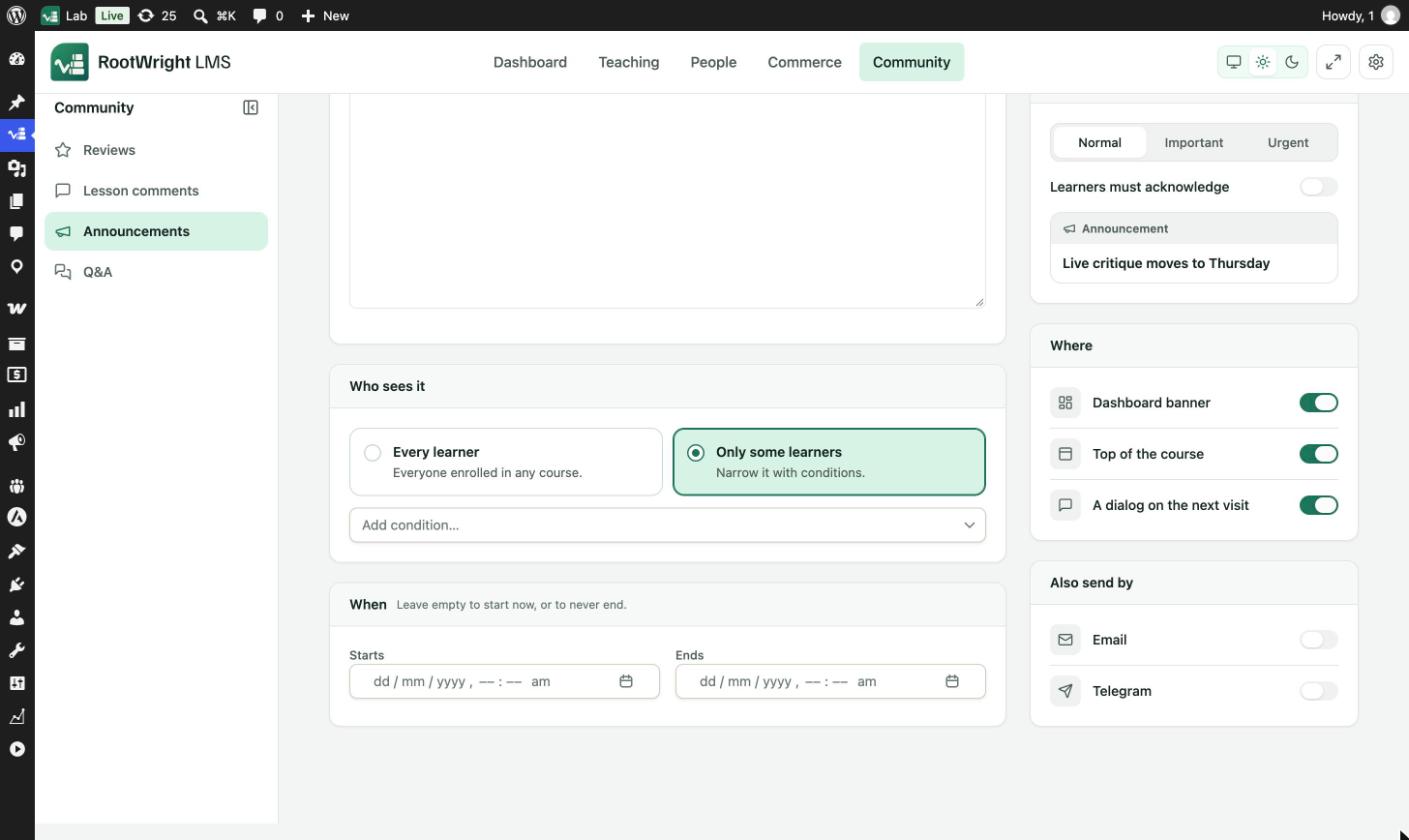
Choose Only some learners, then Add condition… to narrow the audience.
Where it shows
| Option | Shows the announcement |
|---|---|
| Dashboard banner | As a banner on the learner's dashboard. |
| Top of the course | At the top of the course. |
| A dialog on the next visit | In a dialog the next time the learner visits. |
All three are on by default.
Ask learners to acknowledge it
Switch on Learners must acknowledge to ask each learner to confirm they have read it. The list's Acknowledged column counts them.
Track who read it
On the list, click the chart icon on a row to open the Announcement report. It shows Read and Acknowledged totals, for example "6 of 7", and a row for each learner.
Edit, archive or delete
Use the pencil icon to edit an announcement. Archiving keeps it in the list but stops showing it. The trash icon deletes it after asking "Delete this announcement?". It is removed for good.
Related
- Course Q&A
- Email settings
- Daily recall for setting up Telegram.