
How to accept instructor applications in RootWright LMS
RootWright LMS can take applications from people who want to teach. Put the application form on a page, and review what arrives under People → Applications. Admins get an email when a new application comes in.
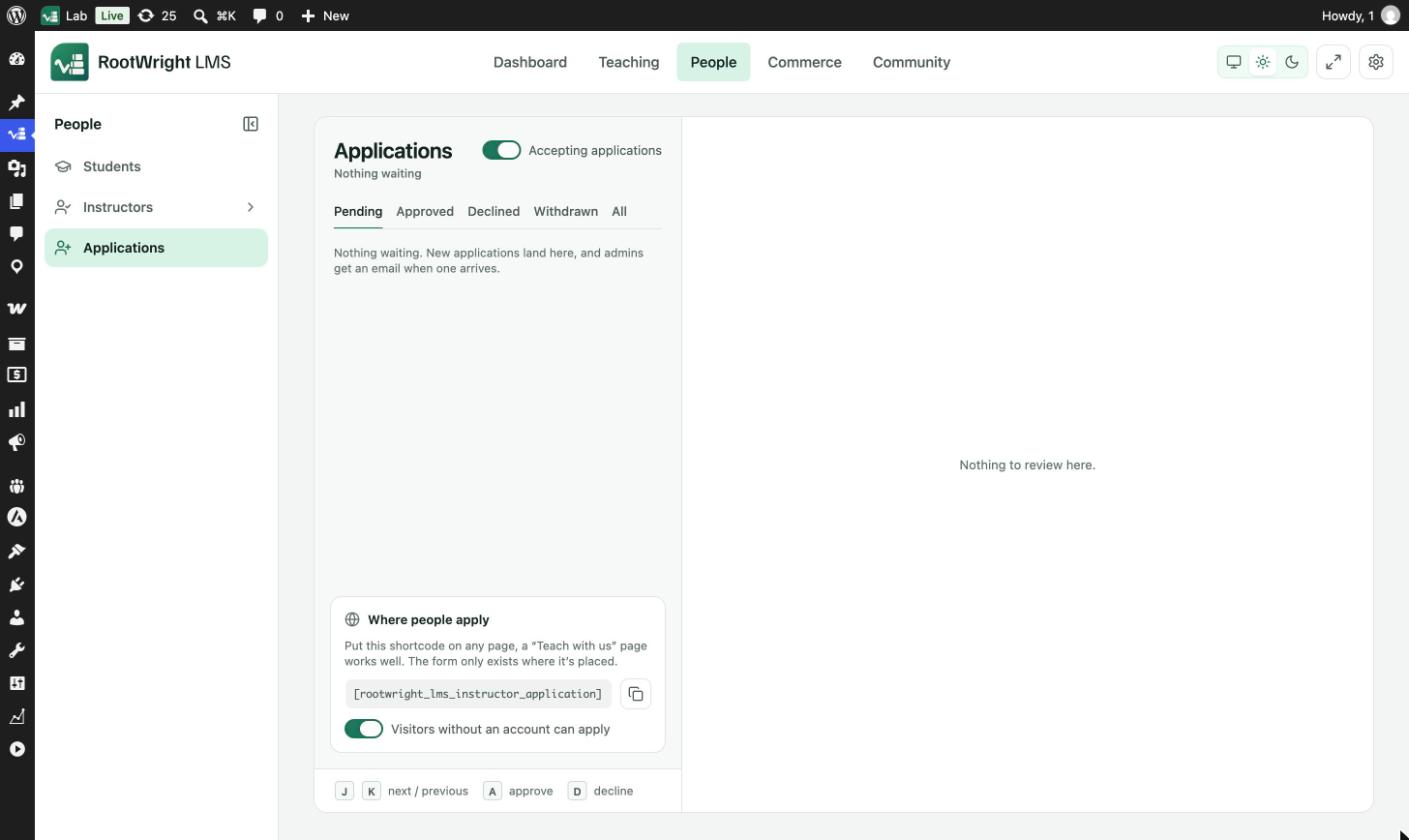
People → Applications. The list is on the left and the selected application opens on the right.
Put the form on a page
- Go to People → Applications.
- Under Where people apply, click the copy icon next to the shortcode
[rootwright_lms_instructor_application]. - Paste it on any page, for example a "Teach with us" page, and publish the page. The form only exists where it is placed.
- Leave Visitors without an account can apply on to let anyone apply. Turn it off to accept applications from signed-in users only.
Switch off Accepting applications at the top of the inbox to stop taking new ones.
Review applications
- Go to People → Applications. The Pending tab lists new applications.
- Click an application to open it.
- To accept, click Approve as instructor. You can add a note, which goes in the approval email.
- To refuse, click Decline…, give a reason, and click Decline and email the applicant. They receive your reason by email.
Keyboard shortcuts: J and K move to the next and previous application, A approves and D declines.
The Approved, Declined, Withdrawn and All tabs list past applications. An applicant can withdraw their own application.
Applicants and admins are emailed at each step. Edit the emails under Settings → Emails → Templates, in the Instructor applications group.