
How to connect Google Meet to RootWright LMS
Google Meet runs live classes inside a lesson. RootWright LMS Pro creates a Meet link through Google Calendar, using the Google account you connect. Students join from the lesson.
Pro
Live meetings require RootWright LMS Pro.
Before you start
- A Google Cloud project with the Google Calendar API turned on.
- A Google Cloud OAuth client of type Web application.
- A Google account that will host the meetings. It must be able to create Google Meet video calls.
- A public website address. Google does not accept redirect addresses on
.testor.localsites. See the warning below.
Local sites
Google refuses redirect URIs on .test and .local hosts. Connect Google Meet on a site with a public domain. A local test site cannot complete the connection.
Create the OAuth client
- In the Google Cloud Console, open your project and turn on the Google Calendar API.
- Open Google Auth Platform (or OAuth consent screen, in older projects) and set up the consent screen. Choose Internal only if the account belongs to a Google Workspace organization and the app is for people in that organization. Otherwise, choose External.
- If the consent screen is External, publish the app to Production. Google expires refresh tokens for apps left in Testing after seven days, and Meet links then stop working until you connect again.
- Create an OAuth client ID of type Web application.
- Copy the Client ID and Client secret.
You can use the same OAuth client for YouTube and Google Drive. You still enter the Client ID and secret on each screen where you use them.
Connect the account
- In WordPress, go to Settings → Integrations → Meetings, then click Google Meet in the sidebar.
- Click Copy next to the Redirect URI. It looks like
https://example.com/wp-json/rootwright-lms/v2/integrations/google/callback, with your own domain. It is generated from your site address, so copy it again if you move the site. - In Google Cloud Console, open the OAuth client and add the copied address under Authorized redirect URIs. Click Save.
- Back in WordPress, paste the Client ID and Client secret into the fields on the Google Meet screen.
- Click Save.
- Click Connect Google account. Google opens its sign-in page. Choose the account that will host the meetings.
- On Google's consent screen, approve access to Google Calendar events. RootWright LMS asks for only this permission,
calendar.events. - Google returns you to Settings → Integrations → Meetings. Click Google Meet in the sidebar and check that Enable Google Meet is switched on.
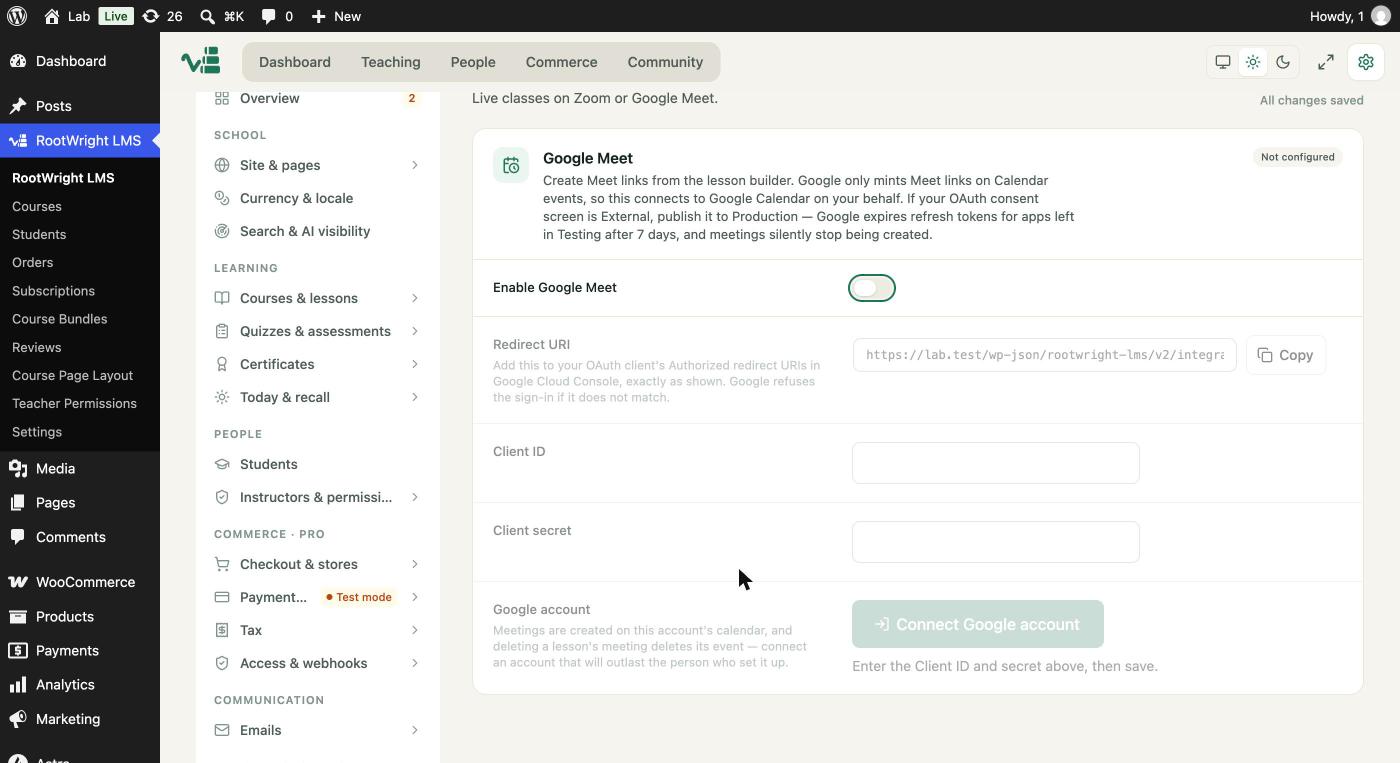
Settings → Integrations → Meetings → Google Meet. Connect Google account stays disabled until you save the Client ID and Client secret.
Screenshot to add
What: Google's consent screen with the calendar events permission listed.
How to get there: Click Connect Google account on a site with a public domain and capture the Google screen that lists the Calendar events permission. Crop out your email address.
Save as: docs/public/images/integrations/google-meet-02-consent.jpg (1440×900 window, JPG)
Then: replace this box with: 
Screenshot to add
What: The Google Meet card after connecting, with Enable Google Meet switched on.
How to get there: Settings → Integrations → Meetings → Google Meet, once Google returns you to the site. Enable Google Meet should be on.
Save as: docs/public/images/integrations/google-meet-03-connected.jpg (1440×900 window, JPG)
Then: replace this box with: 
RootWright LMS stores the refresh token that Google returns, as a secret setting.
Choose the account carefully
The Google account section says meetings are created on this account's calendar, and deleting a meeting deletes its calendar event. Connect an account that will still be there after the person who set up the site has left.
Disconnect the account
Click Disconnect on the Google Meet card. RootWright LMS revokes the token at Google and removes it from your site. Google Meet then stops working in lessons until you connect again. Meetings that already exist in Google Calendar stay there. Delete them from Google Calendar if you no longer need them.
Screenshot to add
What: The Google Meet card with the Disconnect button.
How to get there: Same screen, cropped to the Google account section so the Disconnect button is clear. Crop out the account email.
Save as: docs/public/images/integrations/google-meet-04-disconnect.jpg (1440×900 window, JPG)
Then: replace this box with: 
Add a Meet link to a lesson
- Open the lesson in the lesson builder. Click Add a block, then Live Meeting.
- Choose Google Meet as the provider. It appears only when the connection is complete and Enable Google Meet is switched on.
- Enter the topic, the start time and the duration. Google keeps the first 250 characters of the topic. RootWright LMS sends the start time in UTC. The duration is 60 minutes by default.
- Leave the block in place. The meeting is attached to the lesson as soon as it is created, so you do not need to click Save lesson for it.
Screenshot to add
What: The Live Meeting block in the lesson builder with Google Meet selected.
How to get there: Open a lesson in the lesson builder → Add a block → Live Meeting → choose Google Meet.
Save as: docs/public/images/integrations/google-meet-05-live-meeting-block.jpg (1440×900 window, JPG)
Then: replace this box with: 
When you add the meeting, RootWright LMS creates an event on the primary calendar of the connected account and attaches a Google Meet video call to it. The lesson then shows the Meet link to students. RootWright LMS does not invite students to the calendar event. Students join from the lesson.
Each lesson holds one meeting. To change it, delete the meeting first, then create a new one.
Delete a meeting
Delete the meeting from the Live Meeting block in the lesson builder.
- RootWright LMS deletes the calendar event. Google then retires the Meet link.
- If Google refuses the delete, RootWright LMS still removes the meeting from the lesson. The calendar event stays in Google Calendar. Delete it there too.
- Deleting a lesson removes the meeting from the lesson only. It does not delete the calendar event. Delete the meeting from the lesson before you delete the lesson.
Who can join
Under Settings → Integrations → Meetings → Google Meet, Who can join sets the default for new Meet links. A lesson can change it under Meeting options in the Live Meeting block.
| Option | What happens |
|---|---|
| Enrolled learners go straight in | Each learner goes on the event's guest list the first time they press Join, hidden from the other guests and with no invitation email. If they are signed in to Google with the email they use on your site, they go straight in. Anyone else asks to join and the host decides. |
| Everyone asks to join | No one is added to the guest list. The host lets each person in. |
Recording: the host starts it from inside Meet, on Google Workspace plans that include recording. The settings screen says automatic recording and recordings in the lesson come in version 1.0.1.
Meeting settings the plugin sets
| Setting | Value |
|---|---|
| Event time zone | UTC |
| Conference | Google Meet video call, created with the event |
| Calendar | The primary calendar of the connected account |
| Invitations | None. Students join from the lesson. |
Messages you may see
- "Add the Client ID and Client secret first, then save." Paste both values into the Google Meet screen, click Save, then click Connect Google account again.
- "No meeting provider is configured. An administrator can connect Zoom or Google Meet under RootWright LMS → Settings → Integrations." The Live Meeting block shows this notice until Google Meet is connected and enabled.
- "Google authentication failed — check the Client ID, Secret and refresh token in Settings → Integrations." The saved connection no longer works. Click Disconnect, then Connect Google account again.
- "Could not create the Google Meet: …" Google returned an error. The text after the colon is Google's own message. Check that the Google Calendar API is turned on and that the connected account is still active.
- "Google did not return a Meet link." Try again. If it happens every time, check that the connected account can create Google Meet calls.
- "That meeting provider is not configured on this site." Connect the Google account and switch on Enable Google Meet.
- Google shows "redirect_uri_mismatch". The address in the Google Cloud Console does not match the Redirect URI on the Meetings screen. Copy the address again and save it in Google, character for character.
- The connection returns to the screen without connecting. Google did not return a refresh token. In your Google Account, remove RootWright LMS from third-party access, then connect again.
Related
- Zoom for the other live class provider.
- YouTube for YouTube lesson videos. It uses its own Client ID and secret settings.
- Video & storage for lesson videos.