
How to design the course page layout in RootWright LMS
Every course page on your site shares one layout. In RootWright LMS you change it once and every course page follows. Where you edit it depends on your theme:
- Block theme (such as Twenty Twenty-Five): edit the Single Course template in Appearance → Editor → Templates.
- Classic theme (such as Astra): go to RootWright LMS → Course Page Layout.
For what the course page shows, see The course page students see.
On a block theme
RootWright LMS adds its own templates to the Site Editor. They are listed under RootWright LMS in Appearance → Editor → Templates.
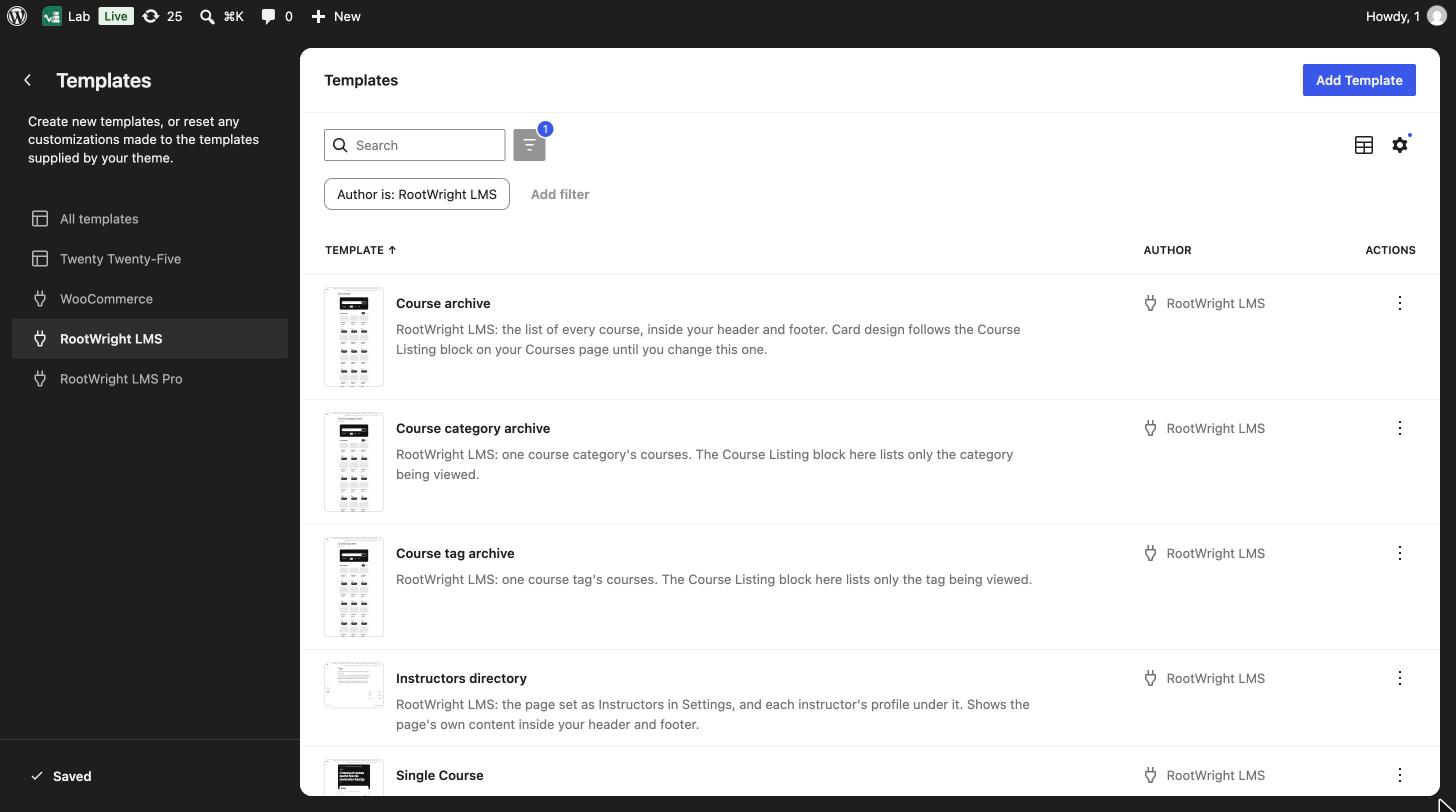
Appearance → Editor → Templates → RootWright LMS, on Twenty Twenty-Five.
- Go to Appearance → Editor, then Templates.
- Click RootWright LMS in the left list.
- Click Single Course.
- Edit the template. Select the course block to change its settings in the sidebar.
- Click Save.
Your changes apply to every course page at once.
| Template | What it shows |
|---|---|
| Single Course | The page a visitor lands on after clicking a course. |
| Course archive | The list of every course, inside your header and footer. Its cards follow the Course Listing block on your Courses page until you change this template. |
| Course category archive | One course category's courses. |
| Course tag archive | One course tag's courses. |
| Instructors directory | The page set as Instructors in Settings, and each instructor's profile under it. |
| Students directory | The page set as Students in Settings, and each learner's profile under it. |
| Verify a certificate | The page set as Verify a certificate in Settings, where anyone checks a credential code. |
With Pro, a Checkout template appears under RootWright LMS Pro.
On a block theme, the Course Page Layout menu item is hidden, because the Site Editor template is used instead.
On a classic theme
Classic themes have no Site Editor, so RootWright LMS keeps the layout in a hidden page you edit in the normal block editor.
- Go to RootWright LMS → Course Page Layout. You need to be able to edit pages.
- The first time, click Set up the course page layout. This creates the layout. Nothing is created until you click it.
- The block editor opens with the Single Course block. Select it to change its settings in the sidebar.
- Click Save.

RootWright LMS → Course Page Layout on a classic theme, before the first setup.
After the first time, Course Page Layout opens the editor straight away.
The Single Course block settings include the layout, the sidebar position, the heading level, and whether to show the curriculum, description and instructor. See Shortcodes and blocks.