
The Courses screen in RootWright LMS
The Courses screen lists every course on your site. Open it from RootWright LMS → Courses, or from the Teaching tab. Use it to find a course, see its status and enrollment, and start a new one.
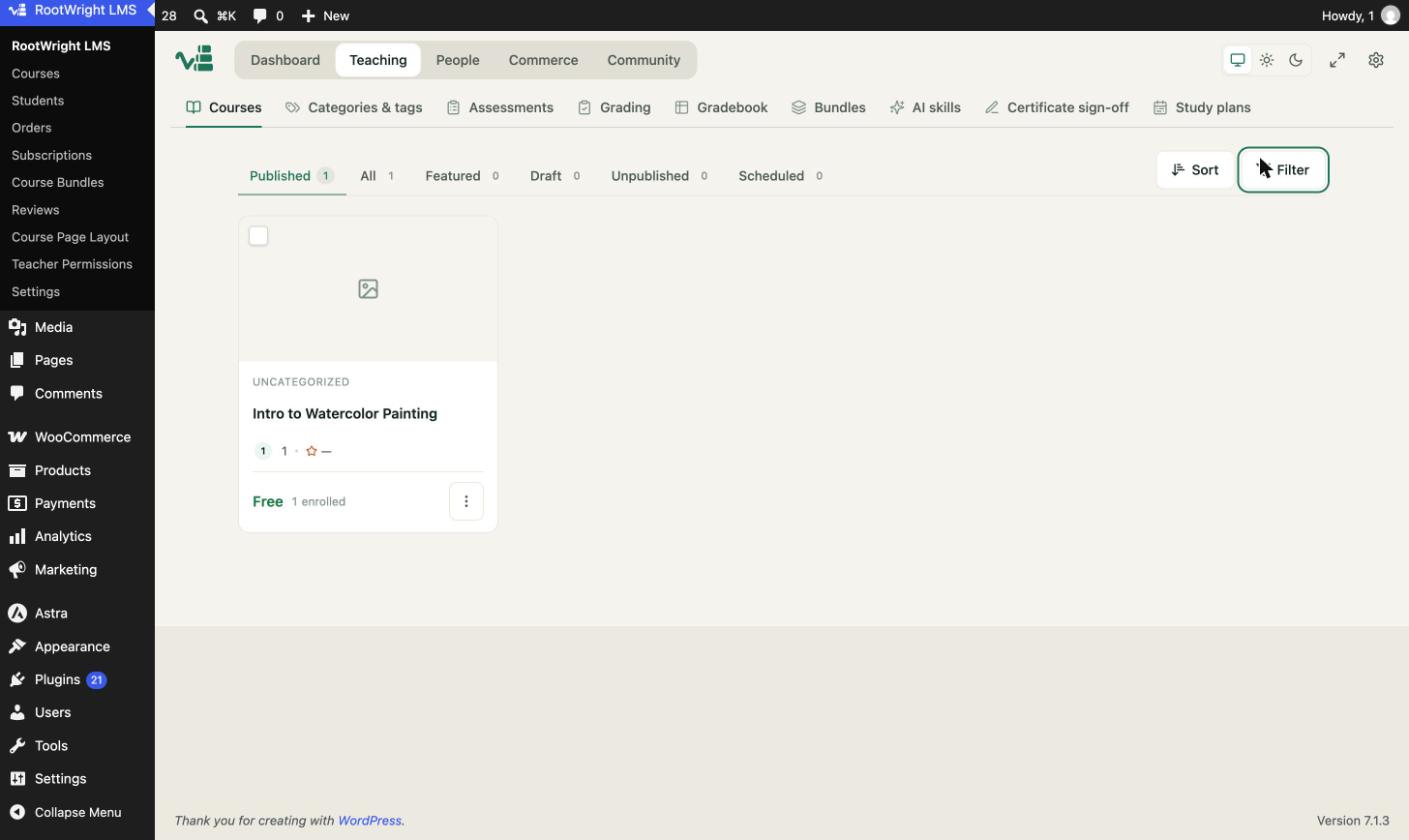
The Courses screen in grid view, with status tabs above the course cards.
Parts of the screen
- Heading and count. The count shows published courses and the total, for example "5 published · 7 total".
- Search courses. Type part of a course title to filter the list.
- Grid and list view. The two icons next to search switch between cards and a table.
- Generate. Opens the AI course generator (Pro). See Generate a course with AI.
- Add a course. Opens the course editor. See Add a course.
- Sort and Filter. Change the order and narrow the list.
Status tabs
| Tab | Shows |
|---|---|
| Published | Courses visible in the catalog. |
| All | Every course, whatever its status. |
| Featured | Courses marked as featured. |
| Draft | Courses saved but not published. |
| Unpublished | Courses taken down after publishing. |
| Scheduled | Courses set to publish at a later date. |
Each tab shows a count, so you can see at a glance how many courses are in each state.
Each course card
Each card shows the category, the course title, the instructor, the price and the enrollment count. Price reads Free, a price, or Not available when the course is not for sale.
Click the ⋮ button on a card to open Course actions. See Duplicate, draft or delete a course.
Next steps
- Add a course.
- Course categories and course tags to organize the catalog.