
AI settings in RootWright LMS
All AI settings in RootWright LMS Pro are under Settings → Integrations → AI. The sidebar lists seven sections: Connection, Cost & load, Automations, Images, Prompts, Usage this month and Agent access. Changes save on their own, and the page says "All changes saved".
Pro
AI features need RootWright LMS Pro and a connected provider.
| Section | What it covers | Page |
|---|---|---|
| Connection | Provider, API key, model, model per feature. | Connect your AI provider |
| Cost & load | Monthly token budget, per-person limits, how many jobs run at once, thinking. | Host limits and Cost & load |
| Automations | AI work that runs without anyone pressing a button. | Below |
| Images | AI course covers. | Below |
| Prompts | The instructions each AI feature starts from. | Below |
| Usage this month | What AI spent, by feature, model and person. | Below |
| Agent access | Let Claude or another MCP client work with your courses. | Agent access |
Automations
Automations are AI work that happens on its own. Each one spends tokens from the monthly budget. All are off by default.
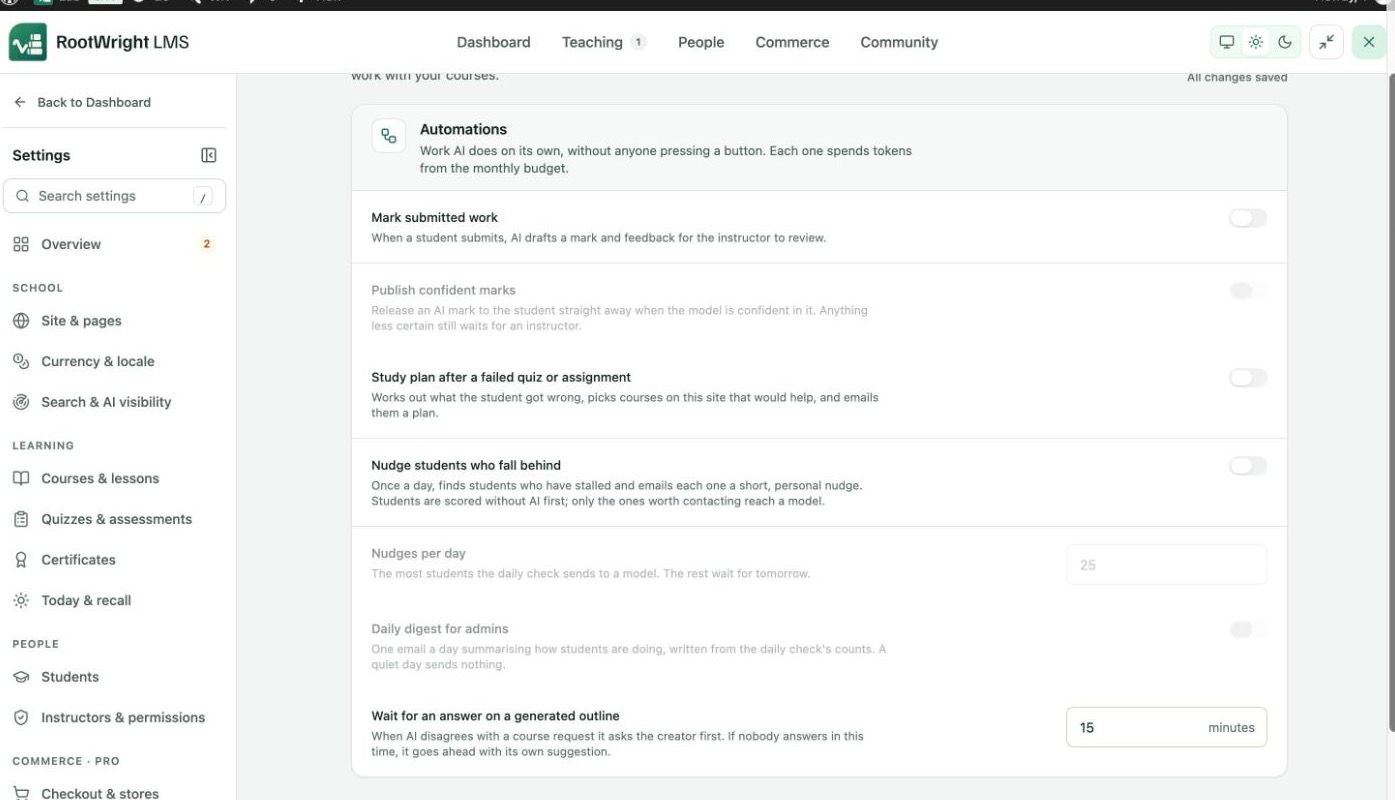
Settings → Integrations → AI → Automations.
| Setting | What it does |
|---|---|
| Mark submitted work | When a student submits, AI drafts a mark and feedback for the instructor to review. See Assignments. |
| Publish confident marks | Releases an AI mark to the student straight away when the model is confident in it. Anything less certain still waits for an instructor. Available once Mark submitted work is on. |
| Study plan after a failed quiz or assignment | Works out what the student got wrong, picks courses on this site that would help, and emails them a plan. |
| Nudge students who fall behind | Once a day, finds students who have stalled and emails each one a short, personal nudge. Students are scored without AI first, and only the ones worth contacting reach a model. |
| Nudges per day | The most students the daily check sends to a model. The rest wait for tomorrow. Default 25. |
| Daily digest for admins | One email a day summarising how students are doing, written from the daily check's counts. A quiet day sends nothing. |
| Wait for an answer on a generated outline | When AI disagrees with a course request, it asks the creator first. If nobody answers in this time, it goes ahead with its own suggestion. Default 15 minutes. |
Images
AI can make course covers. Images use their own provider, separate from the text provider.
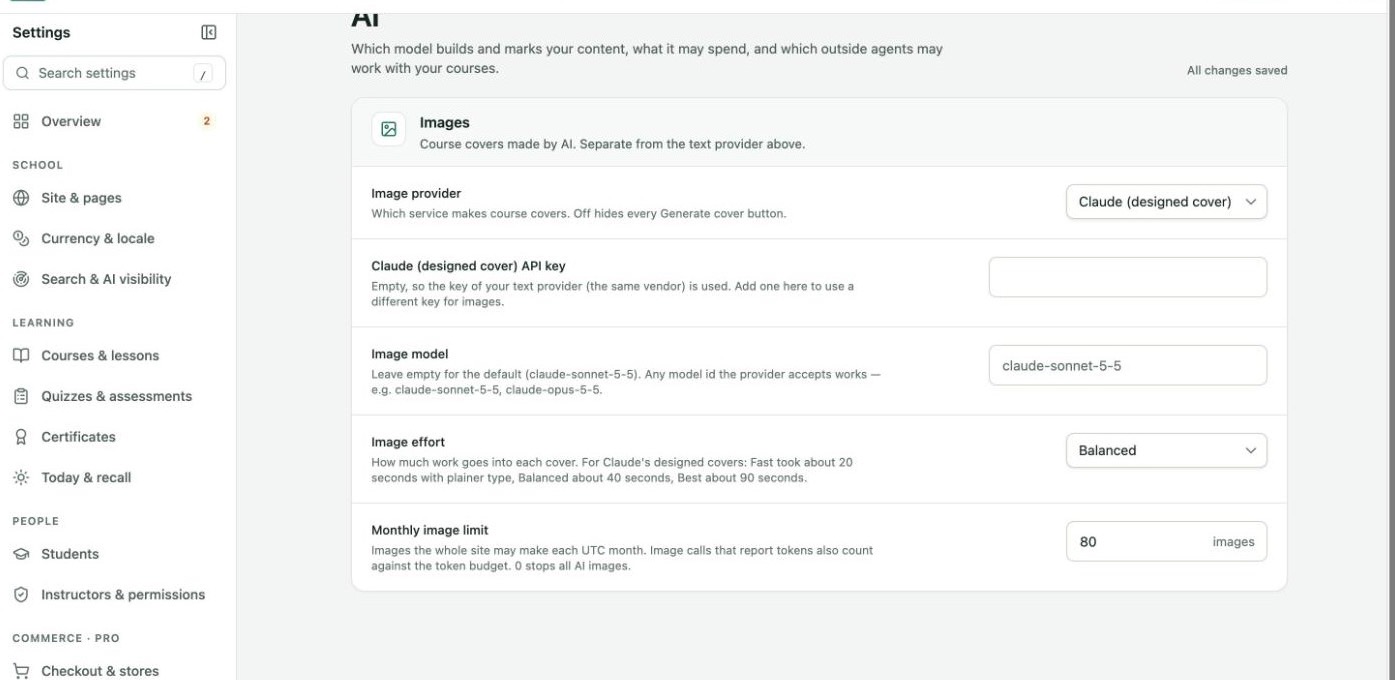
Settings → Integrations → AI → Images.
| Setting | What it does |
|---|---|
| Image provider | Off, WordPress AI, OpenAI (GPT Image), Z.ai (GLM Image) or Claude (designed cover). Off hides every Generate cover button. A provider marked "(not ready)" needs a key or setup first. |
| API key | Leave it empty to use your text provider's key, when it is the same vendor. Add one to use a different key for images. |
| Image model | Leave it empty for the default. Any model ID the provider accepts works. |
| Image effort | Fast, Balanced or Best. For Claude's designed covers, Fast took about 20 seconds with plainer type, Balanced about 40 seconds, and Best about 90 seconds. |
| Monthly image limit | Images the whole site may make each UTC month. Default 80. Image calls that report tokens also count against the token budget. 0 stops all AI images. |
Prompts
Each AI feature starts from a prompt you can reword for your site. The reply format is fixed separately, so a change here cannot break a feature. AI skills still apply on top.
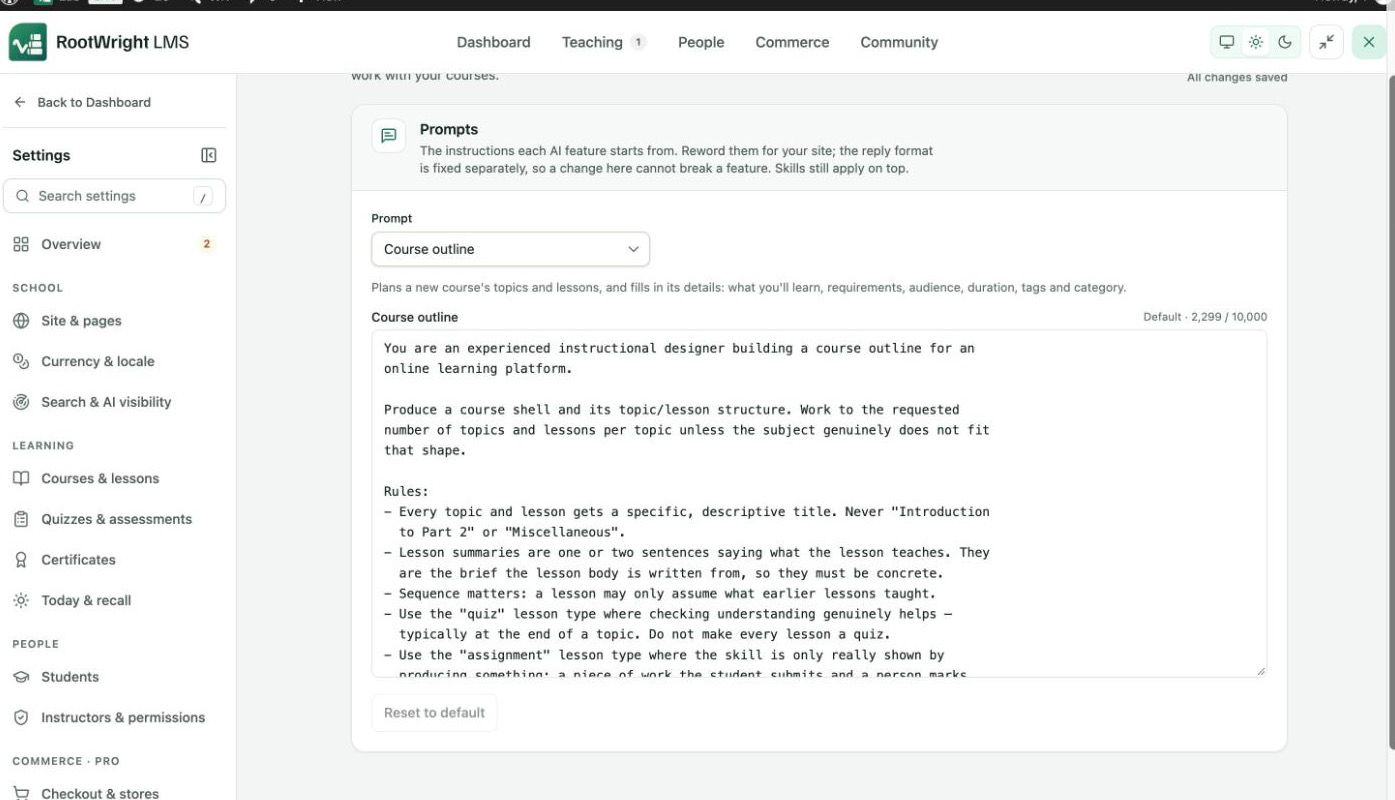
Settings → Integrations → AI → Prompts. The counter shows the prompt's length, up to 10,000 characters.
- Choose a feature in Prompt: Course outline, Lesson writer, Course exam, Improve in bulk, Agent mode, AI chat, Course audit, Marking, Study recommendations, Progress nudge or Admin digest.
- Edit the text in the box. A line under the menu says what that prompt is for.
- To undo your changes, click Reset to default.
Usage this month
Usage this month shows what AI has spent since the first of the month, in UTC, the same window the budget uses.
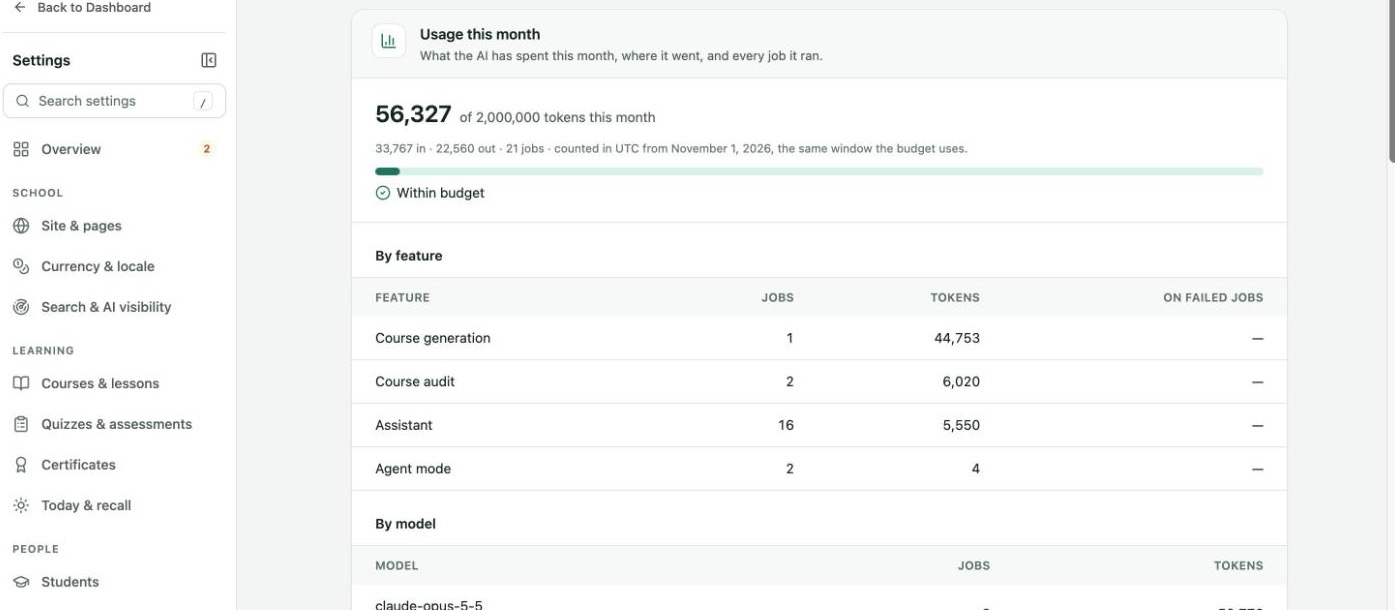
Tokens used against the monthly budget, then the totals by feature.
- Total: tokens used out of the Monthly token budget, split into tokens in and out, with the number of jobs, and "Within budget" while there is room left.
- By feature: jobs and tokens for each feature, such as Course generation, Course audit, Assistant and Agent mode, and tokens spent on failed jobs.
- By model: jobs and tokens for each model and provider.
- By person: tokens and images for each user.
- History: every job, with its time, feature, course, model, tokens and status.