
How to drip course content in RootWright LMS
Drip opens a course's lessons over time instead of all at once. In RootWright LMS Pro, set it up in the course builder under Drip schedule. Pick a starting pattern, adjust any item, and press Update to save it with the course.
Pro
The drip schedule is part of RootWright LMS Pro.
Turn on drip
- Open the course in the course builder and click Drip schedule in the left menu.
- On the Plan tab, under Start from, choose a pattern. The options are described below.
- Adjust the pattern's settings. For A module a week, set the days between modules and whether Lessons inside a module open all together or one a day. The preview lists each module with the date it opens.
- Click Turn on drip. It sets a rule on every item, and you can change any of them on the plan.
- Click Update at the top of the builder. Nothing reaches students until you do.
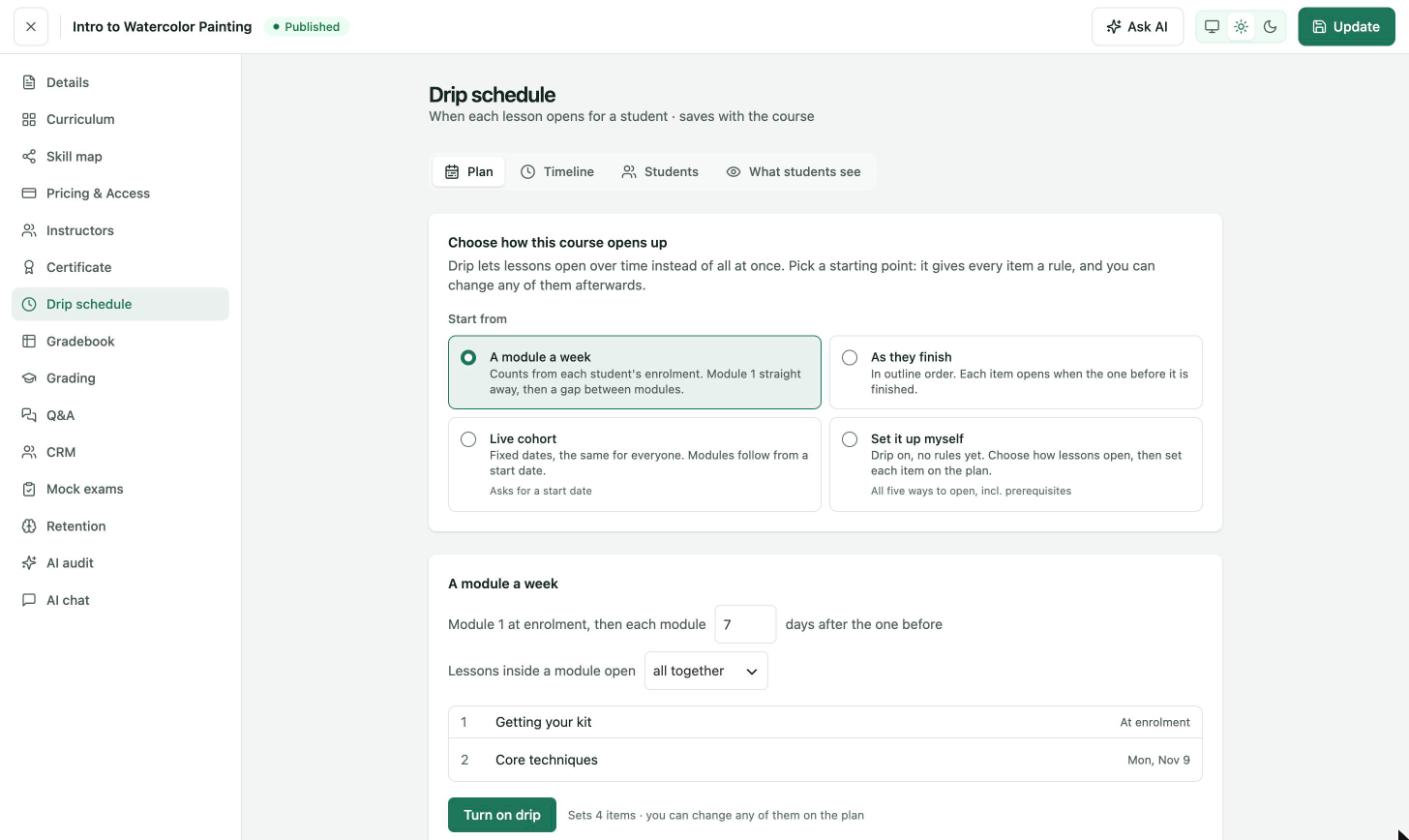
Course builder → Drip schedule → Plan. The preview shows Module 1 at enrolment and Module 2 seven days later.
Starting patterns
| Pattern | How it opens lessons |
|---|---|
| A module a week | Counts from each student's enrolment. Module 1 opens straight away, then there is a gap between modules. |
| As they finish | In outline order. Each item opens when the one before it is finished. |
| Live cohort | Fixed dates, the same for everyone. Modules follow from a start date, which it asks for. |
| Set it up myself | Drip on, with no rules yet. You choose how each item opens. |
Rules for each item
Every item on the plan has one of five rules:
| Rule | Opens the item |
|---|---|
| On fixed dates | On a set date and time. |
| After enrolment | A number of minutes, hours, days or weeks after the student enrolled. |
| In order | When the item before it is finished. |
| After prerequisites | When the chosen items are completed. Choose ALL must be completed or ANY one completed. |
| Prerequisites + wait | A set time after the prerequisites are completed. |
The other tabs
- Timeline shows when each item opens. While drip is off it reads "Drip is off — every item opens the moment someone enrols."
- Students shows where each student is. Search for a student to see each item as Open or locked, open an item early, or use Keep locked to hold one back for that student. Overrides work straight away, not on Update. A lock beats every rule, and when it ends the rule takes over again.
- What students see holds the student-facing options below.
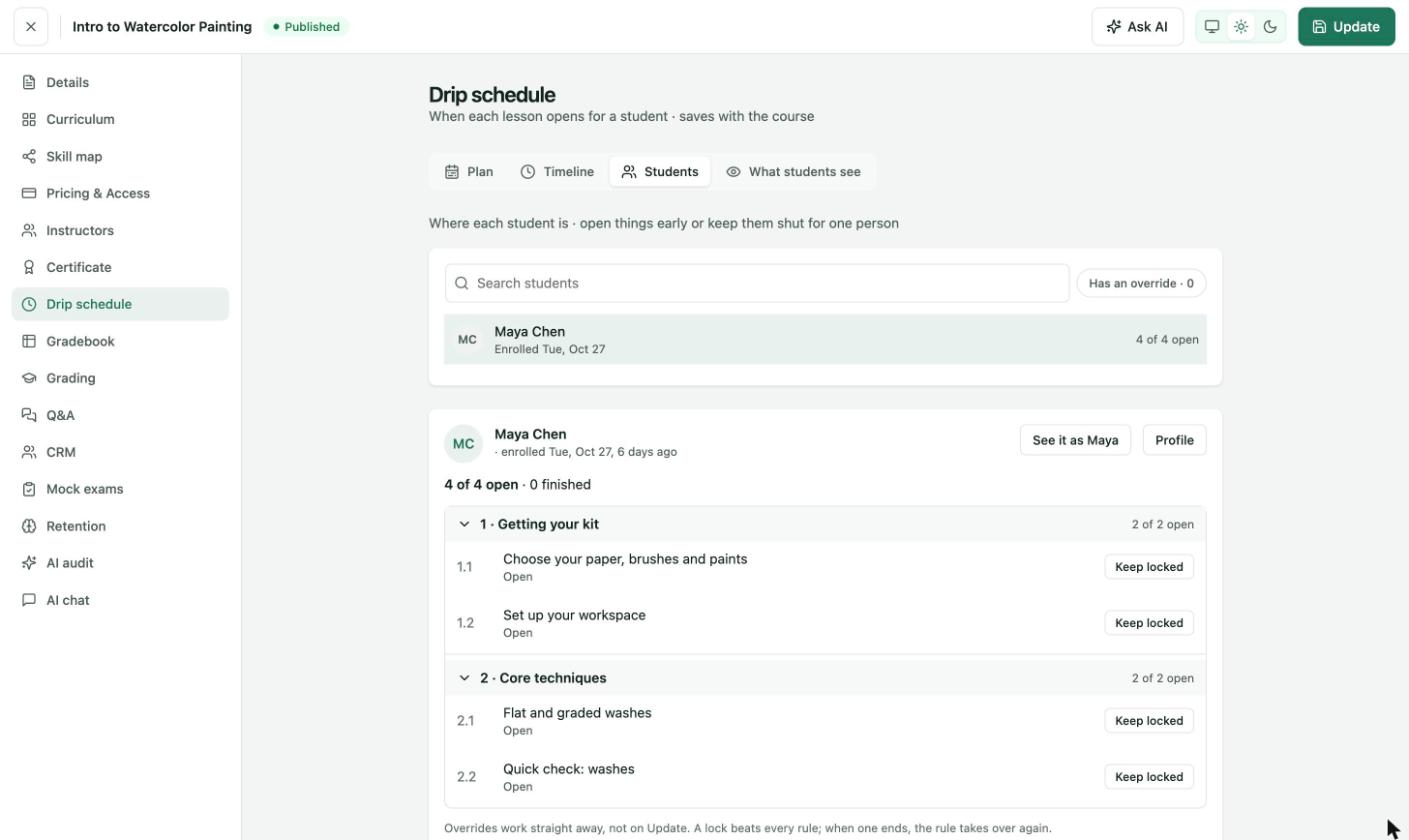
Drip schedule → Students. Each item has a Keep locked override for that one student.
What students see
| Option | What it does |
|---|---|
| Locked message | Shown when a student opens a lesson or quiz that hasn't opened yet. Insert tag adds a placeholder at the cursor. Items using In order have their own message: "Complete the previous lesson first." |
| Show locked titles | Students see what's coming and when it opens. Off: they see "Locked lesson" and the date. |
| Show locked descriptions | Shows the lesson's summary under its title while it is locked. |
| Email when content unlocks | Sends the "Drip content unlocked" email when an item opens for a student. |
| Heads-up before unlock | Hours or days before an item opens. 0 means no heads-up. Only for items on a date or after enrolment. |
| Lock again after | A grace period, counted per student from when each item opened. 0 keeps items open for good. |
| Message when it locks again | Uses the "Drip access expired" email. |
Edit the drip emails under Settings → Emails → Templates, in the Drip content group.
Things to know
- Drip saves with the course. There is no separate save button.
- Lessons on a drip rule always load through the normal route, even when the fast lane is on.