
Grading quizzes and reviewing results in RootWright LMS
Quizzes are graded automatically. Assignments and open-ended answers wait in the grading queue until an instructor marks them. Results are collected in the Assessments list and the Gradebook.
The grading queue
Go to Teaching → Grading. The queue lists submissions that need a mark.
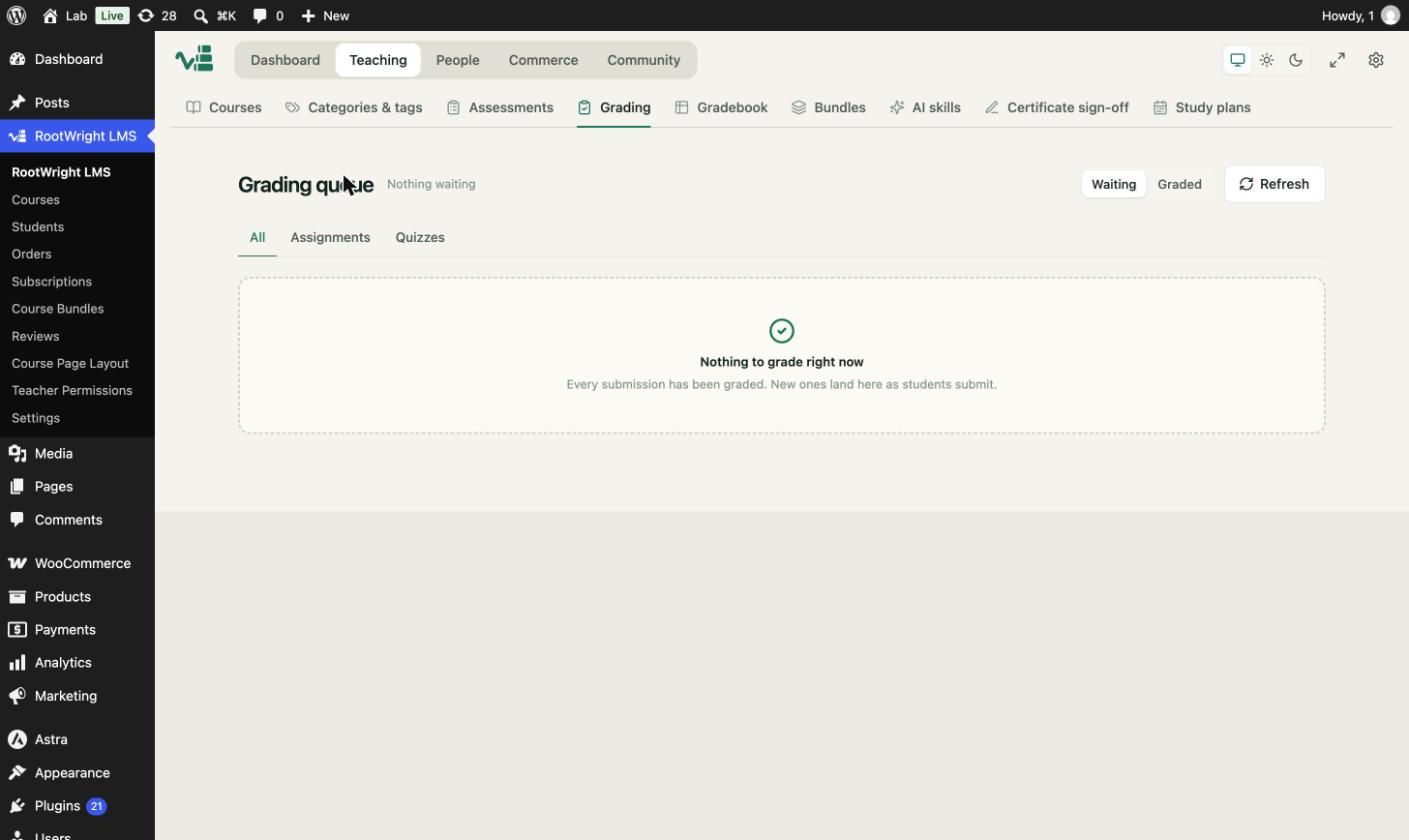
The grading queue. Use the Waiting and Graded switches, and the All, Assignments and Quizzes filters.
- Waiting shows what still needs marking. Graded shows what you have marked.
- All, Assignments and Quizzes narrow the list by type.
- Refresh reloads the list.
When nothing is waiting, the queue reads "Nothing to grade right now".
The Assessments list
Go to Teaching → Assessments. It lists every quiz and assignment across your courses, with the course, the question count and points, the attempt count and any pending submissions. Filter by All courses and by All, Assignments or Quizzes. Click Open to see one assessment.
The Gradebook
Go to Teaching → Gradebook. It shows every student's entries across quizzes and assignments. Use the tabs to filter by Submitted, Grading, Graded, Returned or Draft, and switch between List and Matrix views.
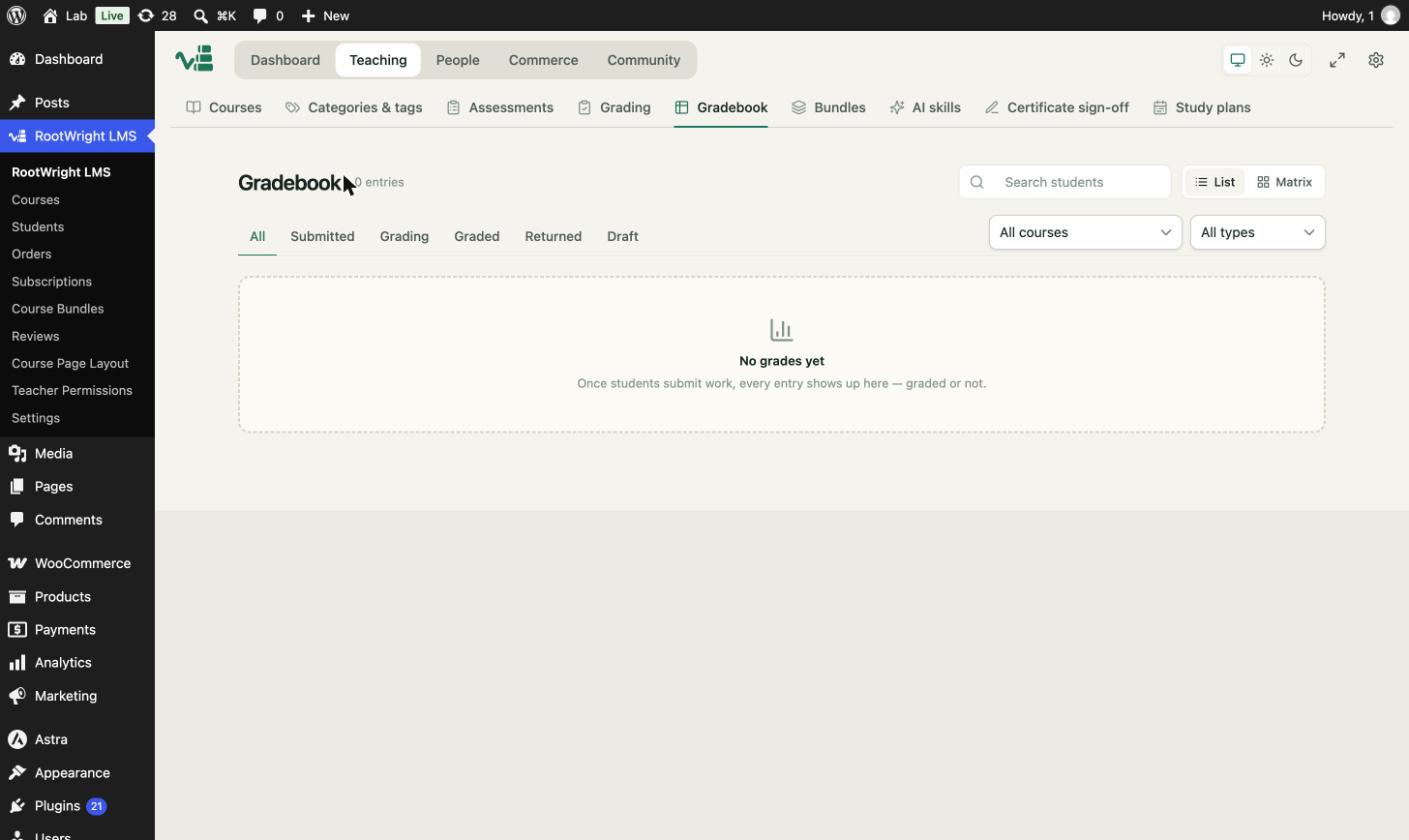
The Gradebook. Entries appear once students submit work.
Grades appear in the course gradebook only if the site allows it. Under Settings → Quizzes & assessments, the Gradebook switch must be on. It is off by default.
Grade scale and weights
Each course weighs exams, quizzes and assignments. Open the course, then Grading (Pro) to set the weights. The default split is 33% each, and the site scale is A+ 90, A 80, B 70, C 60, D 50 and F 0.
Related
- Create a quiz.
- Lessons for assignment lessons.
- Assignments
- The Assessments screen