
How to create a study plan in RootWright LMS
A study plan is a path through your courses, day by day, up to a date each learner sets. In RootWright LMS Pro, build plans under Teaching → Study plans, add courses and days, then publish the plan so learners can start it.
Pro
Study plans are part of RootWright LMS Pro.
Create a plan
- Go to Teaching → Study plans and click New study plan.
- Enter a Title, for example "Watercolor in 30 days", and What a learner is told about it.
- Choose How it is laid out: By the calendar: days up to a date the learner sets, or At the learner's own pace: modules, no dates.
- For a calendar plan, set How many days it is laid out for. The default is 30.
- Choose When a lesson opens for a learner on this plan. See the options below.
- Under Courses, choose a course in Add a course…. Leave Needed to start ticked if a learner must be in that course to start the plan.
- Click Add a day, then add tasks to it. See below.
- Click Save. The plan is saved as Draft: only you.
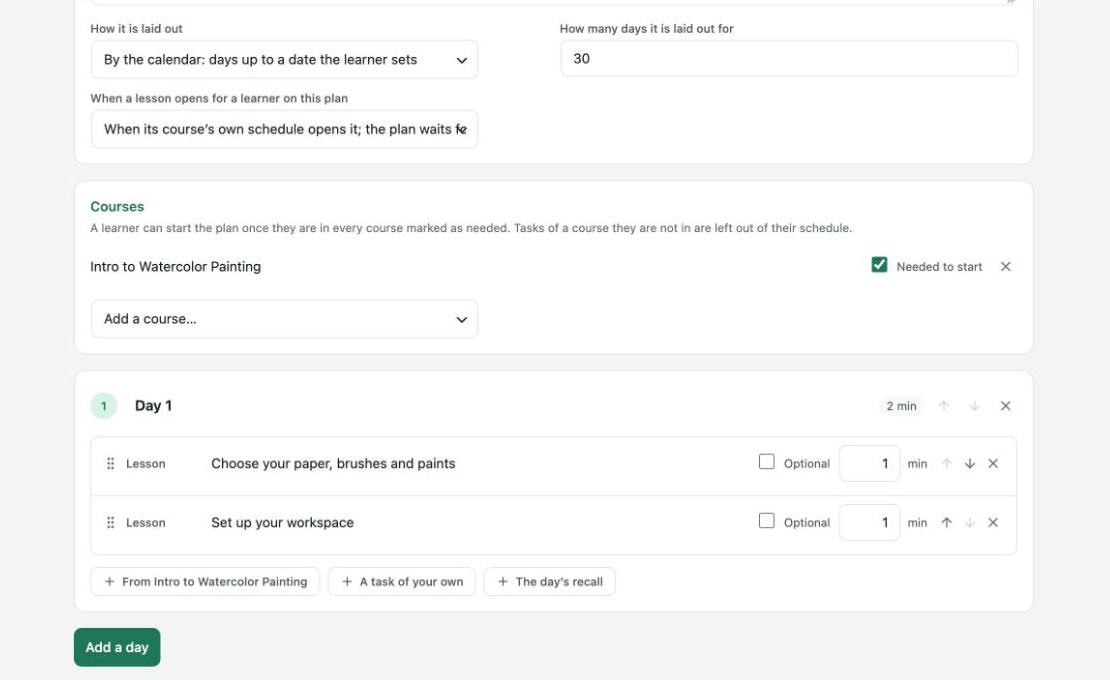
A study plan with Intro to Watercolor Painting added and two lessons on Day 1. The day's total time shows next to its title.
Add tasks to a day
Each day has three buttons:
| Button | Adds |
|---|---|
| From course name | Lessons and quizzes from that course. Click Add next to an item, or Add all for a whole module. |
| A task of your own | A task that is not a lesson, written by you. |
| The day's recall | The learner's daily recall session. |
For each task you can set the minutes it takes and tick Optional. Use the arrows to reorder tasks and days. A day with nothing in it is not kept when you save.
When lessons open
| Option | Behavior |
|---|---|
| When its course's own schedule opens it; the plan waits for that | The course's drip schedule still decides. The plan waits for it. |
| When the plan reaches it, for learners on this plan who are in the course | The plan opens the lesson on its day, for learners on the plan. |
Publish the plan
Use the status menu next to Save:
| Status | Meaning |
|---|---|
| Draft: only you | Only you can see it. |
| Published: learners can start it | Learners in the plan's courses can start it. |
| Archived: nobody new can start it | Learners already on it keep it. |

Teaching → Study plans. Each plan shows its layout, courses, tasks, learners and status.
What learners do
A learner starts a published plan from Study plans in their own dashboard. A learner can start the plan once they are in every course marked Needed to start. Tasks from a course they are not in are left out of their schedule.
Track learners
Open a plan and go to its learners view. It shows Everyone, On track, Behind, Paused and Finished. Each learner's standing is from the last time their schedule was laid out: when they last did something, or last night.