
How students write their own recall questions in RootWright LMS
In RootWright LMS, a student can write their own recall questions on any lesson. Each question is private to them. It comes back in their Today session when it is due, and they rate how well they remembered it.
Write a recall question
- Open a lesson in your course.
- Click My recall questions under the lesson, or in the top bar. The panel opens.
- In Question, type what you want to be asked.
- In Answer, type the answer you want to remember. Only you can see it.
- Click Add question. The message "Saved. It comes back in Today tomorrow." confirms it.
When a student finishes a lesson, RootWright LMS also offers: "Lesson done. Write a recall question for it, and it comes back to test you tomorrow." Click Not now to skip it.
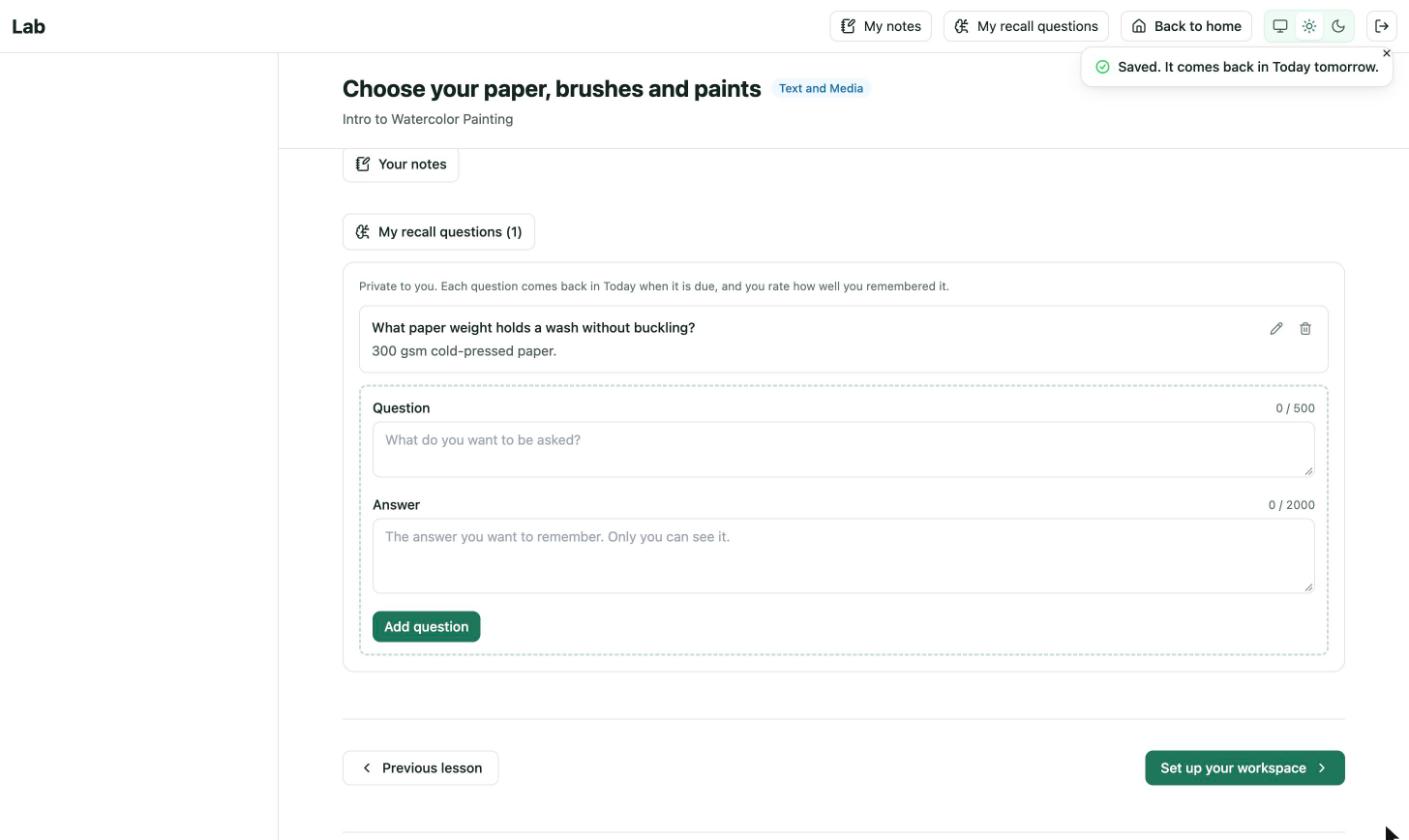
The panel under a lesson. The counter above each field shows the characters used, for example "48 / 500". The button shows how many questions the lesson has, here "My recall questions (1)".
Review the questions
Questions come back in Today when they fall due, starting one day after they were written. They show as Your question. Today must be switched on under Settings → Today & recall. See Daily recall.
Edit or delete a question
Open the panel again and edit a question, or delete it. Deleting asks "Delete this recall question?" first.
Limits
| Limit | Value |
|---|---|
| Question length | 500 characters |
| Answer length | 2,000 characters |
| Questions per lesson | 30 |
| Questions per student | 500 |
A student cannot add the same question twice on one lesson.
Turn it off for a course
The panel is hidden when Recall is switched off for the course. In the course builder, open Details, find the Learning section and switch off Recall.
Messages students may see
- "You already have N recall questions on this lesson, which is as many as one lesson holds. Delete one first."
- "You already have N recall questions, which is as many as you can keep. Delete one first."
- "You already have this question on this lesson."
- "Recall is off for this course."
- "You are adding questions very quickly. Please wait a moment."