
How to generate a course with AI in RootWright LMS
To generate a course with AI in RootWright LMS Pro, go to Teaching → Courses, click Generate, describe what you want to teach, pick a size and click Generate course. The AI writes a draft course. Nothing is published, and you get an email when the draft is ready.
Pro
Generating a course needs RootWright LMS Pro and a connected AI provider. See Connect your AI provider. Each generation is billed by your provider.
Before you start
- AI must be switched on under Settings → AI, with a provider and API key saved.
- You need to be an administrator or an instructor.
Generate a course
- Go to Teaching → Courses and click Generate next to Add a course.
- Under What do you want to teach?, describe the course. Cover who it's for, what they'll be able to do by the end, and what it should cover. The three checks under the box tick as your brief covers each one.
- Or click a starter under OR START FROM, such as Beginner watercolour, to fill in an example brief.
- Choose a Size: Short (9 lessons), Standard (20 lessons), In-depth (40 lessons) or Custom.
- Choose how to Build: Guided or Agent. See below.
- Optional: open Style to pick skills, add course instructions, set Thinking, and choose whether to Make a cover image.
- Click Generate course. In Agent mode the button reads Start the agent.
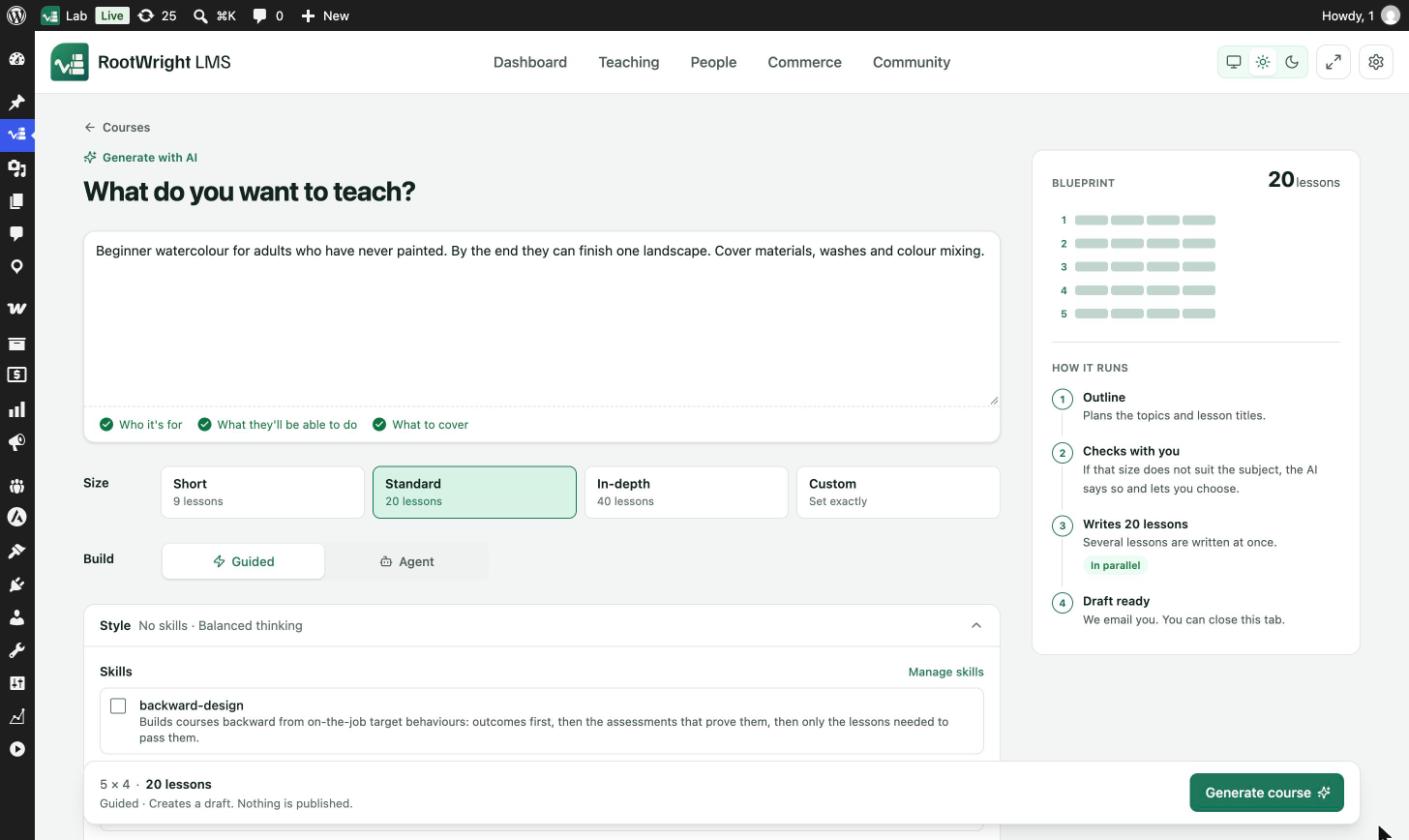
Generate with AI. The Blueprint on the right shows the planned size and how the build runs.
Guided or Agent
| Build | How it runs |
|---|---|
| Guided | 1. Outline: plans the topics and lesson titles. 2. Checks with you: if the size does not suit the subject, the AI says so and lets you choose. 3. Writes the lessons: several lessons are written at once, in parallel. 4. Draft ready: you get an email. |
| Agent | 1. Plans: reads your brief and drafts a plan. 2. Builds step by step: one model call at a time. 3. Reviews and fixes: checks its own work and repairs gaps. It treats your size as a guide and says so if it changes it. 4. Draft ready: you get an email. Agent mode is slower and usually more expensive than Guided. |
You can close the tab while the course is built.
Style options
| Option | What it does |
|---|---|
| Skills | Pick reusable instructions, such as a teaching method. Manage skills opens AI skills. |
| Course instructions | Standing rules for every AI request on this course, such as tone, audience and conventions. The course keeps them for next time. |
| Thinking | Fast, Balanced, Thorough or Maximum. More thinking is slower and costs more per lesson. |
| Make a cover image | Sets an AI cover on the new course when it is built. It never replaces a cover you added. |
What you get
- A draft course with topics and lessons. It is not published.
- Recall questions for each lesson. See AI-written recall questions.
- An email titled "Your course "…" is ready to review" when the draft is ready.
Review the draft in the course builder, then publish it when you are happy with it. To improve it further, use AI audit and AI chat.
Troubleshooting
- The generation stops, or says "The server stopped this run". Your host ended a long background request. RootWright LMS retries on its own and keeps what it built. Click Write the missing lessons to finish. If it keeps happening, see AI generation stops partway: host limits.
- "Budget reached". This month's Monthly token budget is used up. Raise it under Settings → Integrations → AI → Cost & load, or wait for the new month.