
How to sign off certificates in RootWright LMS
Certificate sign-off holds a certificate until each signer has signed it. In RootWright LMS Pro, signers approve certificates under Teaching → Certificate sign-off. Approving adds your signature, and the certificate is issued once every signer is done.
Pro
Certificate sign-off is part of RootWright LMS Pro.
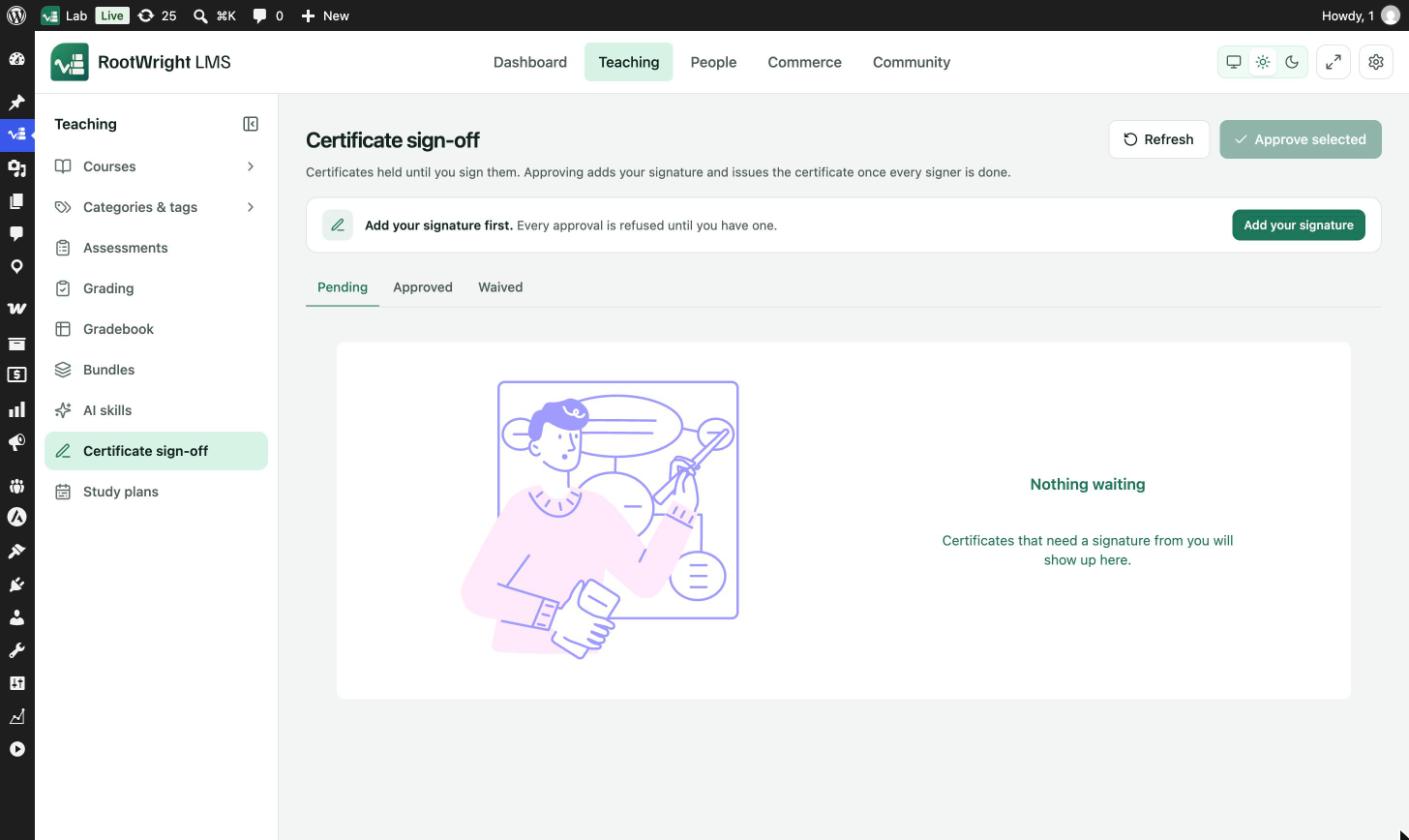
Teaching → Certificate sign-off. The banner asks you to add your signature before you can approve anything.
Add your signature
Every approval is refused until you have a signature.
- Go to Teaching → Certificate sign-off and click Add your signature. The My signature screen opens.
- Under How would you like to sign?, choose Draw, Type or Upload.
- Sign in the box with your mouse, finger or stylus, type your name, or upload an image.
- Tick I agree that this signature may be printed on certificates issued from this site.
- Click Save signature.
How your signature is used:
- It is printed on every certificate you sign, at the size the certificate design gives it.
- Only you can add, replace or remove it. Nobody can sign on your behalf.
- Each save records the consent you gave, as the audit trail for the certificates it signs.
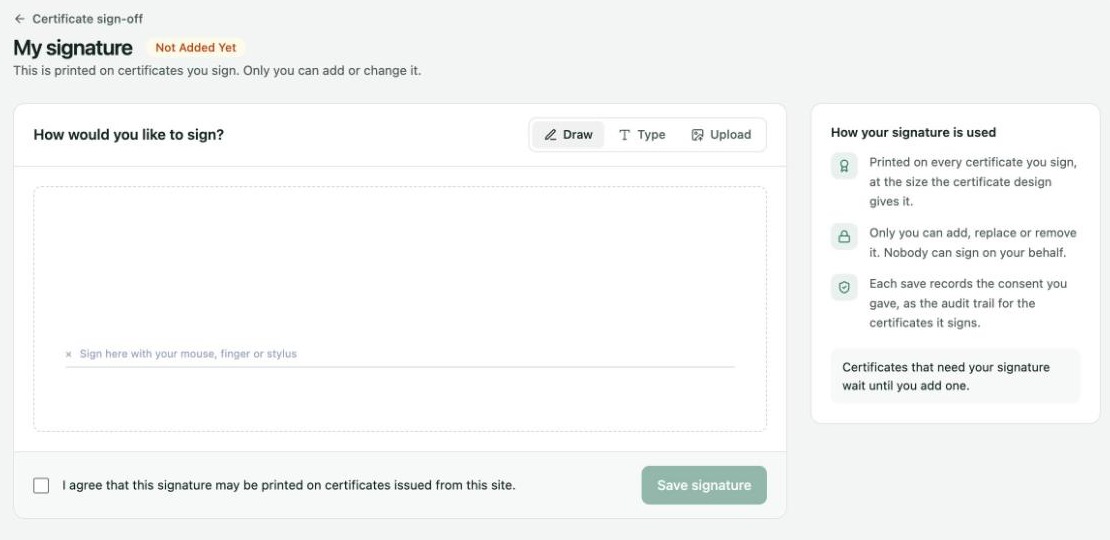
My signature. Save signature stays disabled until you sign and tick the consent box.
Approve certificates
- Go to Teaching → Certificate sign-off. The Pending tab lists certificates waiting for your signature.
- Tick the certificates to approve.
- Click Approve selected.
The Approved and Waived tabs list what has already been handled. Refresh reloads the queue.
While a certificate waits, the student's card on Achievements shows Certificate Pending. See How students get certificates.