
Site & pages settings in RootWright LMS
Settings → Site & pages sets how your school introduces itself, which WordPress pages the catalogue, dashboard and account screens live on, and how those pages look. Changes save as you make them, and the header shows All changes saved.
Identity
What learners see in the dashboard header and emails.
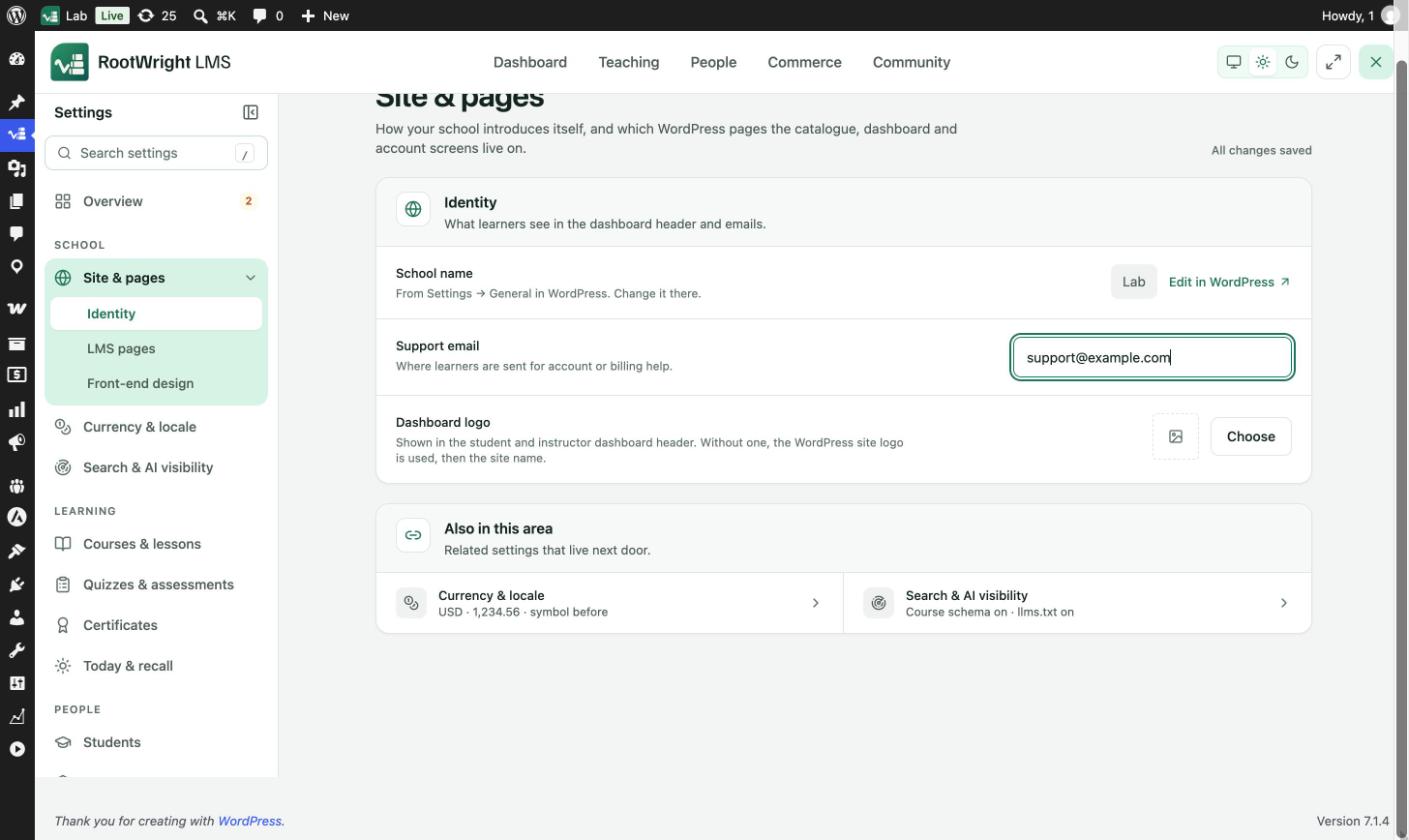
Settings → Site & pages → Identity.
| Setting | What it does |
|---|---|
| School name | Comes from Settings → General in WordPress. Change it there with Edit in WordPress. |
| Support email | Where learners are sent for account or billing help. |
| Dashboard logo | Shown in the student and instructor dashboard header. Click Choose to pick an image. Without one, the WordPress site logo is used, then the site name. |
LMS pages
The WordPress page each learner-facing screen is served from. Pick a page in the menu next to each screen, or use Create page for one that is missing.
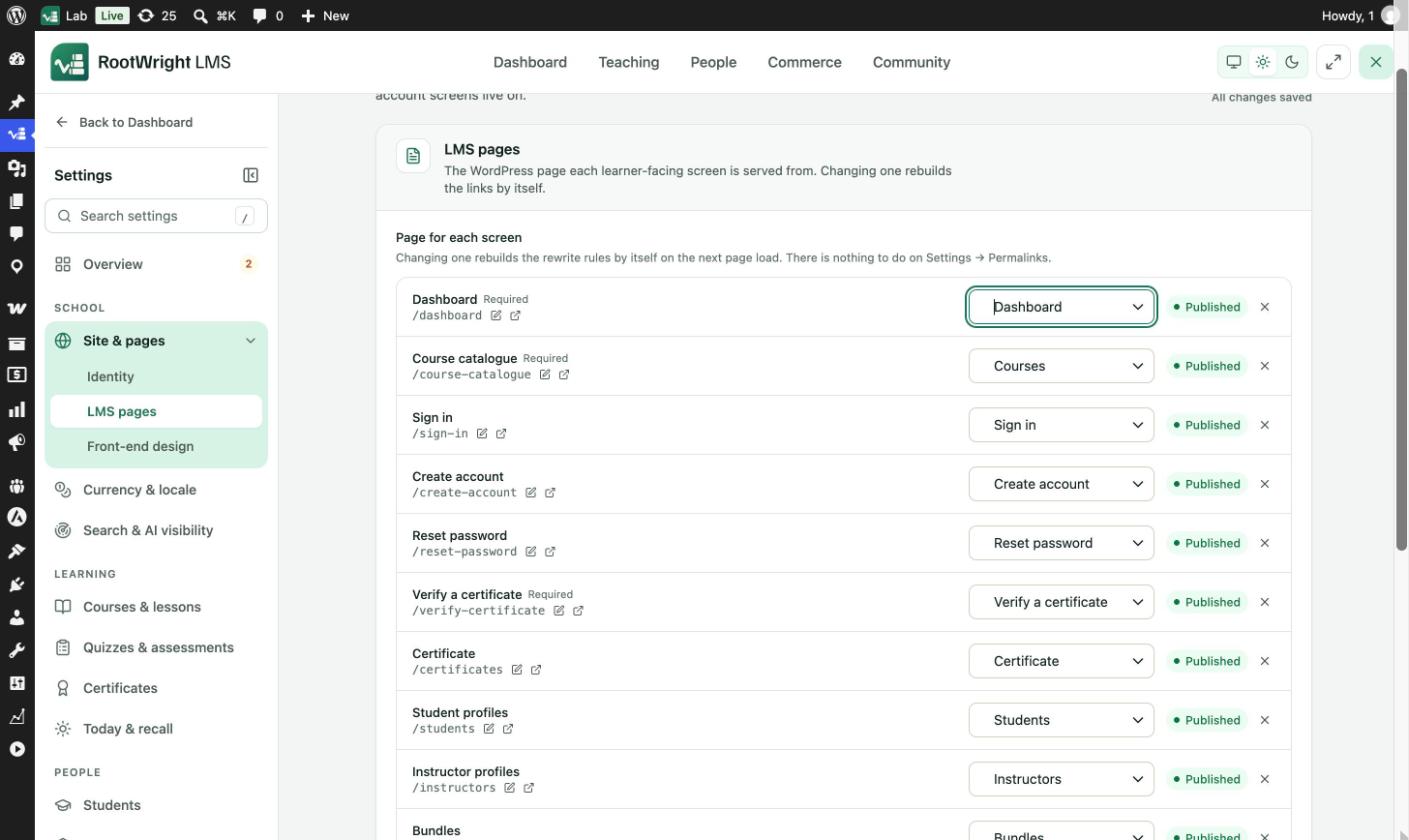
Settings → Site & pages → LMS pages. Each screen shows its address and whether the page is published.
| Screen | Default address | Required |
|---|---|---|
| Dashboard | /dashboard | Yes |
| Course catalogue | /course-catalogue | Yes |
| Sign in | /sign-in | |
| Create account | /create-account | |
| Reset password | /reset-password | |
| Verify a certificate | /verify-certificate | Yes |
| Certificate | /certificates | |
| Student profiles | /students | |
| Instructor profiles | /instructors | |
| Bundles | /course-bundles | |
| Checkout | Not used until you choose a page |
Changing a page rebuilds the links by itself on the next page load. There is nothing to do on Settings → Permalinks.
Use the plugin's own sign-in screens
Switch on Use the plugin's own sign-in and registration screens to send wp-login.php and every login, registration and lost-password link to the pages above. It stands down by itself if the sign-in page is ever missing, so you can't be locked out.
Front-end design
The look of the course catalogue, course pages, profile directories and certificate check.
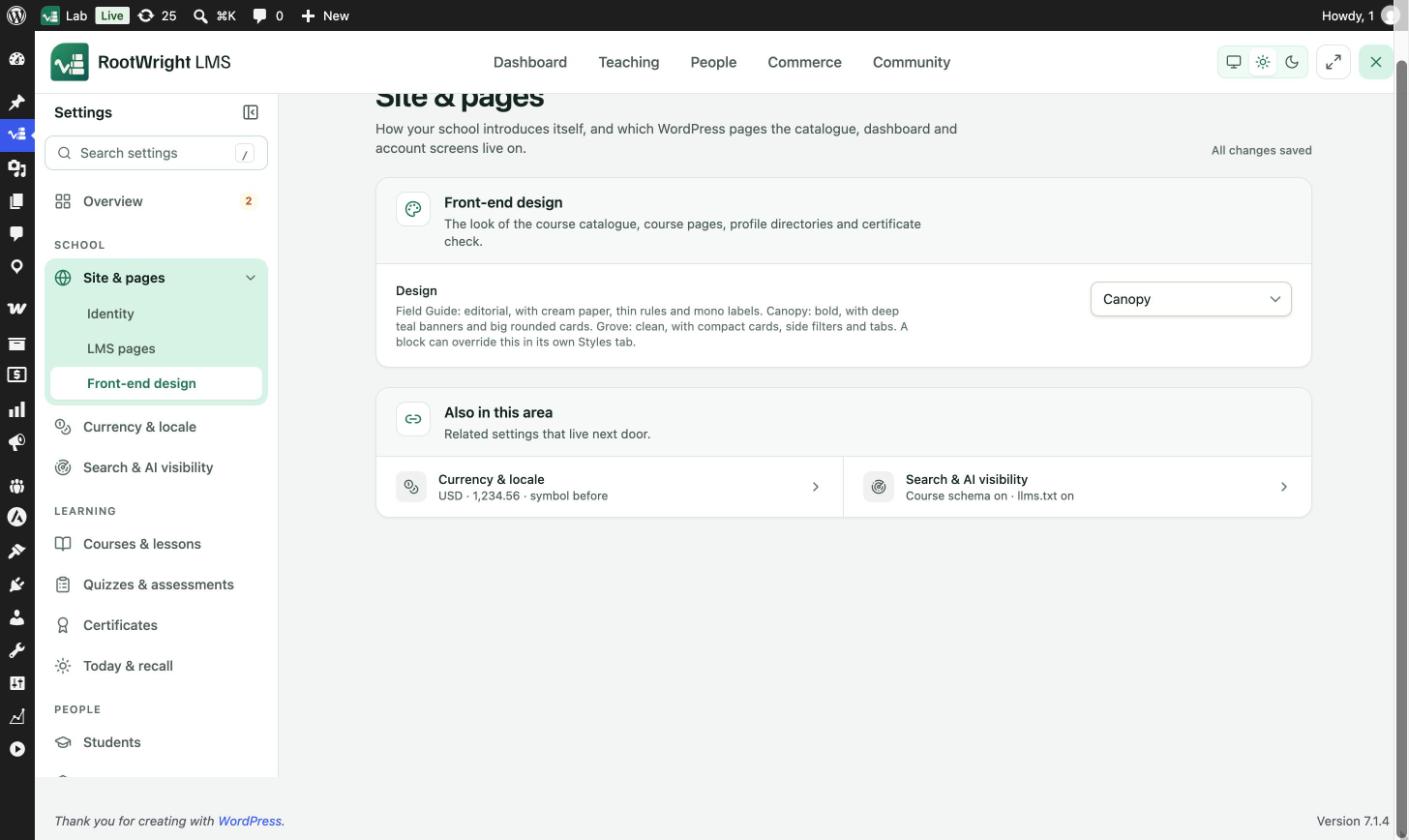
Settings → Site & pages → Front-end design.
| Design | Look |
|---|---|
| Field Guide | Editorial, with cream paper, thin rules and mono labels. |
| Canopy | Bold, with deep teal banners and big rounded cards. |
| Grove | Clean, with compact cards, side filters and tabs. |
A block can override the design in its own Styles tab.