
How to connect Claude or another AI agent to RootWright LMS (MCP)
Agent access lets an AI agent such as Claude, Codex or any other MCP client work with your courses. In RootWright LMS Pro, go to Settings → Integrations → AI → Agent access, switch on Enable agent access, create a token with only the permissions the agent needs, and paste the endpoint and token into your MCP client.
Pro
Agent access needs RootWright LMS Pro. It does not need an AI provider key: the connecting agent is the model.
Before you start
- Your site must use HTTPS. Without it the screen shows "HTTPS required".
- You need to be an administrator, or an instructor who manages their own courses. An agent only sees what your account can see.
Turn it on and create a token
- Go to Settings → Integrations → AI and click Agent access in the sidebar.
- Switch on Enable agent access. While it is off, the endpoint does not respond at all.
- Under New token, enter a Token name you will recognise later, such as "Claude Desktop on my laptop".
- Tick the permissions the agent needs. See the table below.
- Click Create token.
- Copy the token straight away. The screen says "Copy this now — it will not be shown again".
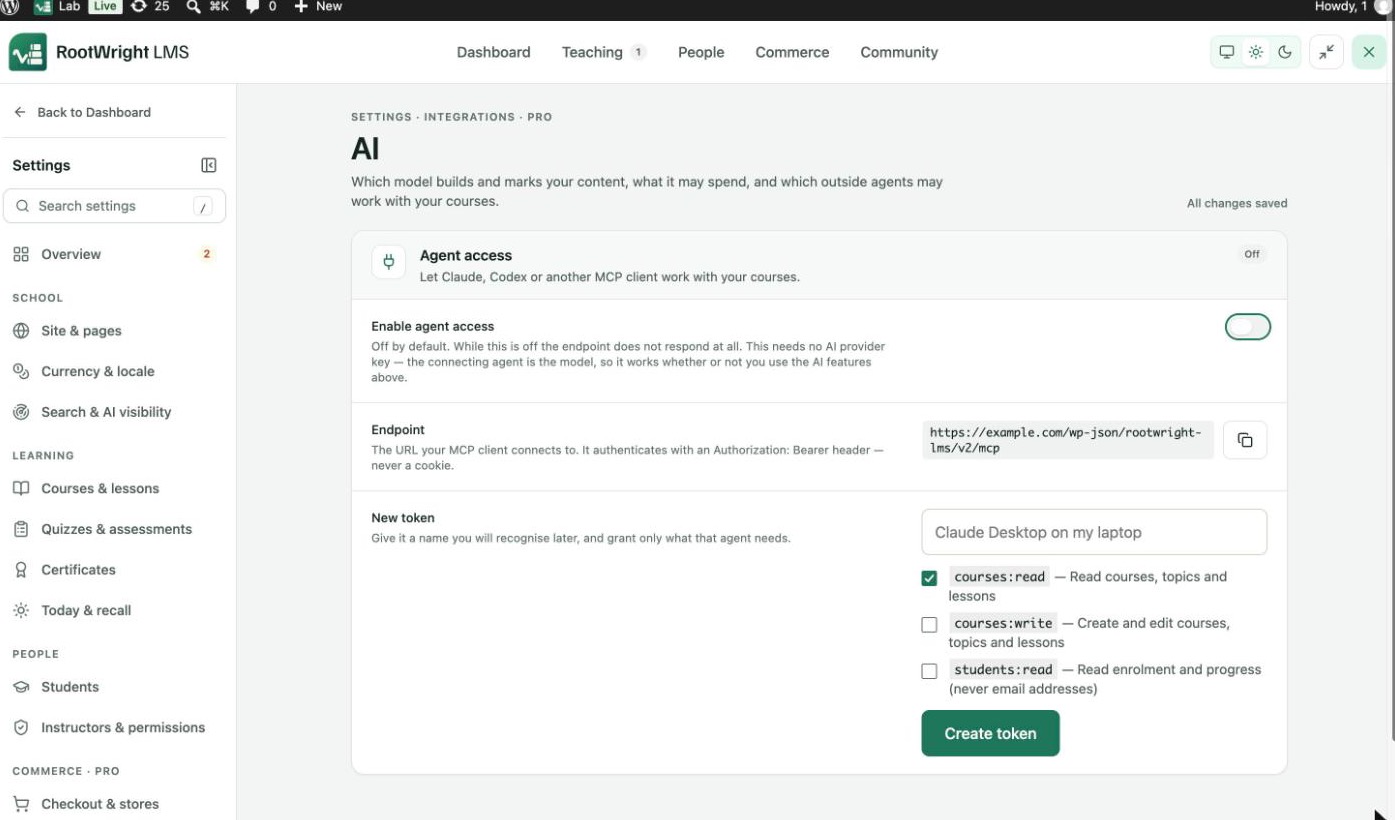
Settings → Integrations → AI → Agent access. The copy button next to Endpoint copies the address for your MCP client.
Then add a server in your MCP client:
- URL: the Endpoint shown on the screen,
https://your-site.com/wp-json/rootwright-lms/v2/mcp. - Authentication: an
Authorization: Bearerheader with your token. The endpoint never uses a cookie.
Each token lasts 90 days by default.
Permissions
| Permission | What the agent can do |
|---|---|
courses:read | Read courses, topics and lessons. Ticked by default. |
courses:write | Create and edit courses, topics and lessons. |
students:read | Read enrolment and progress. Never email addresses. |
What an agent can do
These are the tools the endpoint offers, from the plugin code. Each needs the permission shown.
| Tool | Permission | Notes |
|---|---|---|
| List courses, Get a course, Get a lesson | courses:read | Drafts included. No student data. |
| Audit a course | courses:read | Finds empty topics, stub lessons and quizzes with too few questions. No AI involved. |
| List skills, Get a skill | courses:read | The AI skills this account may use. |
| Create a course | courses:write | Always created as a draft. A person publishes it. |
| Add a topic, Add a lesson, Update a lesson, Update a topic, Update a course | courses:write | Lesson content is simple HTML. Scripts and styles are stripped. |
| Add quiz questions | courses:write | Single choice, multiple choice and true/false. |
| Add recall questions, Fill in course details, Make a course cover | courses:write | |
| Course progress | students:read | Counts only: no names, no email addresses. |
| At-risk students | students:read | Display names and why each was flagged. No email addresses. |
An agent can never publish a course, and never sees email addresses.
Revoke a token
Under Your tokens, click Revoke next to the token. Revoking takes effect immediately, and that agent can no longer connect. To stop every agent at once, switch off Enable agent access.