
How daily recall works in RootWright LMS
Daily recall helps learners remember what they studied. Each day, a learner gets a short Today session. It shows the recall items that are due, then the next lesson in their course. Each item comes back on a schedule that follows how well the learner remembers it.
You set up daily recall in Settings → Learning → Today & recall. You add the questions to recall in each lesson.
Turn the Today view on or off
- Go to Settings → Learning → Today & recall.
- Under Today, switch Today view on or off.
- Under Opens first, choose what a learner sees when they open their dashboard, until they choose for themselves. The options are Today and Browse (the course overview).
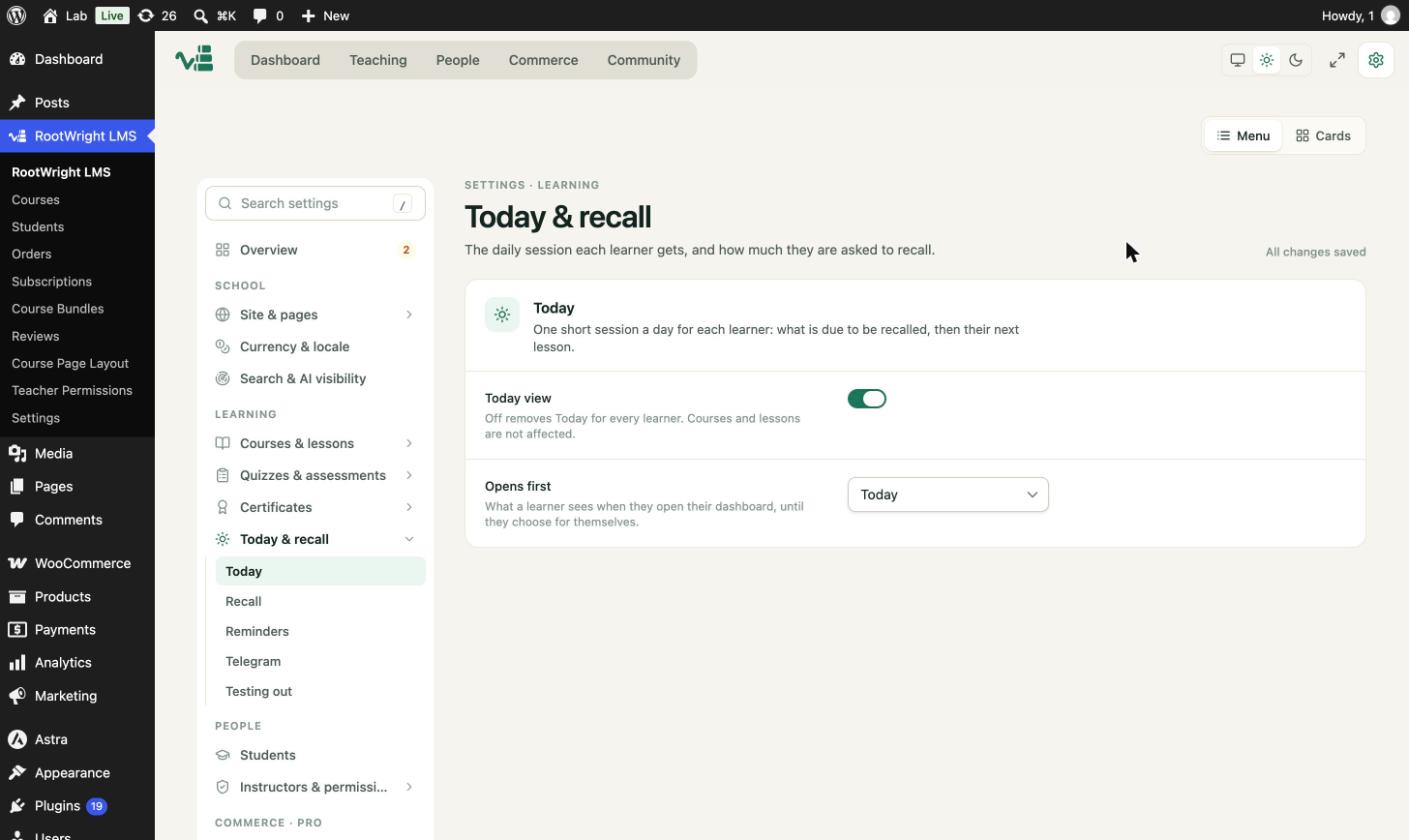
Settings → Learning → Today & recall → Today. Switching Today view off removes Today for every learner. Courses and lessons are not affected.
What learners see
The first time a learner opens Today, it asks How long do you want to study each day? They pick 5, 10, 15, 20 or 30 minutes, and can switch on a Daily recall reminder email. Start builds the session. Skip leaves the goal for later.
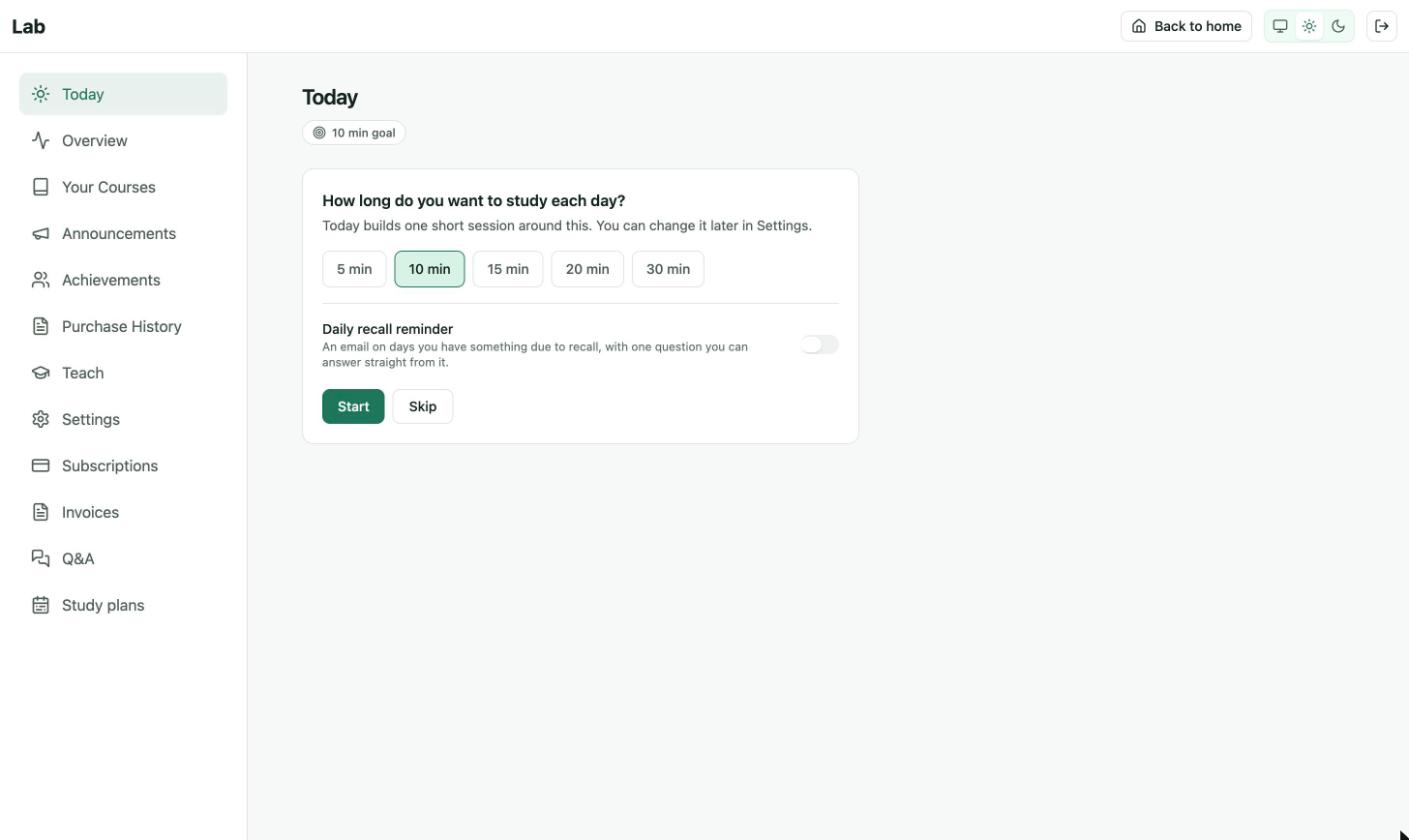
Today, first visit. The goal can be changed later in the learner's Settings.
Today then builds one short session: recall items that are due, and the next lesson under CONTINUE. The ring at the top right counts finished items, for example "0/1".
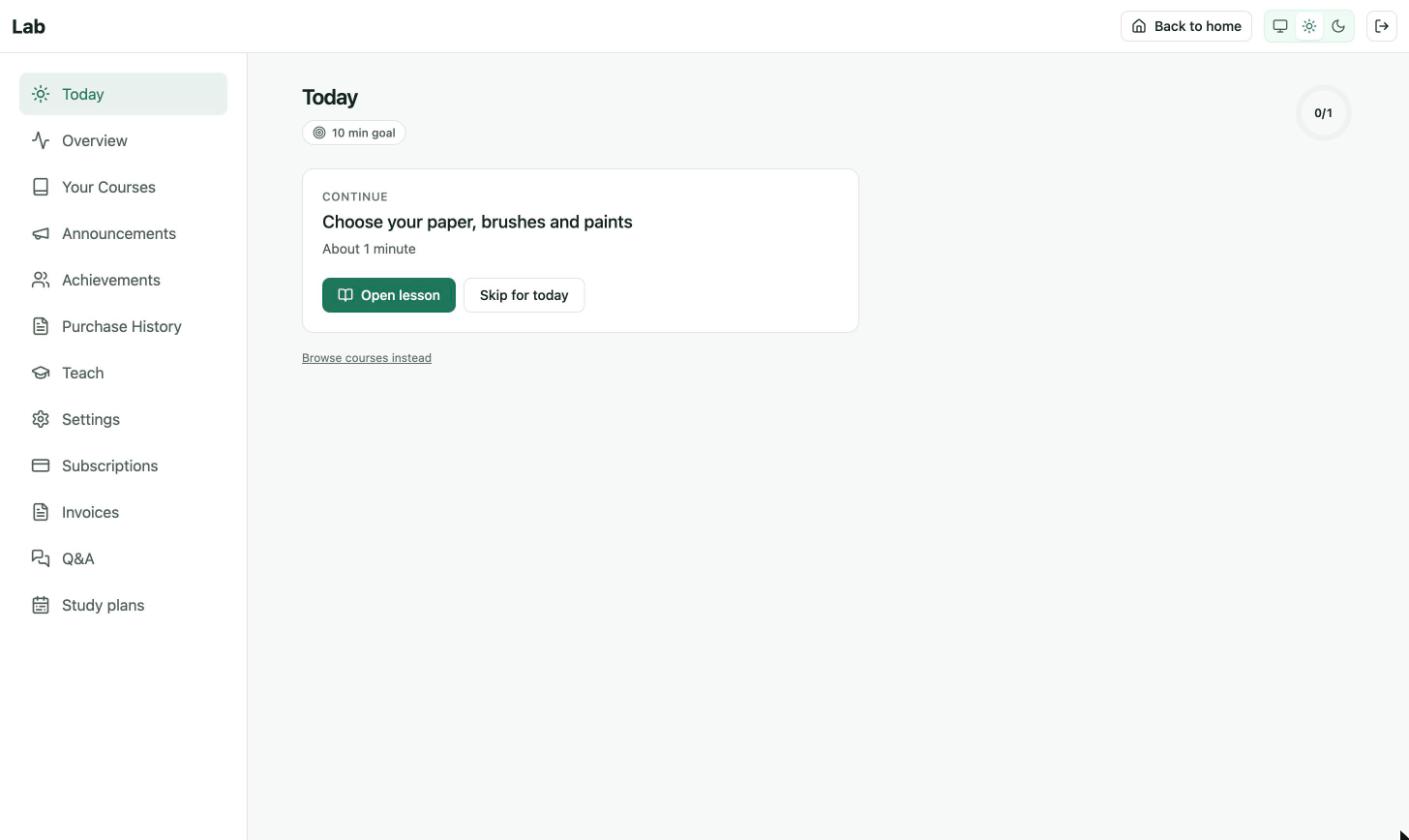
A Today session with no recall due yet. Open lesson starts the lesson. Skip for today moves on.
Set how much learners recall
Click Recall in the settings sidebar. These settings apply to every learner.
| Setting | Default | What it does |
|---|---|---|
| Show memory strength | On | Shows learners a 0 to 100 score for how well they remember a course. Hiding it does not change what is scheduled. |
| Most recall items a day | 50 | The most items Today builds for each learner in one session. The rest wait for the next day. Nothing is dropped. A learner who chooses to keep going can do more. |
| Most new items a day | 15 | How many never-answered items a learner meets in one day. A learner can choose fewer. |
| Keep recall answers for | 24 months | How long old answers are kept. Older answers are deleted, and each learner's schedule is kept. Set 0 to keep every answer. |
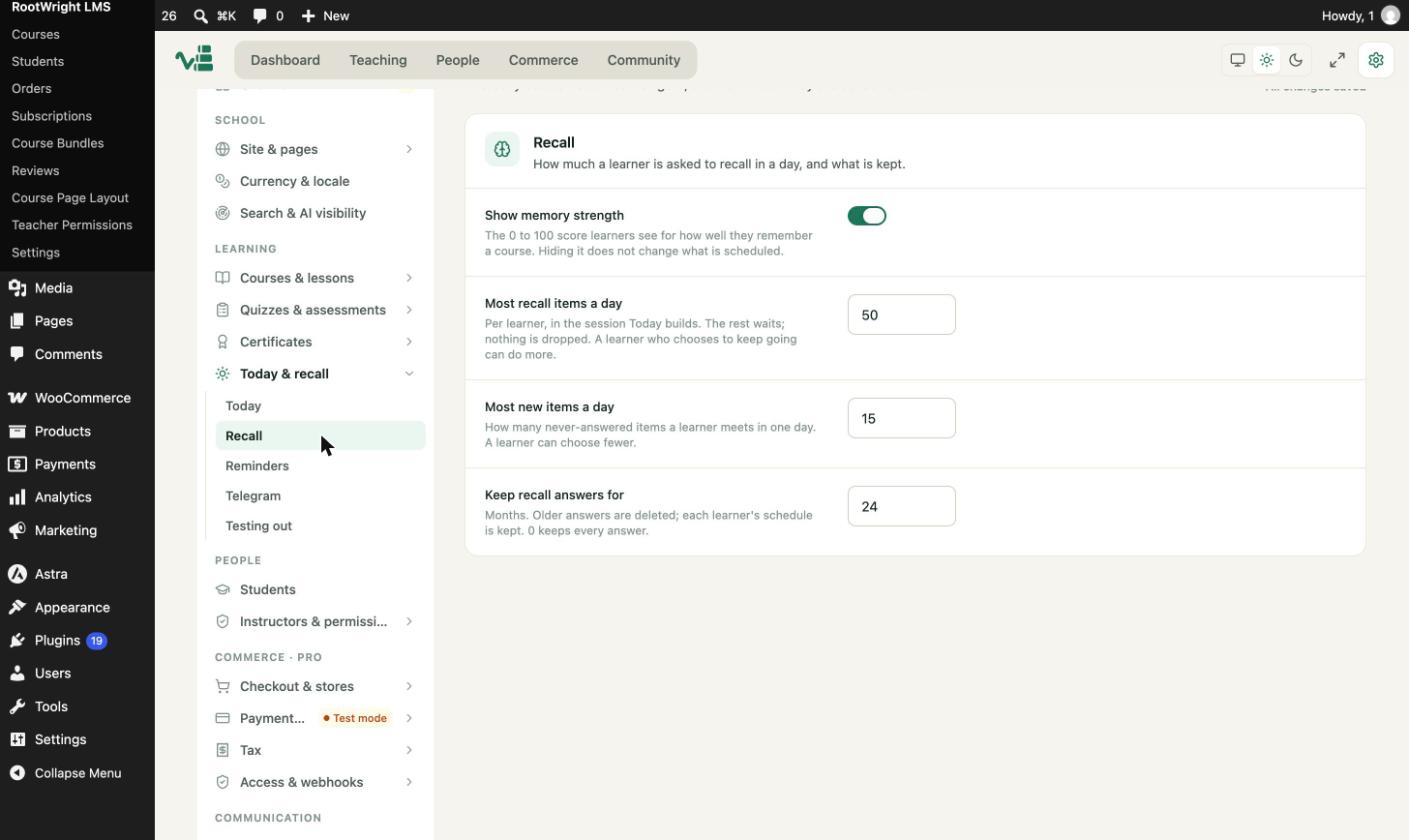
Settings → Learning → Today & recall → Recall.
Turn on reminders
Click Reminders in the settings sidebar.
When Daily recall reminders is on, a learner can ask for an email reminder. Each learner turns their own reminder on and picks a time. The reminder is offered the first time they open Today, and they can change it in their settings. If you switch this off, no learner is offered a reminder, and none are sent.
To change the text of the reminder, go to Settings → Communication → Emails and edit Learning reminders.
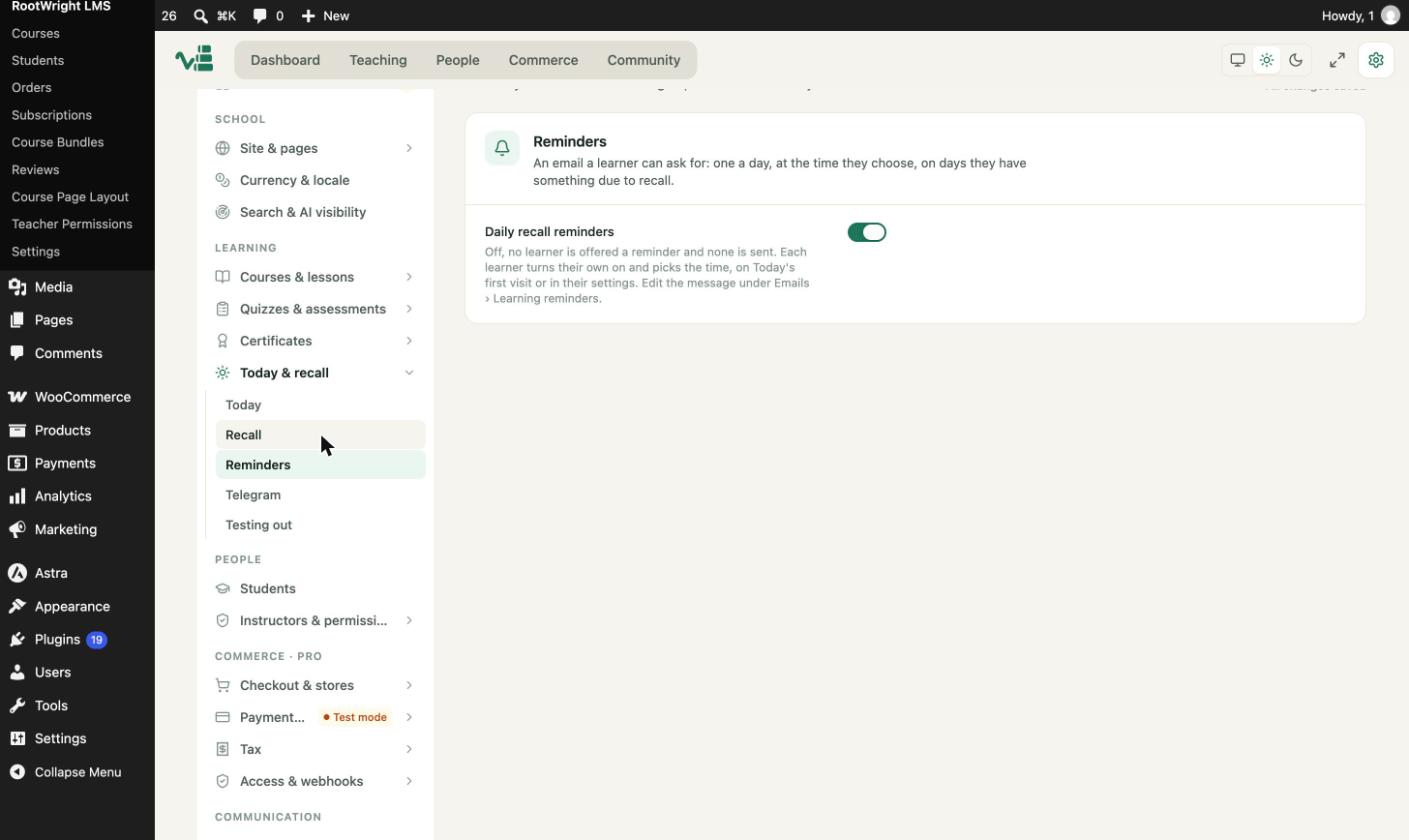
Settings → Learning → Today & recall → Reminders.
Connect Telegram (optional)
Telegram lets learners get their recall reminders in a Telegram chat, where they can answer them. You create the bot yourself.
- In Telegram, start a chat with @BotFather and send
/newbot. - Follow the steps and copy the token that BotFather gives you.
- In RootWright LMS, go to Settings → Learning → Today & recall → Telegram.
- Paste the token into Bot token and click Connect bot.
RootWright LMS checks the token with Telegram, points the bot at your site, and stores the token encrypted. It is not shown again. Each learner connects their own chat from their study settings.
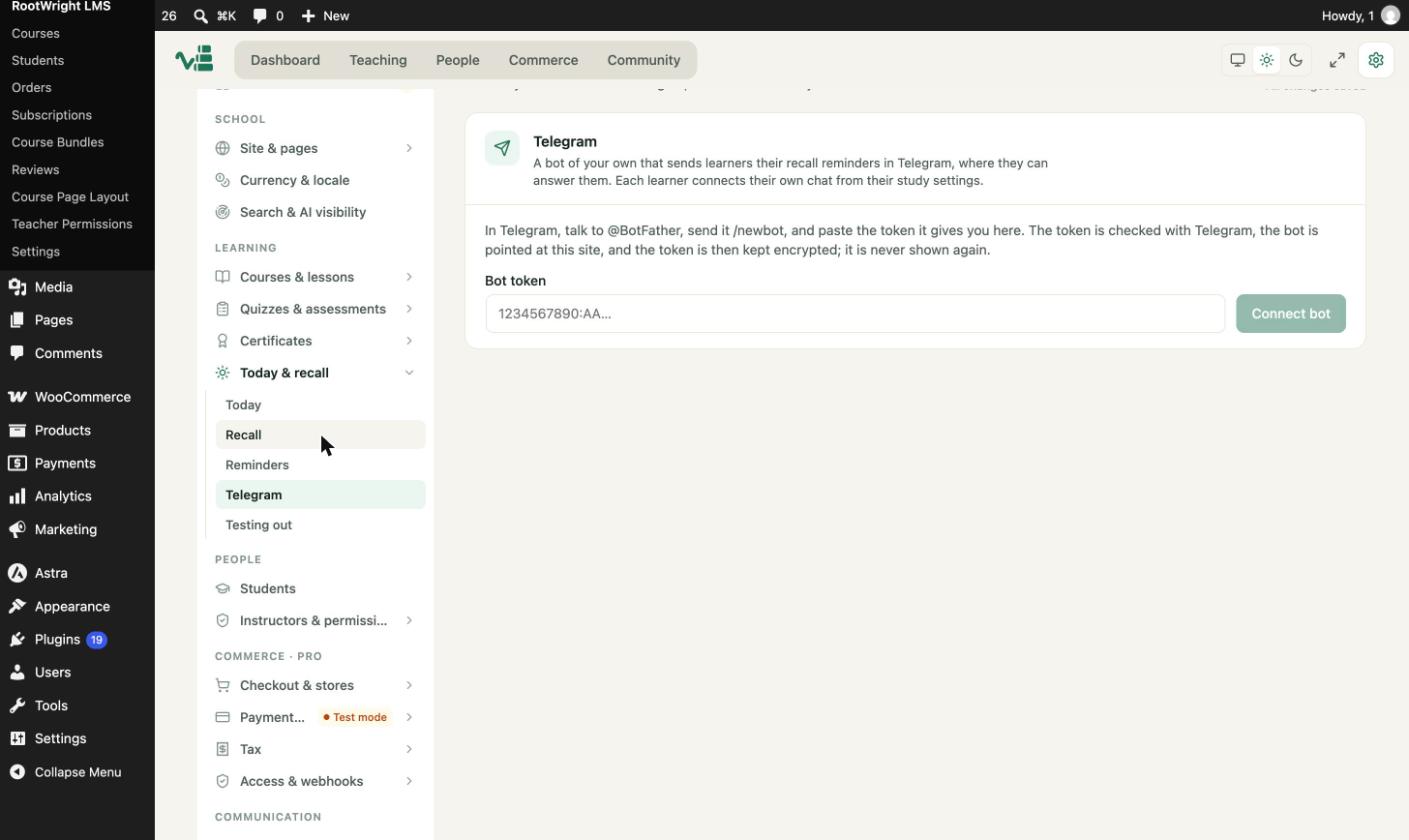
Settings → Learning → Today & recall → Telegram.
Add recall items to a lesson
Recall items are question and answer pairs. Learners see them in the Today session when they are due.
- Open the lesson in the lesson builder.
- In the left menu, click Recall.
- Enter a Prompt (the question) and an Answer.
- Click Add recall item.
To add many items at once, click Import CSV. The file has two columns, prompt and answer, and up to 500 rows. A prompt that the lesson already has is left out.
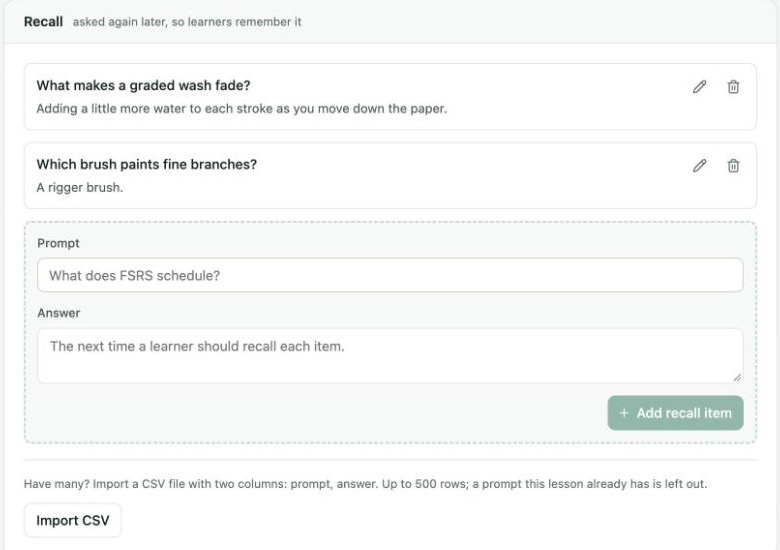
Lesson builder → Recall. Each saved item has an edit and a delete icon.
Testing out
Click Testing out in the settings sidebar. This controls what happens when a learner passes a skill's test.
When Lessons of a skill passed by a test count as finished is on, the lessons of that skill are marked done. They count toward finishing the course and its certificate. When it is off, the skill is still passed, but its lessons stay open for the learner to do.