
How students get and verify certificates in RootWright LMS
When a student completes a course that awards a certificate, RootWright LMS shows "Your certificate is ready!" with a View Certificate button. Later, the student finds every certificate on their Achievements page. Anyone can check a certificate on the Verify a certificate page.
When the course is finished
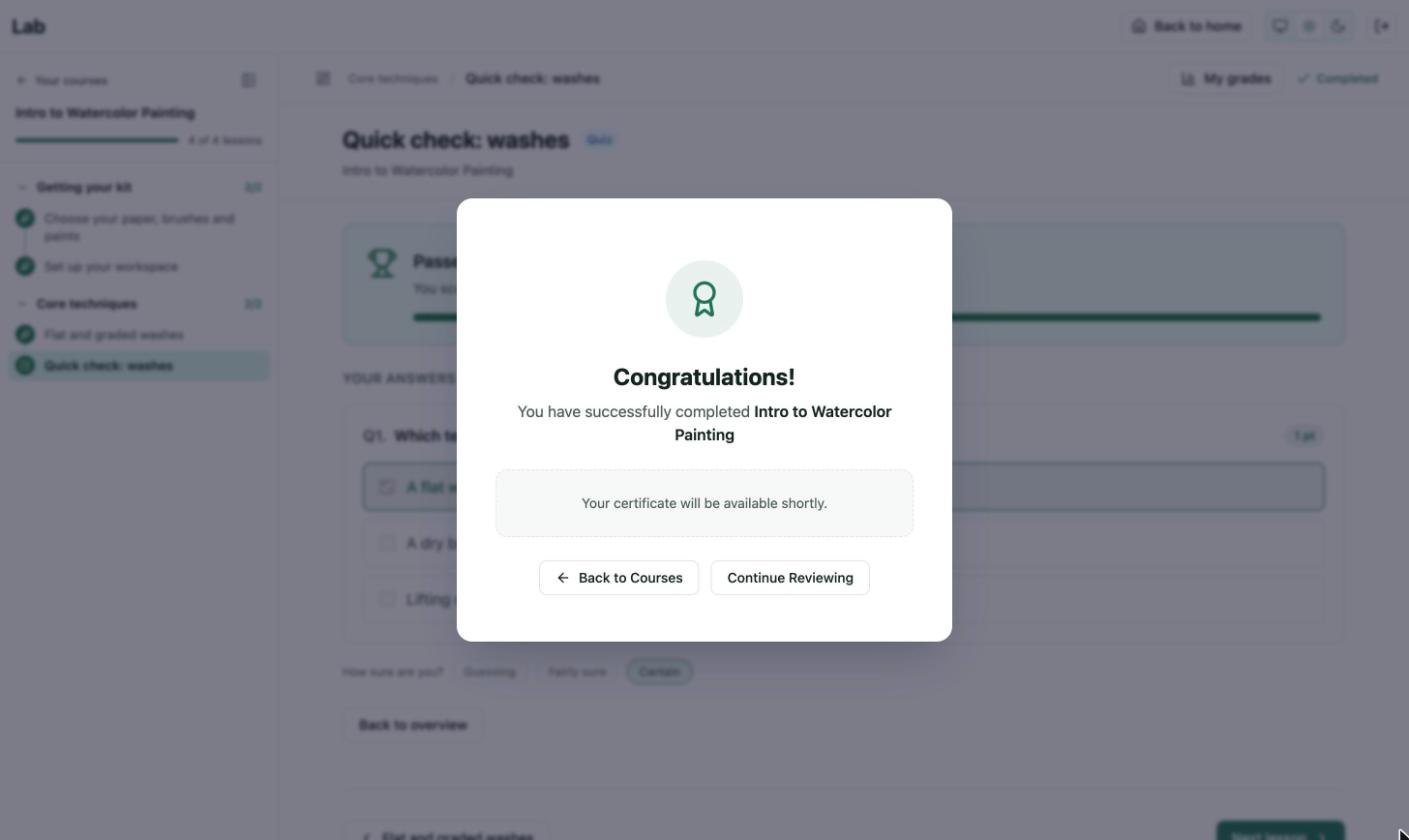
The window shown when a student finishes the last lesson. Back to Courses returns to their course list.
The completion window shows one of two messages:
- "Your certificate is ready!" with a View Certificate button.
- "Your certificate will be available shortly." when the certificate is still waiting, for example for an instructor's signature.
The Achievements page
Students open Achievements from their dashboard. The dashboard also shows a Certificates count.
Each completed course has a card with the grade and the completion date. Once the certificate is issued, the card also shows the Verification code. The main button shows one of these:
| On the card | Meaning |
|---|---|
| View Certificate | The certificate is issued. |
| Certificate Pending | It is waiting, for example for sign-off. |
| Issued by your instructor | The course awards certificates by hand. |
| Certificate requirements not met yet | The certificate criteria are not met. |
| Revoked | The certificate was withdrawn. |
With no finished courses, the page reads "No achievements yet. Finish a course and it will appear here, along with its certificate."
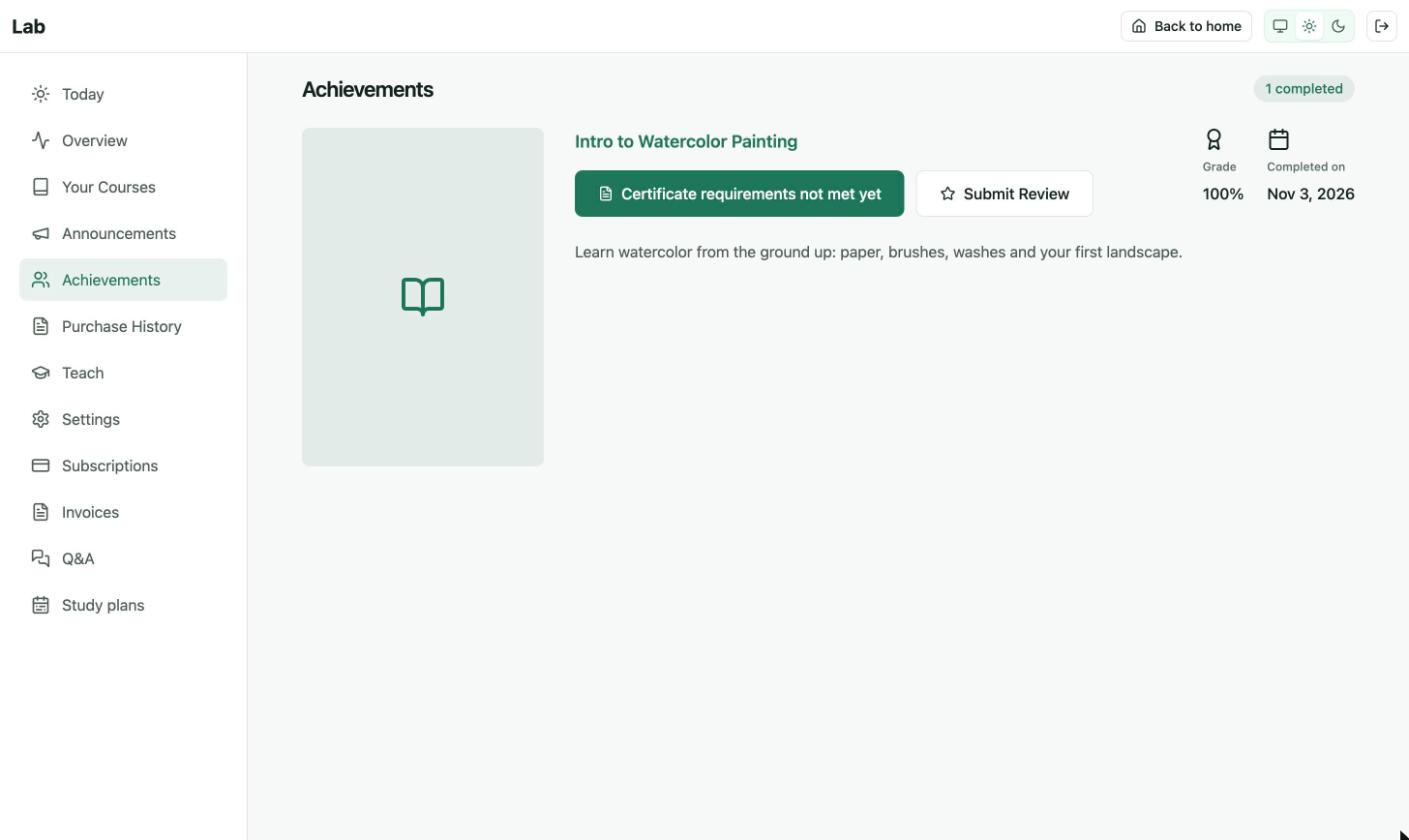
Achievements, for a student who finished a course whose certificate criteria are not met. Submit Review asks them to rate the course.
Save a certificate as PDF
View Certificate opens the certificate in a new tab. Click Print / Save as PDF to open the browser's print dialog, then choose Save as PDF.
Pro
With RootWright LMS Pro, certificates designed in the Certificate Studio also have a Download PDF button. It shows "Preparing PDF…" while the file is made.
Share a badge
Pro
RootWright LMS Pro adds Open Badges to the Achievements page: Download badge, Add to LinkedIn, and under More badge options, Download .jwt and Copy badge link.
With the Free plugin, share the verification code or the link to the verify page.
Verify a certificate
The Verify a certificate page lives at /verify-certificate by default. It is a required page, because the QR code and link on every certificate point to it. You can change which page is used under Settings → Site & pages → LMS pages.
- Open the verify page, or scan the QR code on the certificate. A QR code fills in the code for you and checks it straight away.
- Enter the Certificate code. It looks like
ABCD-EFGH-JKLM. The dashes are optional. - Click Verify.
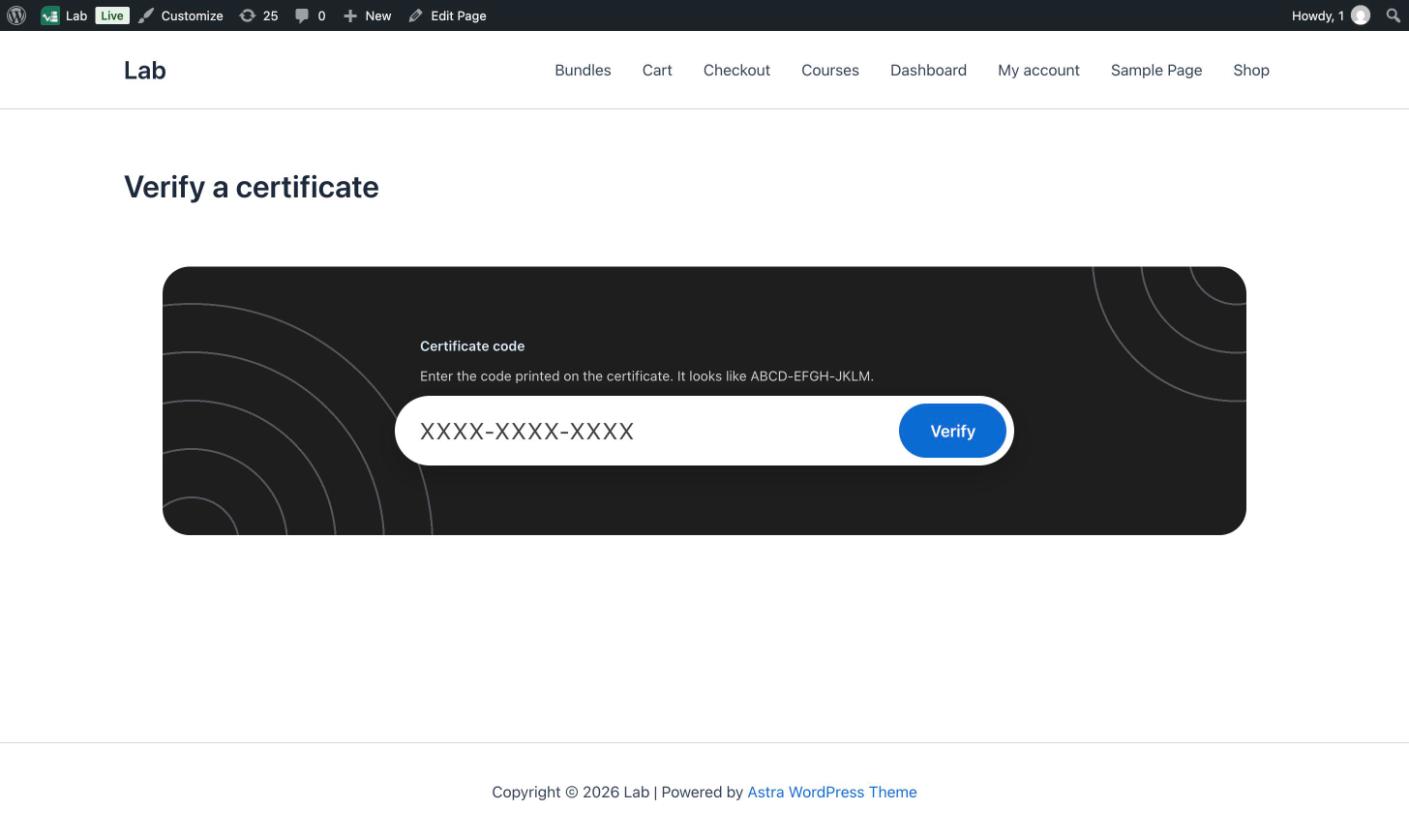
The Verify a certificate page. Its look follows the front-end design chosen under Settings → Site & pages.
The page shows one of these results:
| Result | Meaning |
|---|---|
| Verified credential | Shows Issued to, Course, Issued on, Issued by and the Credential code, with Copy link to share the result. |
| Not verified | No certificate matches the code. |
| Revoked credential | The certificate was withdrawn. |
| Too many attempts | The visitor tried too many codes. Wait and try again. |
| Verification unavailable | The check could not run. Try again later. |
You can also place the verify form on any page with the [rootwright_lms_certificate_verify] shortcode or the certificate verify block.