
How to attach Google Drive files to lessons
Google Drive lets you attach course material, such as PDFs and worksheets, from your Drive. The files stay in Drive. Students download them through your site, after RootWright LMS checks that they are enrolled.
Pro
Google Drive storage is part of RootWright LMS Pro.
Before you start
- A Google Cloud project with an OAuth client of type Web application. You can use the same client as YouTube or Google Meet. You still enter the Client ID and secret on this screen.
- The Google Drive API turned on in the same project.
- The redirect URI from the connection screen, added exactly to the client's Authorized redirect URIs.
- A public website address, or a refresh token made elsewhere. Google does not accept redirect addresses on
.testor.localsites. See Connect a local site.
Connection fields
| Field | Required | What it does |
|---|---|---|
| Client ID | Yes | The OAuth client ID from your Google Cloud project. |
| Client secret | Yes | The secret from the same client. The field is a password field. |
| Refresh token | Set by Connect | Filled in when you click Connect Google Drive. On a local site, paste one by hand instead. |
| Root folder ID | No | Browse starts in this folder instead of My Drive. The last part of the folder's URL in Drive. Worth setting, so a teacher picks attachments from one folder rather than the whole Drive. |
| Active | No | Switches this driver on. |
Set up the Google connection
- In the Google Cloud Console, turn on the Google Drive API for your project.
- Create an OAuth client of type Web application. Copy the Client ID and Client secret.
- In WordPress, go to Settings → Integrations → Video & storage, then click File storage in the sidebar, and open the Google Drive card.
- Paste the Client ID and Client secret, and click Save.
- In the form, click Copy next to Authorised redirect URI. Add it to the client's Authorized redirect URIs in Google Cloud Console. It is the same address Google Meet and YouTube use.
- Back in WordPress, click Connect Google Drive, and approve access in Google's window.
- Optional: enter the Root folder ID, and click Save.
- Switch on the Google Drive card.
Google asks for two permissions. drive.readonly lets RootWright LMS browse your Drive. drive.file lets it upload files, and it only reaches files that the app creates or opens.
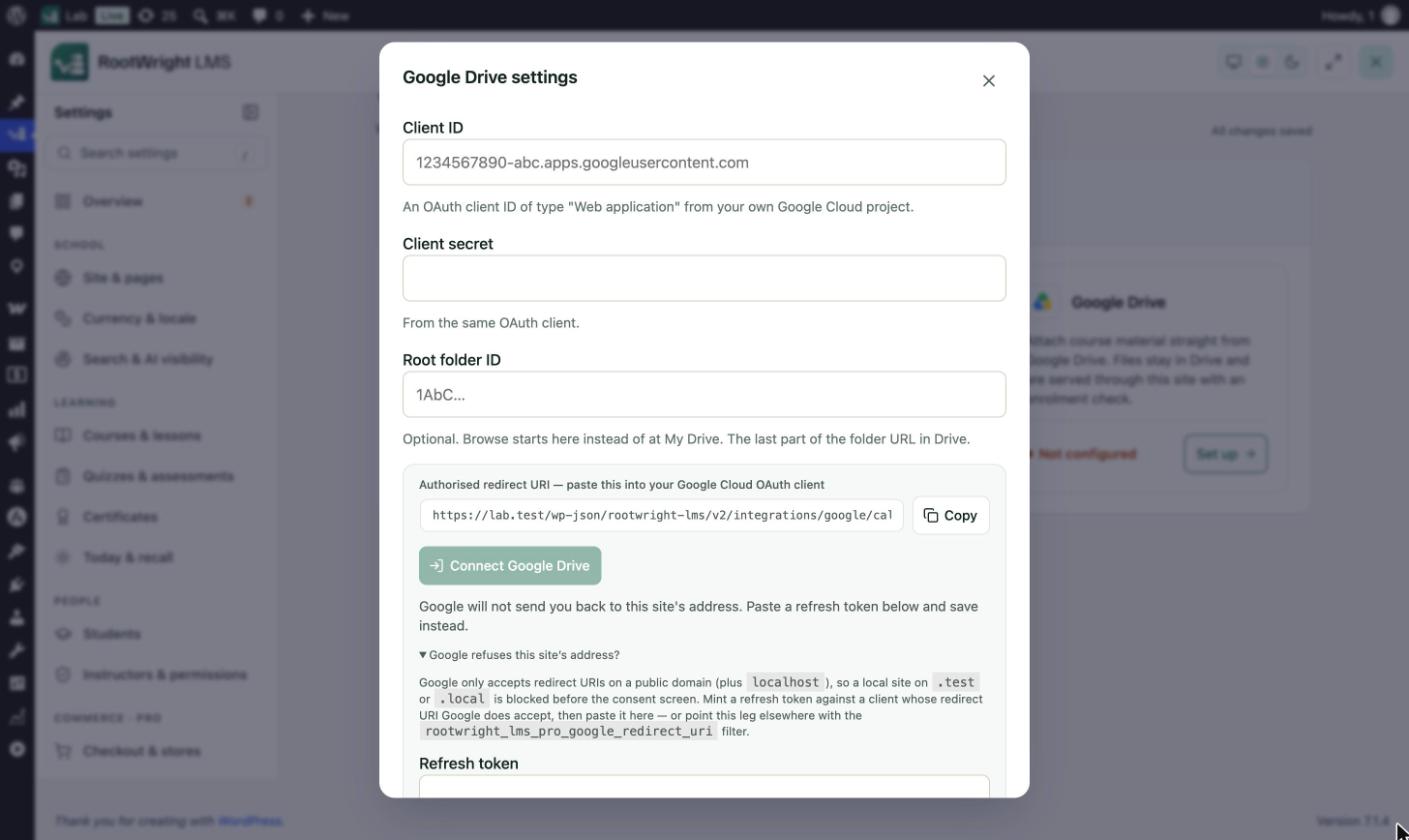
Settings → Integrations → Video & storage → File storage → Google Drive. On this .test site Connect Google Drive is disabled, and the form offers a Refresh token field instead.
Connect a local site
Google only accepts redirect URIs on a public domain, plus localhost. A site on .test or .local is blocked before the consent screen, and the form says "Google will not send you back to this site's address."
On such a site, create a refresh token against an OAuth client whose redirect URI Google does accept, then paste it into Refresh token and click Save. Developers can also point the redirect elsewhere with the rootwright_lms_pro_google_redirect_uri filter.
Warning
If your OAuth consent screen is set to External, publish it to Production. Google expires the refresh token for apps left in Testing after seven days, and then Drive stops working until you connect again.
Attach a Drive file to a lesson
Open a lesson in the lesson builder, add an Attach File block, and choose the file from Drive. Browse starts in the root folder, if you set one. The file stays in Drive.
Screenshot to add
What: The file picker in the Attach File block, showing Drive folders.
How to get there: Open a lesson in the lesson builder → add an Attach File block → open the Drive picker so your root folder is shown.
Save as: docs/public/images/integrations/google-drive-02-file-picker.jpg (1440×900 window, JPG)
Then: replace this box with: 
Disconnect
To disconnect, open the Google Drive card and click Disconnect. RootWright LMS removes the saved refresh token and revokes it at Google.
Messages you may see
- "That destination is outside the Drive folder this site is allowed to use." The upload target is outside the root folder. Choose a folder inside the root folder.
Related
- Video & storage for the other storage providers and the upload settings.
- YouTube and Google Meet for the other Google connections.