
How to use course Q&A in RootWright LMS
Course Q&A lets enrolled students ask questions from their dashboard. In RootWright LMS Pro, turn it on for each course in the course builder, then answer questions from Community → Q&A.
Pro
Course Q&A is part of RootWright LMS Pro.
Turn on Q&A for a course
- Open the course in the course builder and click Q&A in the left menu.
- Under Who sees questions, choose a mode. The change saves straight away.
| Mode | What it does |
|---|---|
| Off | Students can't ask questions on this course. The default. |
| Public | Every enrolled student sees every question and its answers. |
| Private | Each student sees only their own questions, like a support ticket. Questions asked while Private stay private. |
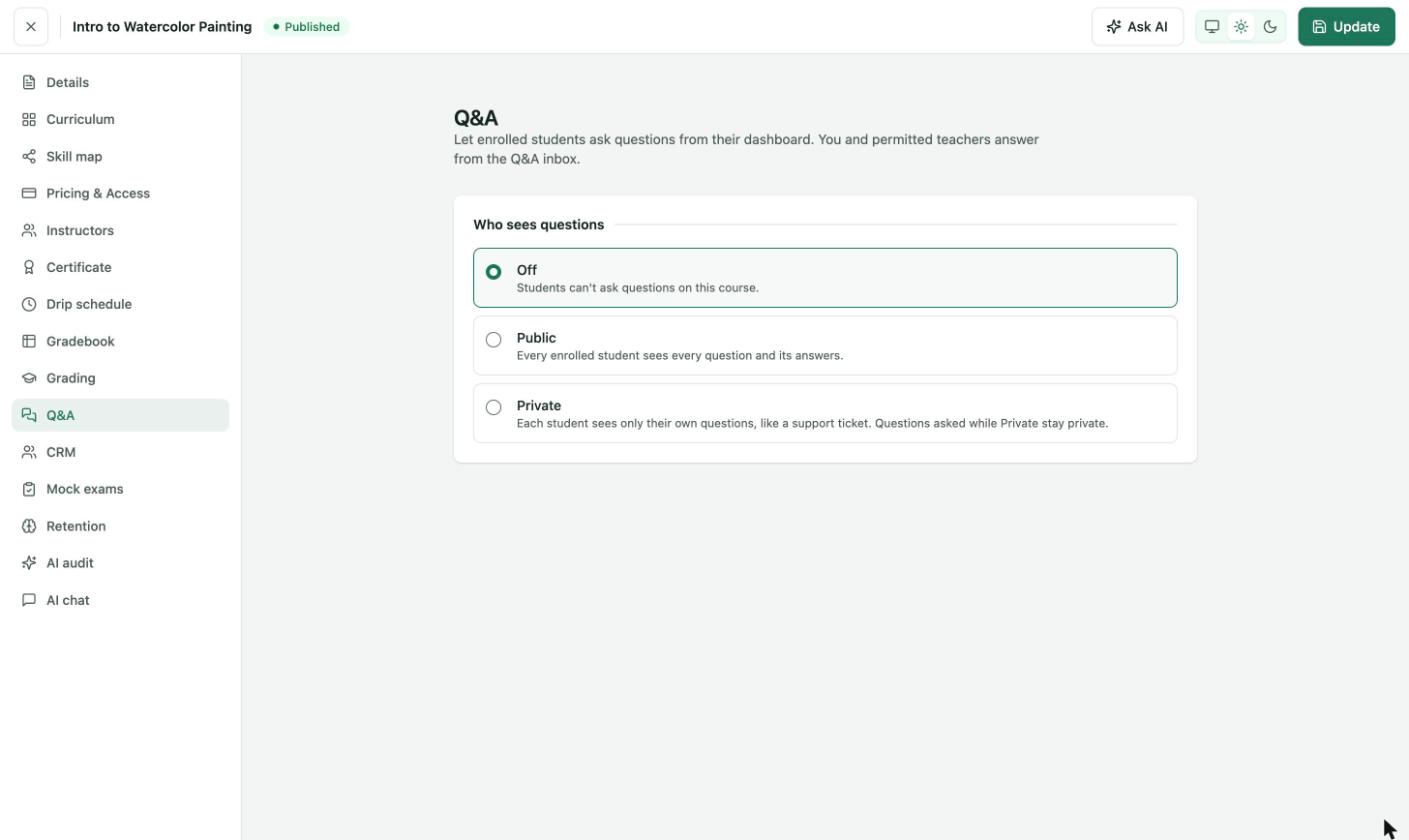
Course builder → Q&A. You and permitted teachers answer from the Q&A inbox.
What students do
Students ask from their dashboard. They write a Title that summarises the question, the Question itself, and optionally Which lesson? the question is about. Before they post, RootWright LMS may show These answered questions might help. Their own questions are under My questions.
Answer questions
- Go to Community → Q&A. The Unanswered tab lists questions waiting for an answer.
- Pick a course in All courses to narrow the list.
- Click a question. The thread opens on the right, with a box to post your reply.
- Write your reply and click Reply.
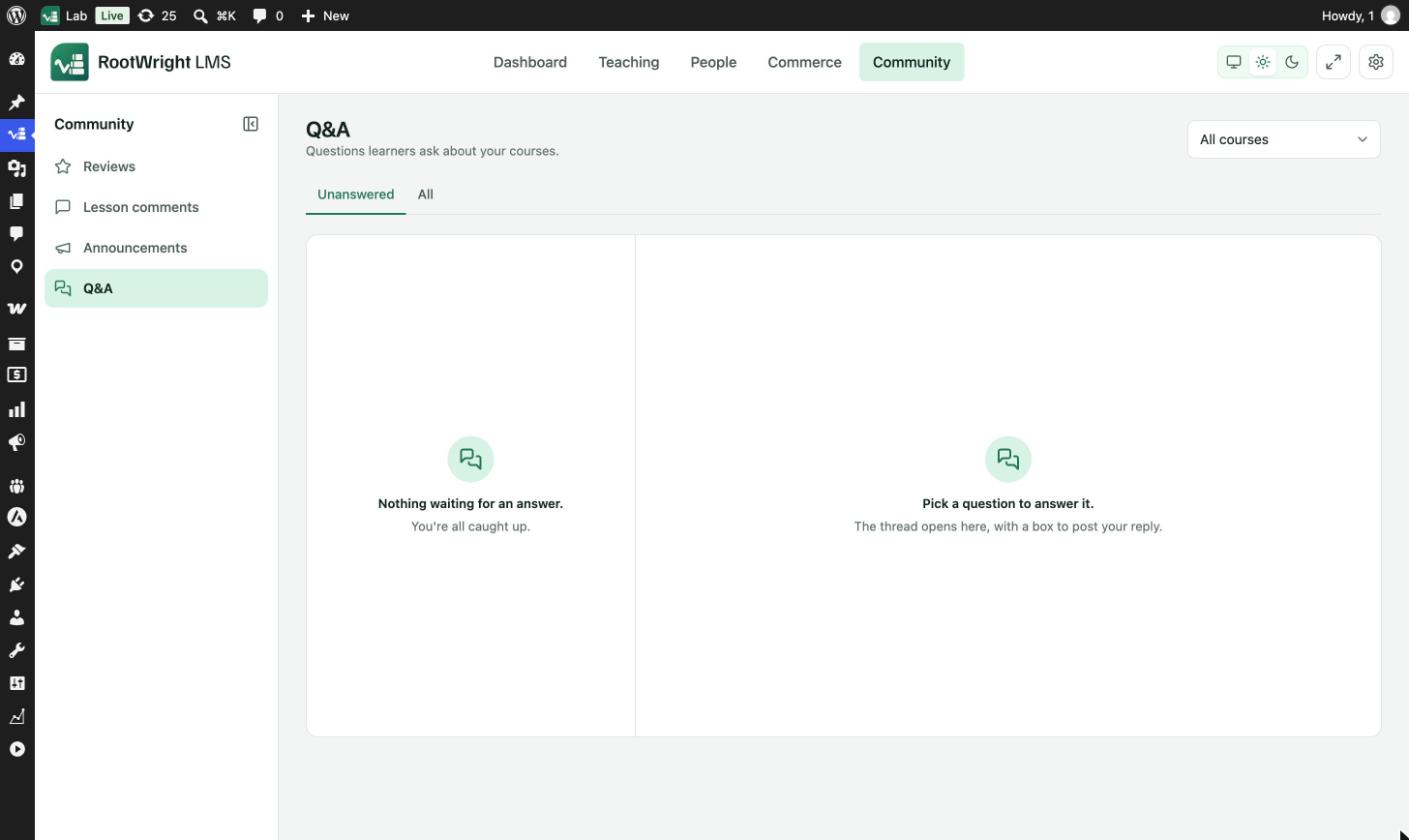
Community → Q&A. With nothing to answer, it reads "Nothing waiting for an answer. You're all caught up."
The All tab lists every question, answered or not. Replies from you and other teachers are marked Staff. To remove a question, open it and delete it.
Students and teachers are emailed about new questions and answers. Edit the emails under Settings → Emails → Templates, in the Course Q&A group.