
How to add instructors and review publish requests in RootWright LMS
The Instructors screen lists who teaches at your school and how much each of them has on right now. Add instructors under People → Instructors. When publishing needs approval, their courses wait for you under Publish requests.
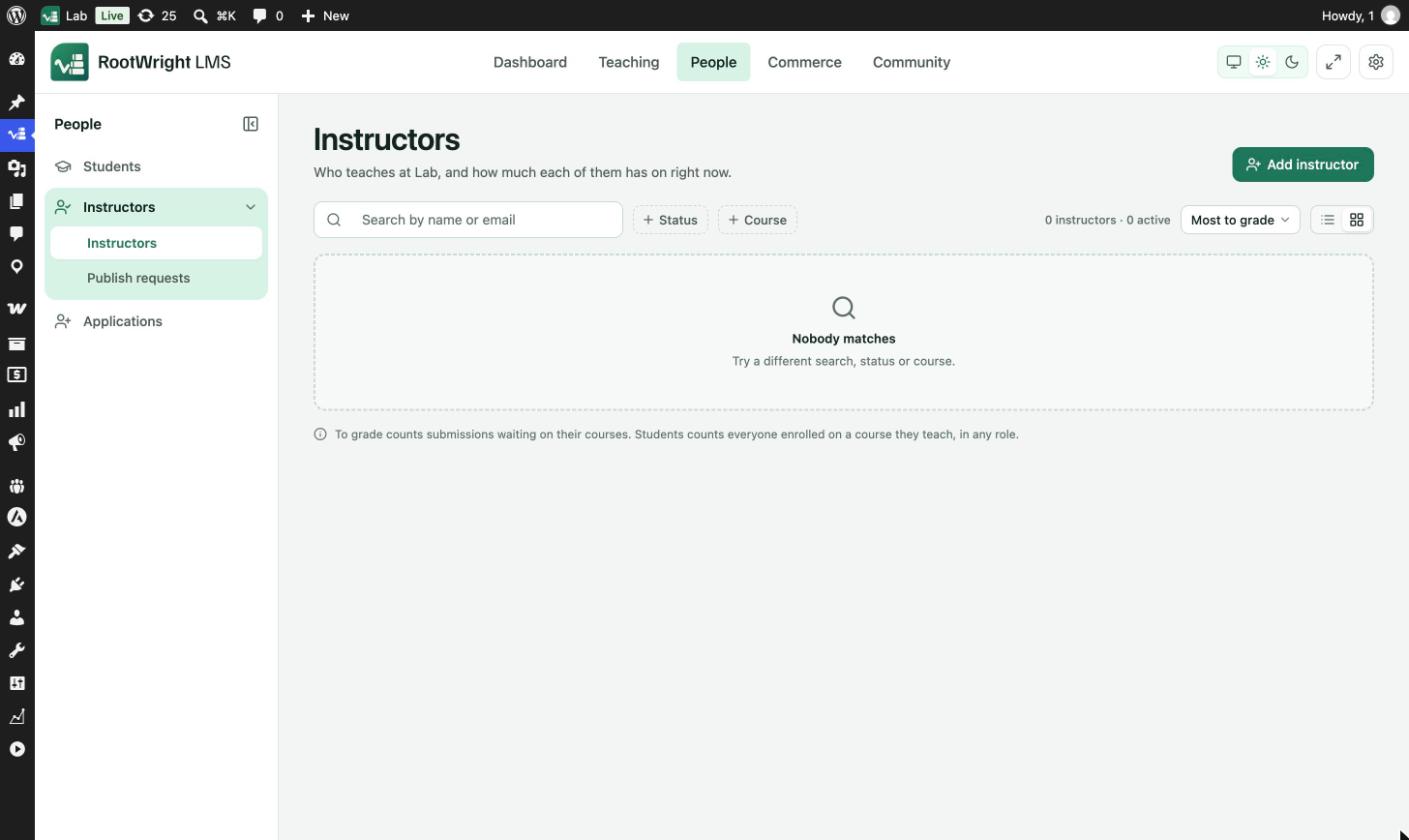
People → Instructors. Filter by Status or Course, sort by Most to grade, and switch between list and grid views.
Add an instructor
- Go to People → Instructors and click Add instructor. The Add people drawer opens with Instructor selected.
- Choose how to add them:
- Existing WordPress user: search by name, email or username.
- New account: enter Email, First name and Last name. RootWright LMS creates their WordPress login.
- Import CSV: upload a
.csvfile, one person per row, up to 2,000 rows.
- Leave Send welcome email on to send the "Welcome — new instructor" email. Edit template opens it.
- Click Add. The button shows how many instructors will be added.
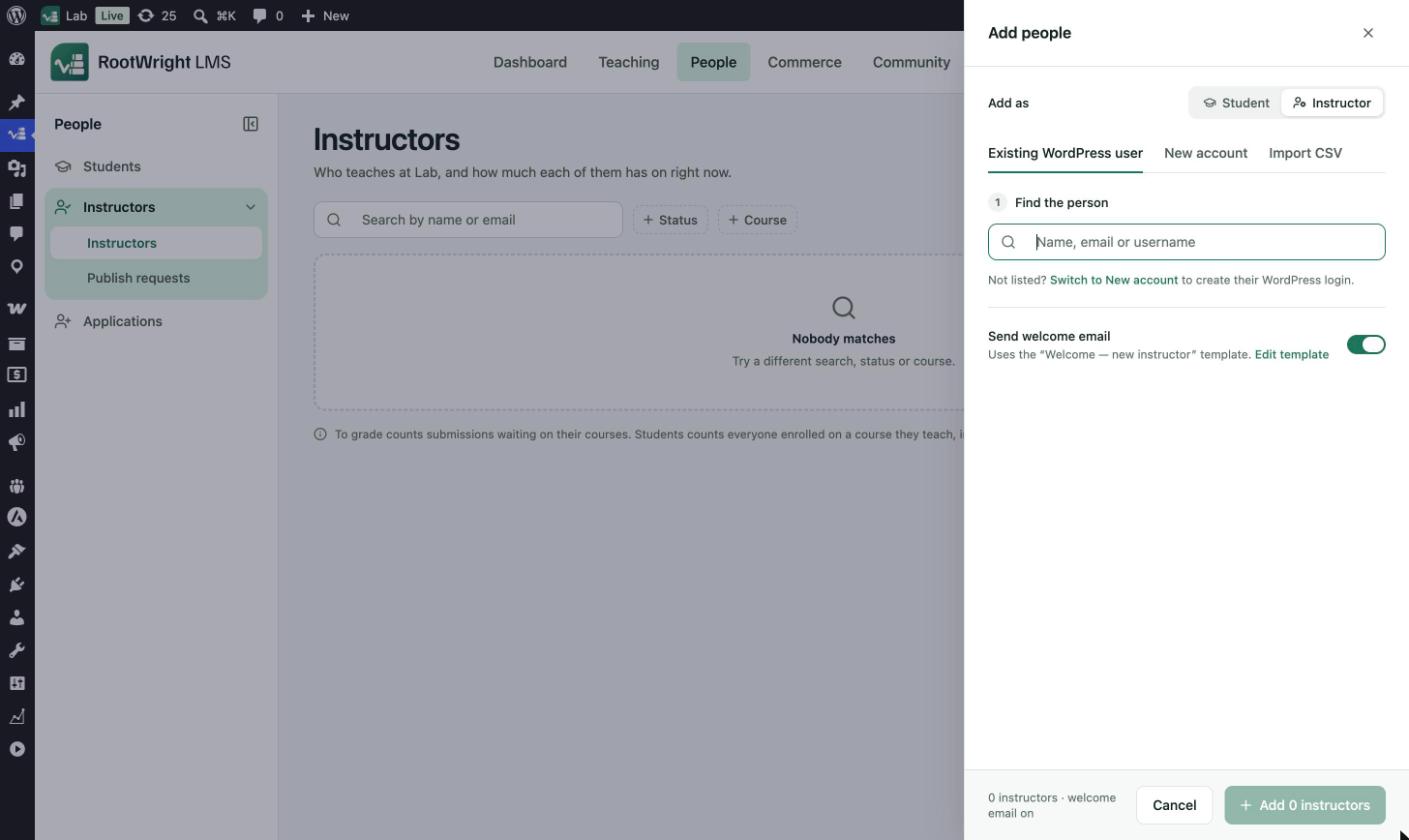
The Add people drawer. Switch Add as to Student to add students instead.
The instructor list
- Search by name or email finds an instructor.
- + Status and + Course filter the list.
- The count reads, for example, "3 instructors · 2 active".
- To grade counts submissions waiting on their courses. Students counts everyone enrolled on a course they teach, in any role.
Publish requests
When Who can publish a course is set to Require admin approval under Settings → Courses & lessons → Publishing, an instructor's Publish submits the course instead.
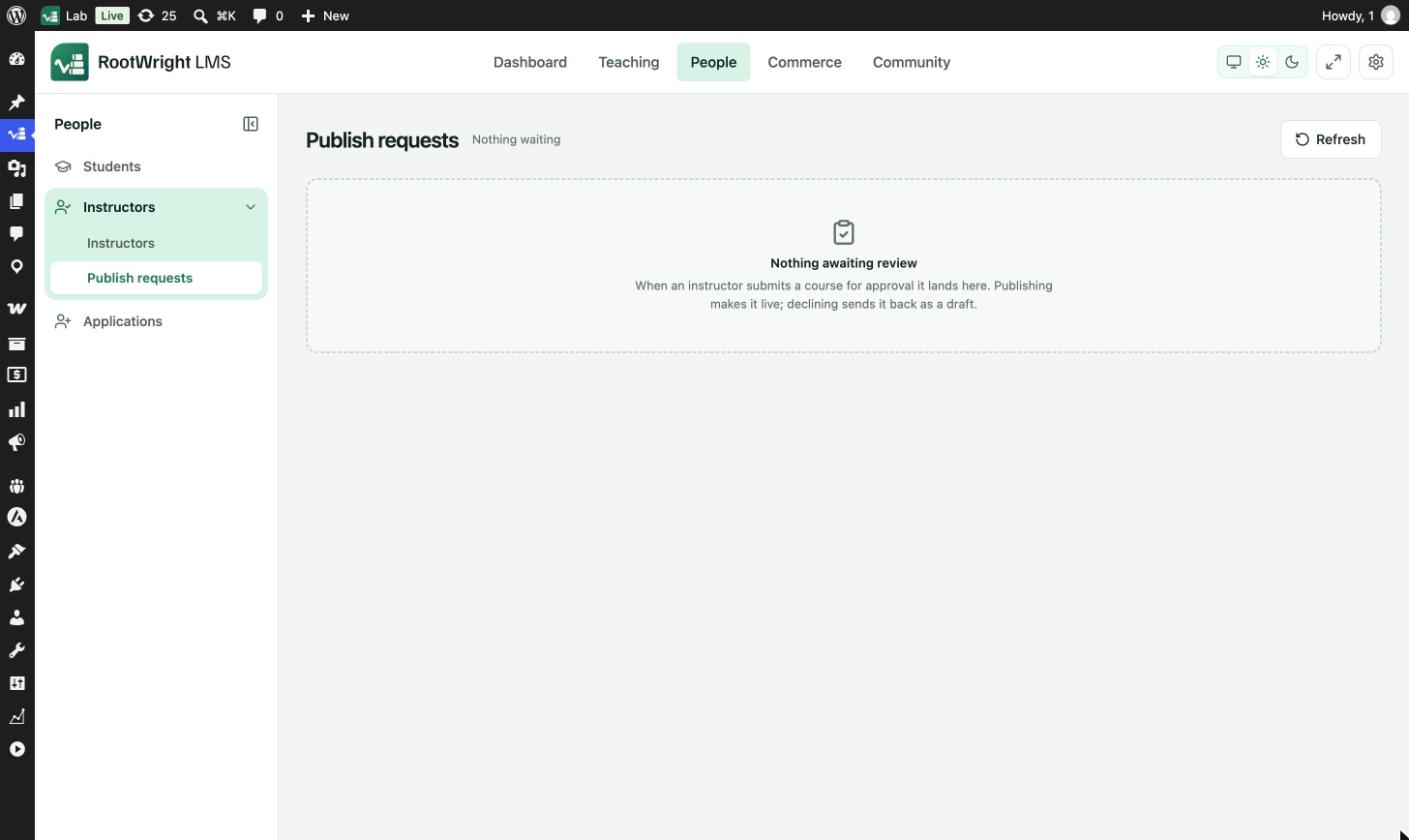
People → Instructors → Publish requests.
- Go to People → Instructors → Publish requests.
- Use Open the course to review it to check the course.
- Click Publish to make it live, or Decline to send it back to the instructor as a draft. When declining, enter a Reason.
Click Refresh to check for new requests. An individual course can override the site-wide publishing rule.