
The student dashboard in RootWright LMS
The student dashboard is where a signed-in student finds their courses, daily recall, certificates, purchases and personal settings. In RootWright LMS it lives at /dashboard on your site. Each section is a link in the left sidebar.
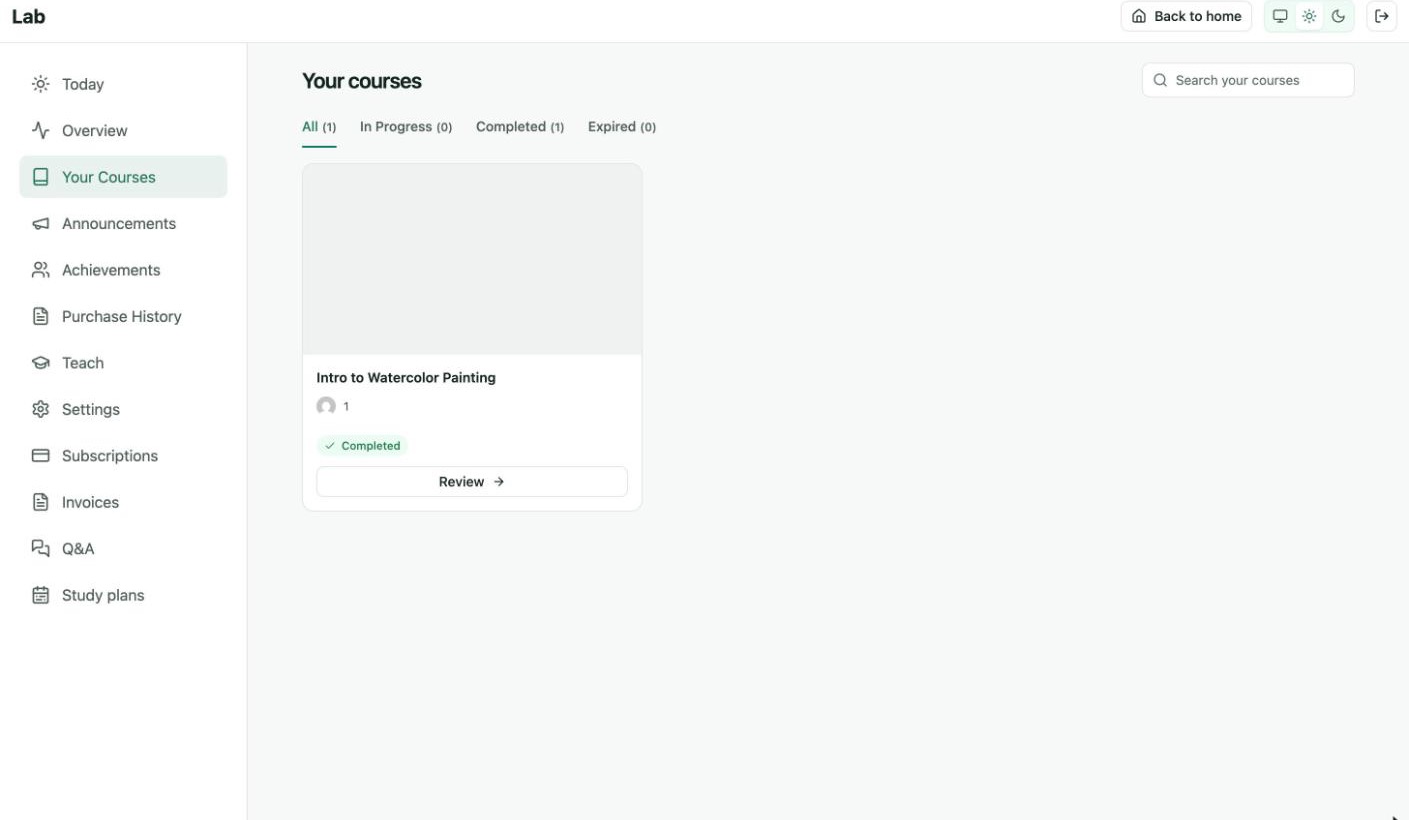
The student dashboard. The sidebar lists each section. The top right has Back to home, the light and dark theme switch, and sign out.
Sections in the sidebar
| Section | What the student sees | Plan |
|---|---|---|
| Today | Today's recall questions and study tasks. Shown only when Today view is on under Settings → Today & recall. See Daily recall. | Free |
| Overview | Counts for Enrolled courses, In progress, Completed and Certificates, then Continue learning and Based on your interest course suggestions. | Free |
| Your Courses | Every course the student is enrolled in, with tabs All, In Progress, Completed and Expired, and a search box. Each card opens the course player. | Free |
| Announcements | Announcements sent to this student. The sidebar shows a count of unread ones. See Announcements. | Free |
| Achievements | Earned certificates. See Student certificates. | Free |
| Purchase History | Each order with its date, courses, store, status and total. Shows "No purchases found." until the student buys something. | Free |
| Teach | The form to apply to become an instructor. See Apply to teach. | Free |
| Settings | Study preferences, profile, billing address and password. See Settings. | Free |
| Subscriptions | Courses bought on a recurring plan. Shows "No subscriptions yet" until there is one. | Pro |
| Invoices | An invoice for each payment and a credit note for each refund. | Pro |
| Q&A | Questions the student asked in a course, and the answers. See Course Q&A. | Pro |
| Study plans | Study plans the student was given. See Study plans. | Pro |
Which section opens first depends on Opens first under Settings → Today & recall, and on the student's own Open on setting.
Your courses
Click Your Courses to see every enrolled course. A completed course shows a Completed badge and a Review button.
To find a course, type in Search your courses. To see only some courses, click In Progress, Completed or Expired.
Settings
Students change their own preferences under Settings. It has four cards.
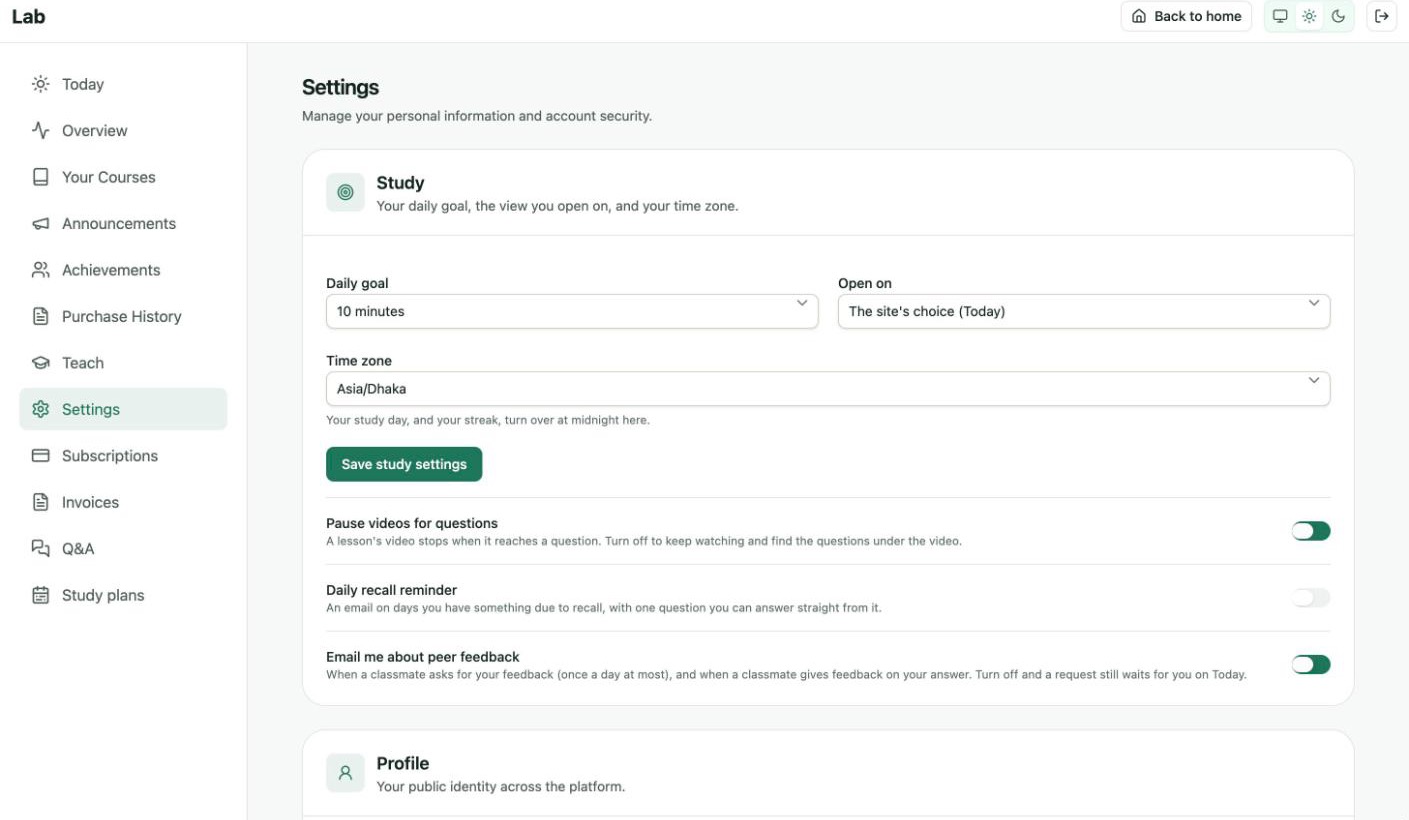
Settings → Study.
| Card | Fields |
|---|---|
| Study | Daily goal (5 to 60 minutes), Open on (The site's choice, Today or Browse) and Time zone. The study day and the streak turn over at midnight in this time zone. Click Save study settings. Below are three switches: Pause videos for questions, Daily recall reminder and Email me about peer feedback. |
| Profile | Change avatar (PNG or JPG up to 12 MB), First name, Last name, Display name, Email, Parent or guardian email (optional), Show me in the public student directory (off by default) and About you. Click Save changes. |
| Billing address | The address used on invoices and receipts. Click Save address. |
| Password | Current password, New password (at least 8 characters) and Confirm new password. Click Update password. |
When Show me in the public student directory is on, the student's name, picture and completed courses appear on the site's Students page. Their email, phone and address are never shown.
A parent or guardian email gets a copy of progress updates. Leave it blank to keep progress updates private.
Apply to teach
Click Teach to apply to become an instructor.
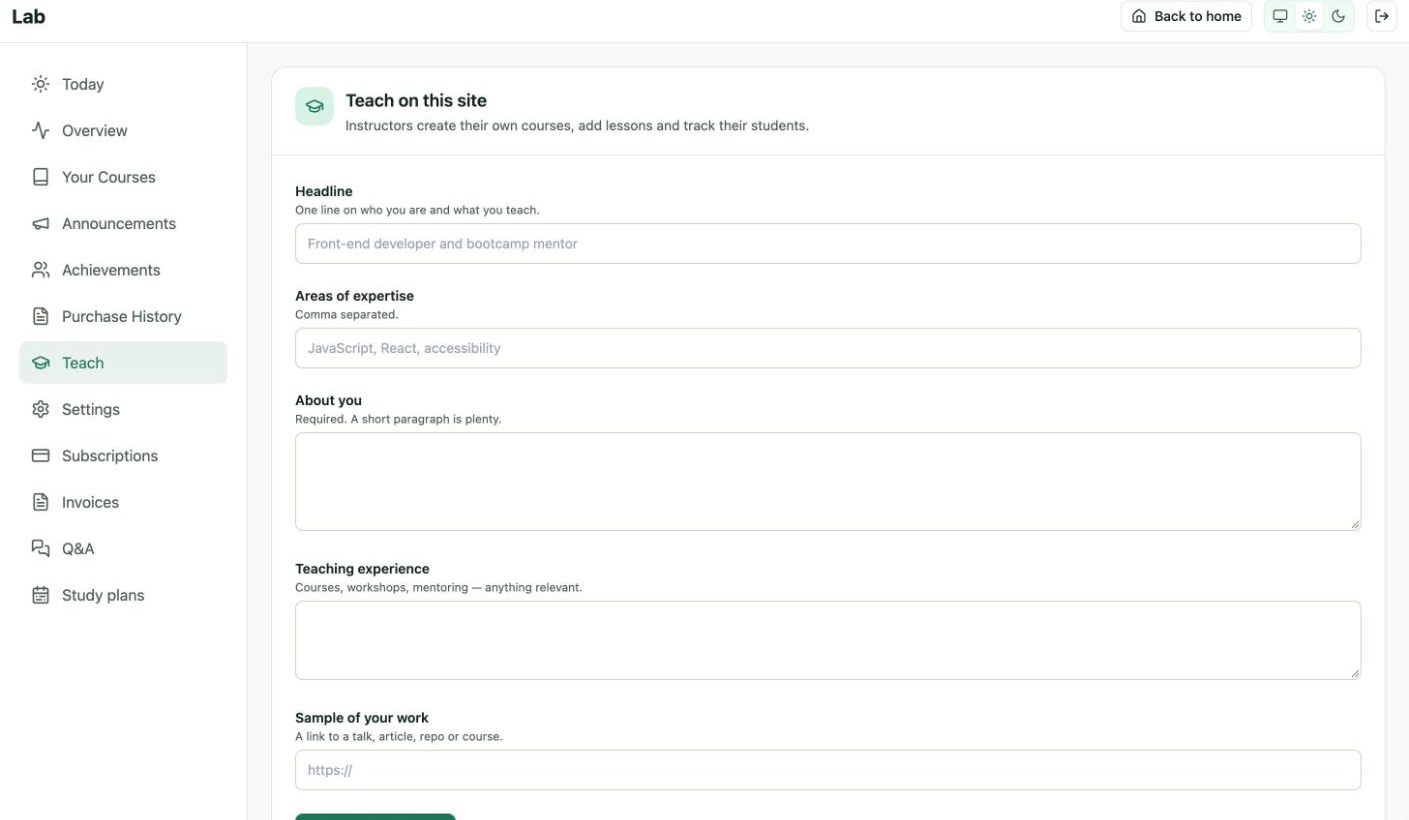
Teach. About you is the only required field.
- Click Teach in the sidebar.
- Fill in Headline, Areas of expertise (comma separated), About you, Teaching experience and Sample of your work (a link).
- Click Send application.
The page then says "Your application is being reviewed." The student gets an email when there is a decision, and can click Withdraw application until then. An admin approves or rejects it under People → Applications. See Instructor applications.
The Teach link is always in the sidebar. The page itself changes:
- "You are already an instructor." The student is an instructor already. They build courses from the instructor dashboard.
- "Applications are closed at the moment. Check back later." New instructor applications are switched off.
- "Your previous application was not approved." The last application was rejected. The student can apply again below the message.
Related
- What students see for the course page and the course player.
- Students settings for registration, guardian emails and the student directory.
- Daily recall