
How to add questions to a lesson video in RootWright LMS
Video questions pause a lesson's video at the times you choose and ask the learner a question. In RootWright LMS Pro, add a Video questions block to the lesson in the lesson builder, add each question with its time, and click Save video questions. What a learner gets wrong comes back later in their recall.
Pro
Video questions need RootWright LMS Pro.
Before you start
- The lesson needs a video. See Lessons and Video & storage.
- Save the lesson once before you add questions. Until then the block says "Save the lesson first, then add questions to its video."
Add video questions
- Open the lesson in the lesson builder and click Blocks in the left menu.
- Under Add a block, click Video questions.
- Click Add a question.
- In At, enter the time in the video, such as
1:35. - Write the Question.
- Fill in the answers and tick every answer that is right. Click Add an answer for more.
- Optional: write an Explanation, shown after answering.
- Repeat from step 3 for more questions.
- Click Save video questions.
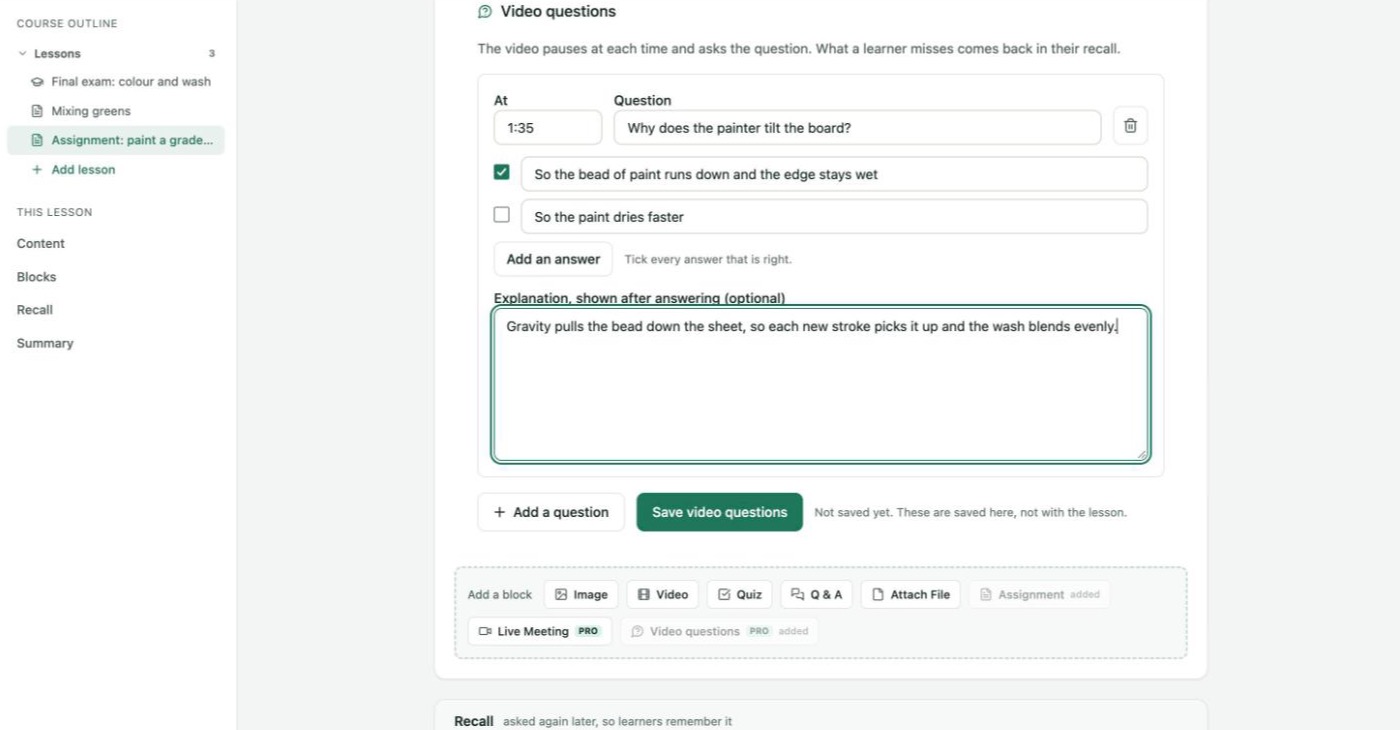
A question set for 1:35, with two answers and an explanation.
Warning
Video questions are saved by their own button, not with the lesson. Save lesson does not save them. While there are unsaved changes, the block says "Not saved yet. These are saved here, not with the lesson."
Limits and checks
- Up to 20 questions per video, and up to 6 answers per question.
- Each question needs a time, its text, at least two answers, and at least one answer ticked as right. If one is missing, nothing is saved and a message names the question, for example "Question 2 needs a time, such as 1:35."
- To remove a question, click its bin icon, then Save video questions.
What learners see
Learner behaviour below is from the plugin code. It was not walked on a learner account for this page.
- When the video reaches a question, it pauses and the question appears over the video. On YouTube the player is swapped for the question instead, because YouTube does not allow drawing over its player.
- The learner picks an answer and clicks Check. After a moment the video carries on. Continue watching carries on at once, and Skip for now skips the question.
- Dragging past a question does not bring it up. Questions still unanswered when the video ends are listed under it, as Questions about this video.
- A learner can turn off Pause videos for questions under Settings on their dashboard. They then see the questions as a list under the video. See The student dashboard.
- A wrong answer comes back in the learner's recall. See Daily recall.