
How to lock skills until learners master the ones before them
The skill map lets you group a course's lessons into skills and say which skill needs which. Learners see the course as a map. They are led to the next skill they are ready for. You can keep a skill closed until the skill it requires has been mastered.
A course with no skills works as it always has. The skill map is optional.
Before you start
- The course has lessons. Each lesson can belong to one skill.
Add a skill
- Open the course in the course builder and click Skill map.
- Click Add a skill.
- In Name, enter what a learner will be able to do, such as "Make a flat wash".
- Optional: in What it is, for learners, write a short description.
- Under Made of, tick the modules and lessons that belong to this skill.
- Click Save skill map.
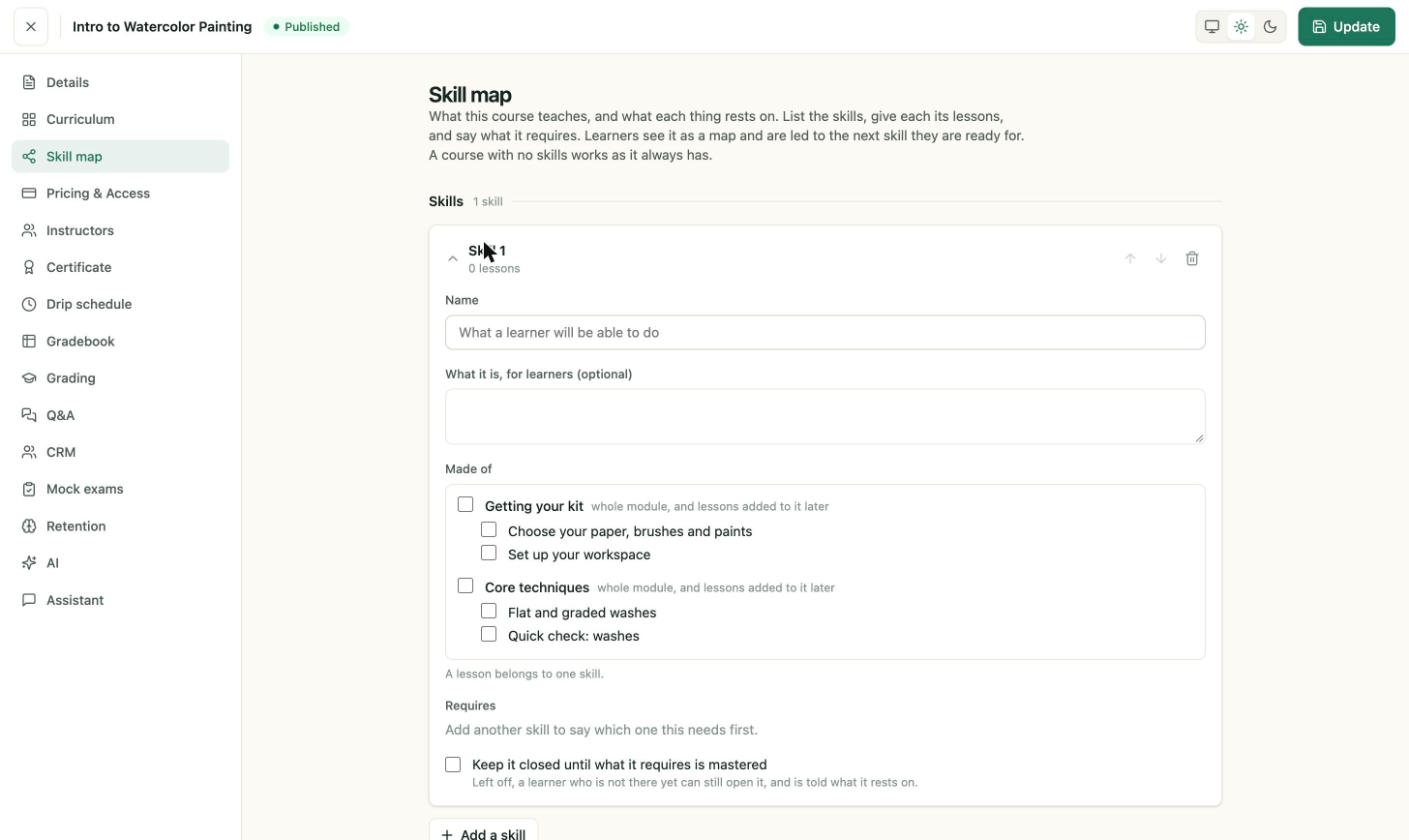
Skill 1 under Made of lists the modules and lessons of the course. Tick a module to add all of its lessons, including lessons you add to it later.
A lesson belongs to one skill.
A lesson already used by another skill shows in another skill and cannot be ticked.
Set what a skill requires
Under Requires, choose another skill that this skill needs first. Add more than one if you need to.
Turn on Keep it closed until what it requires is mastered to lock the skill:
- On: a learner who is not ready cannot open the skill.
- Off: a learner who is not ready can still open it, and the page tells them what it rests on.
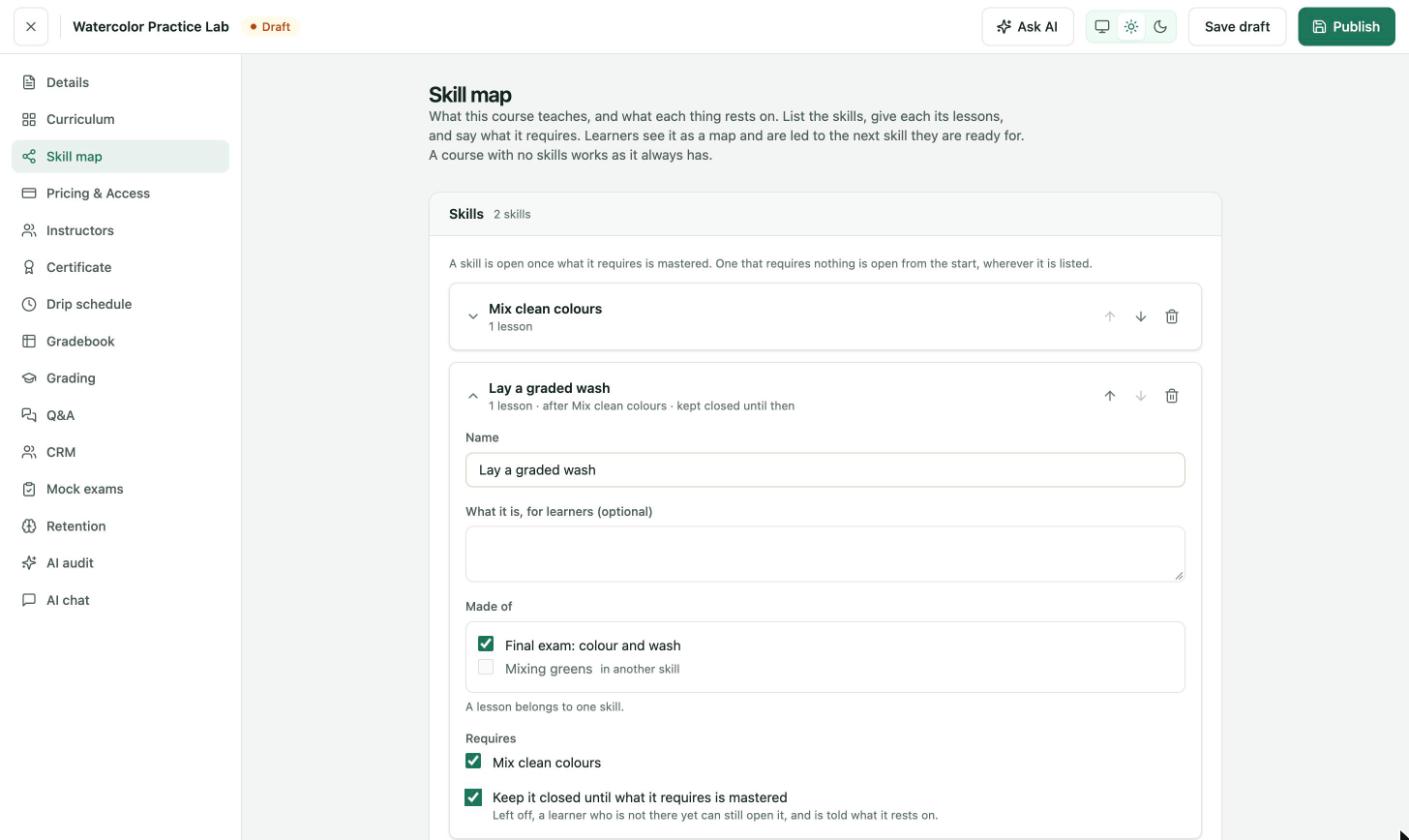
"Lay a graded wash" requires "Mix clean colours" and is kept closed until then. The summary under the name reads "1 lesson · after Mix clean colours · kept closed until then".
A skill that requires nothing is open from the start, wherever it is listed. If no skill requires another yet, skills are learned in the order listed, each one after the one above it.
What learners see
With Keep it closed until what it requires is mastered on, the lessons in the skill show a lock in the course outline. The lesson's status reads "This lesson opens once you have learned: Mix clean colours."
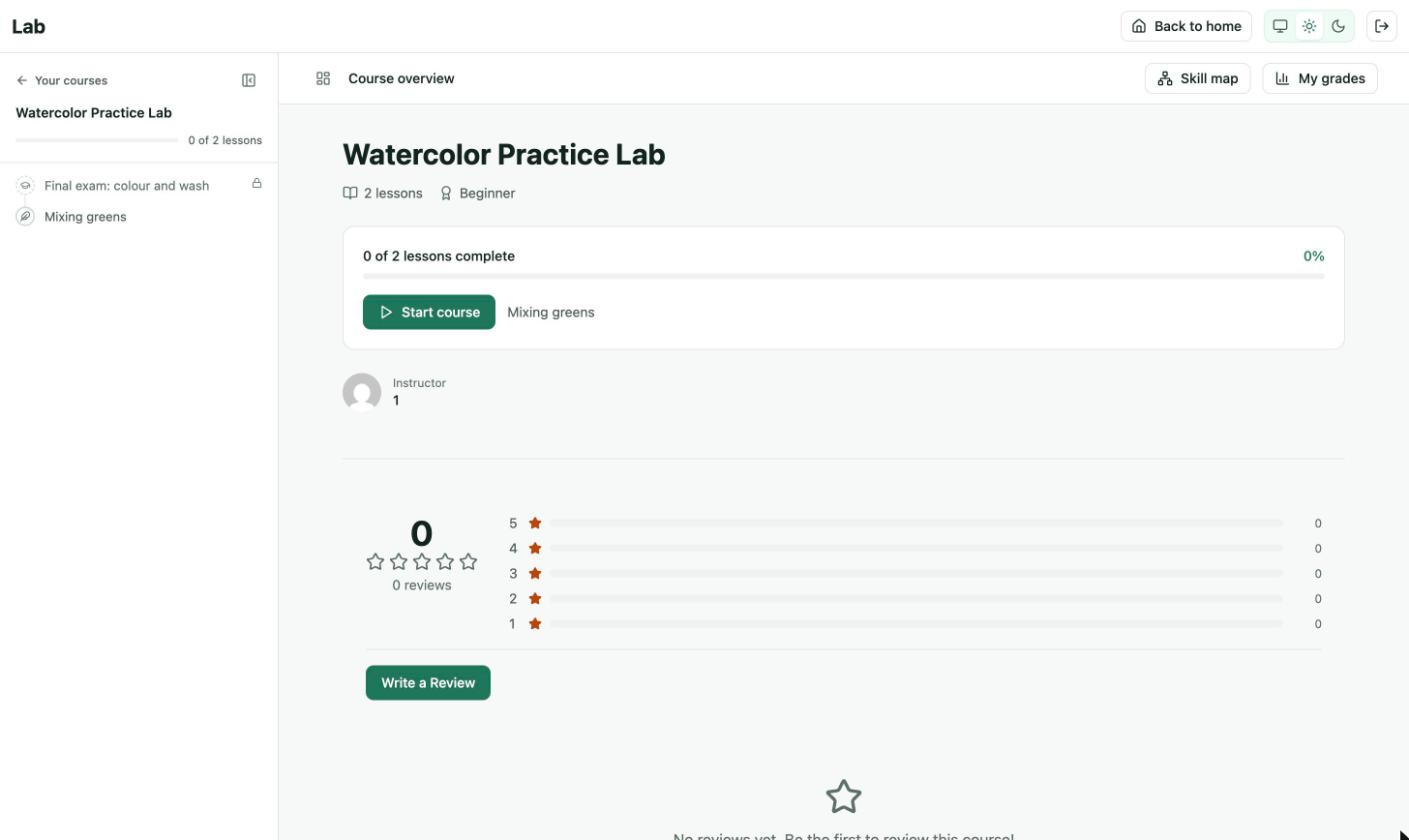
The learner's course outline. The exam lesson shows a lock until the skill it requires is mastered.
With the switch off, the lesson opens, and a notice at the top tells the learner what it builds on, with a See the skill map link.
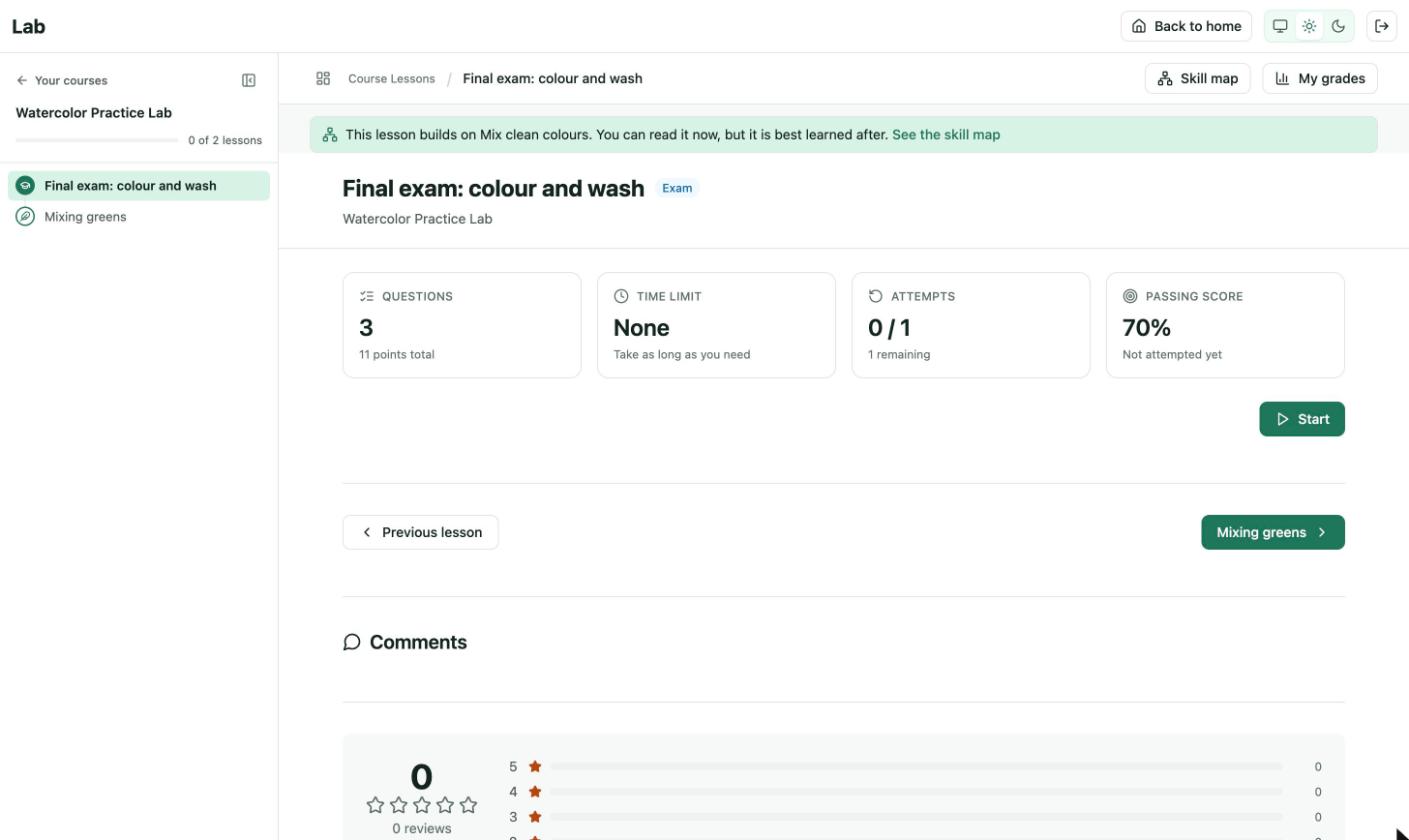
"This lesson builds on Mix clean colours. You can read it now, but it is best learned after."
See it as learners will
After you save, the As learners will see it panel shows the map as saved: each skill in order, with what it comes after.
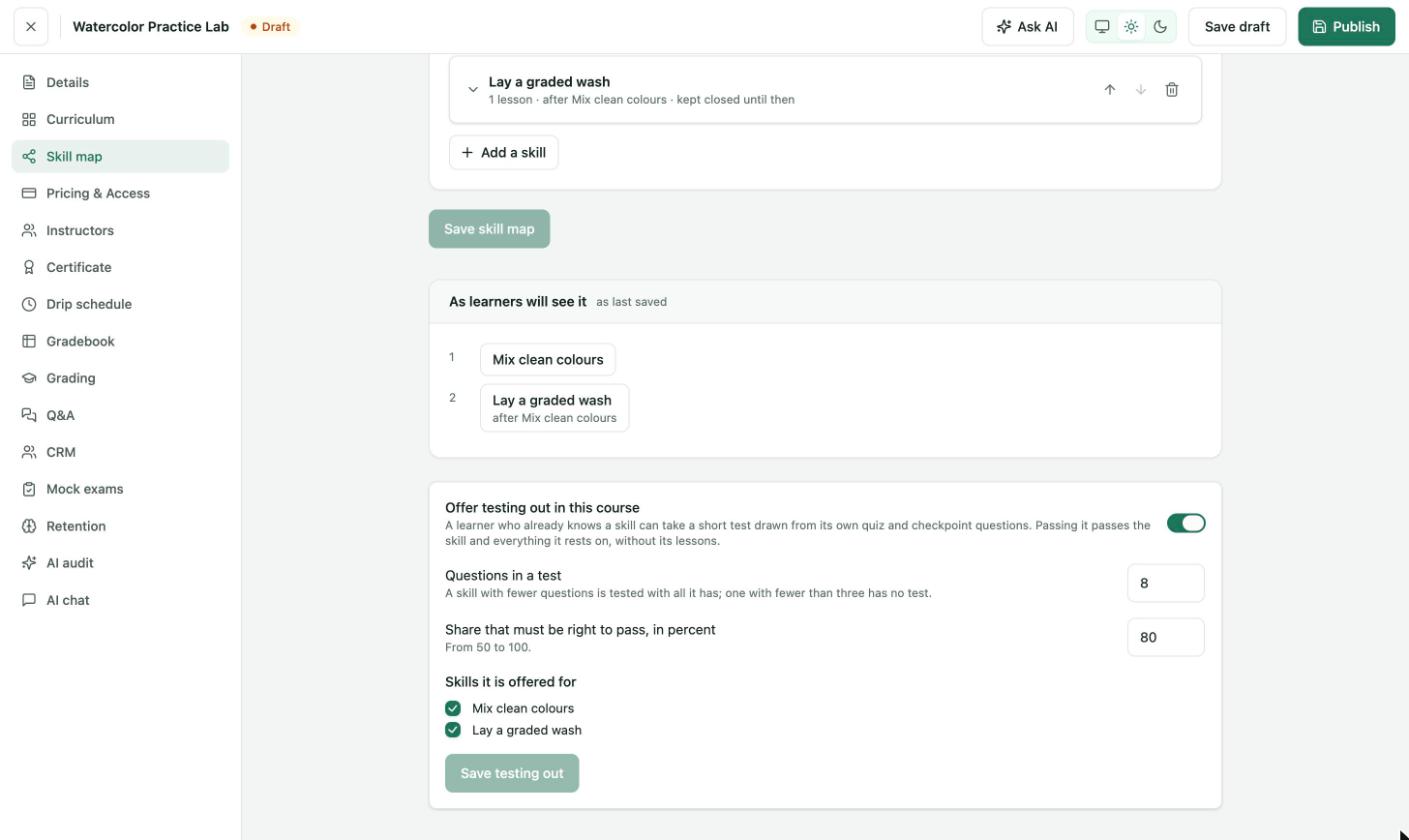
Below the skills: the learner preview, then the testing-out settings.
Let learners test out of a skill
A learner who already knows a skill can take a short test instead of its lessons. Passing it passes the skill and everything it rests on.
| Setting | What it does |
|---|---|
| Offer testing out in this course | Turns testing out on for the course. |
| Questions in a test | How many questions a test draws from the skill's own quiz and checkpoint questions. A skill with fewer questions is tested with all it has. One with fewer than three has no test. |
| Share that must be right to pass, in percent | From 50 to 100. |
| Skills it is offered for | Tick the skills that offer a test. A skill must be saved first. |
Click Save testing out to save these settings. They save separately from the skill map.
Order and remove skills
- Use the up and down arrows on a skill to change the order.
- Use the trash icon on a skill to remove it.
Save the skill map
The skill map has its own Save skill map button. Saving the course does not save the skill map.
The page shows Not saved yet. The course's own Save does not save the skill map. until you click Save skill map.