
The Assessments screen in RootWright LMS
The Assessments screen lists every quiz, exam and assignment across your courses in one place. In RootWright LMS, go to Teaching → Assessments. Each row shows the course, a short summary and how many submissions are waiting to be graded.
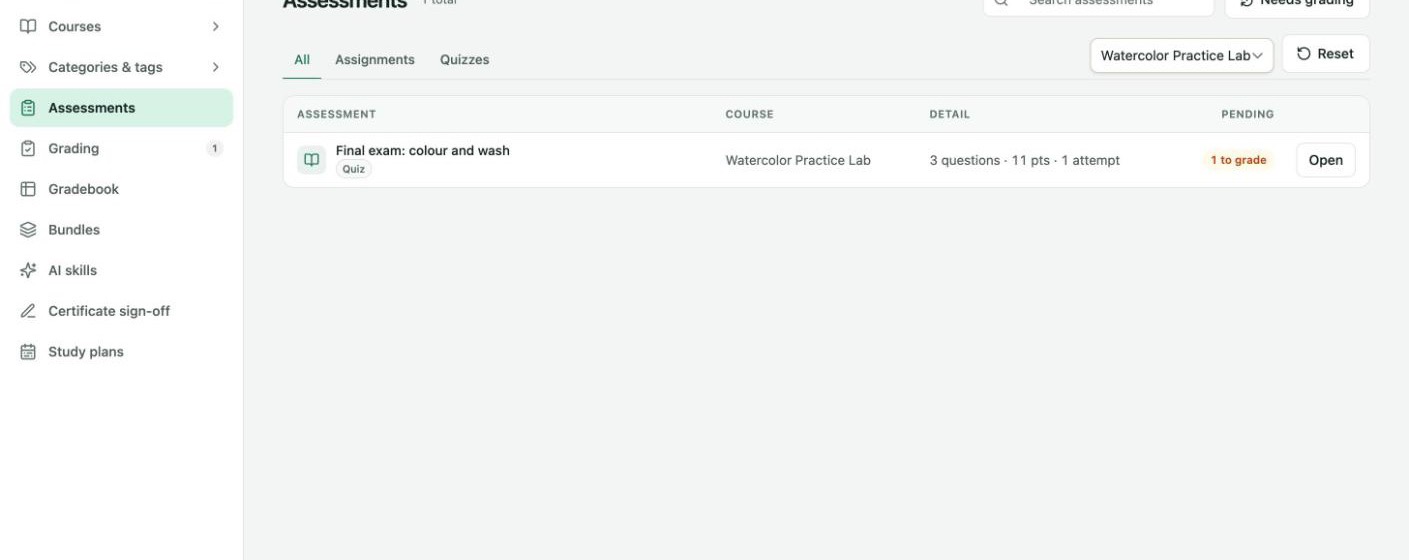
Teaching → Assessments, filtered to one course. The orange badge shows one attempt waiting to be graded.
Columns
| Column | What it shows |
|---|---|
| Assessment | The lesson title, with a Quiz or Assignment label. Exams are labelled Quiz. |
| Course | The course the lesson belongs to. |
| Detail | For a quiz: the number of questions, total points and attempts so far. For an assignment: the points and the number of submissions, plus the due date when one is set. |
| Pending | How many attempts or submissions are waiting to be graded, for example 1 to grade. |
Controls
| Control | What it does |
|---|---|
| All, Assignments, Quizzes | Show every assessment, or only one kind. |
| Search assessments | Finds assessments by title. |
| All courses | Shows only one course's assessments. |
| Reset | Clears the search, tab and course filter. Appears when a filter is on. |
| Needs grading | Opens the grading queue. See Grading and results. |
| Open | Opens the lesson in the lesson builder, where you change its questions and settings. |
To grade an attempt, use Needs grading or Teaching → Grading, not Open. Open edits the assessment itself.