
Question types in RootWright LMS quizzes
Every question in a quiz has a type. The type decides how students answer and how the answer is marked. You choose the type in the question's menu, next to the question text.
Choose a question type
- Open the quiz lesson in the lesson builder.
- In the Blocks section, find the Quiz block and add a question with Add a question.
- Click the type name at the right of the question, such as Multiple choice.
- Choose a type from the list.
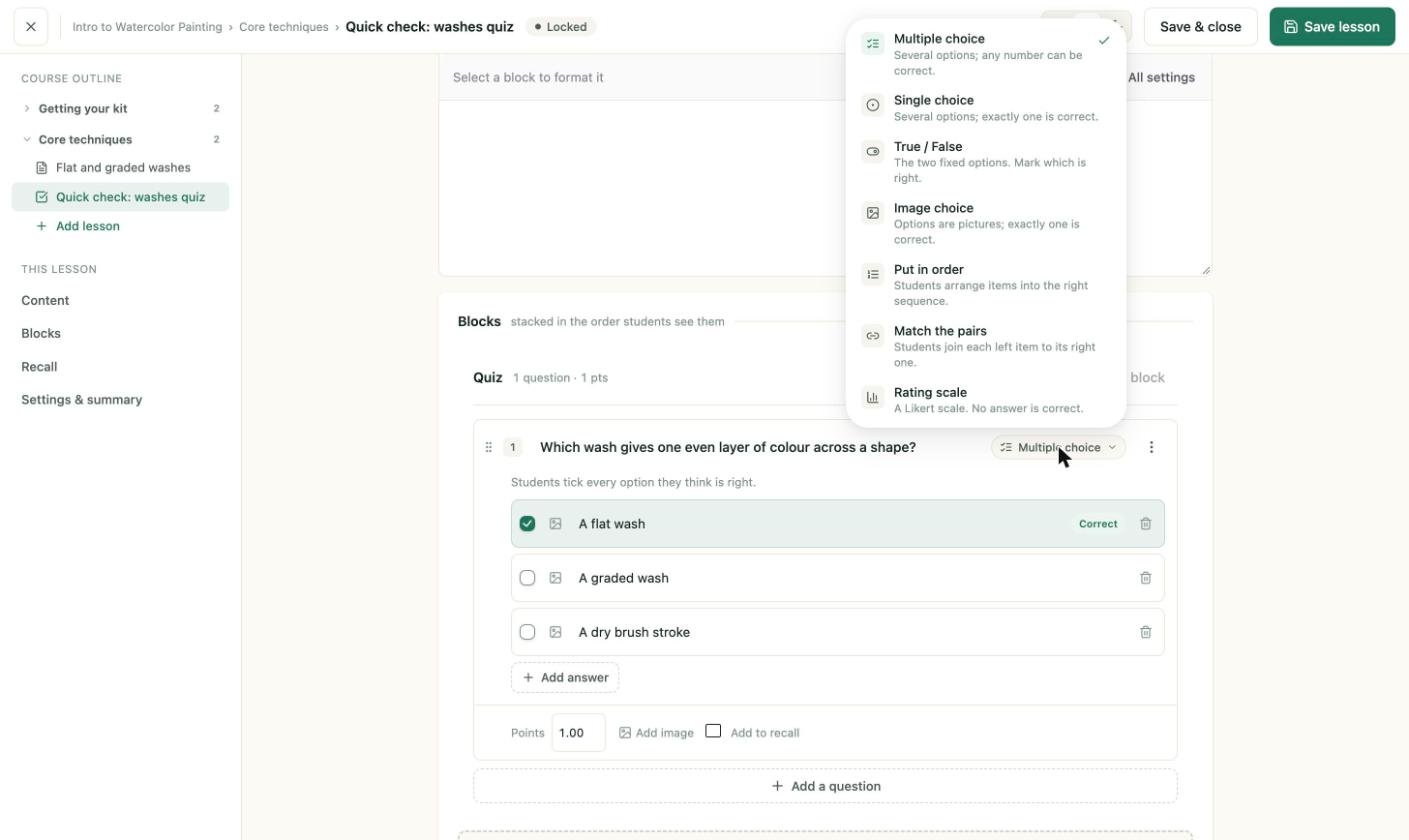
The question type list. The check mark shows the type the question uses now.
The types
| Type | What the editor says about it |
|---|---|
| Multiple choice | Several options; any number can be correct. Students tick every option they think is right. |
| Single choice | Several options; exactly one is correct. |
| True / False | The two fixed options. Mark which one is right. |
| Image choice | Options are pictures; exactly one is correct. |
| Put in order | Students arrange items into the right sequence. |
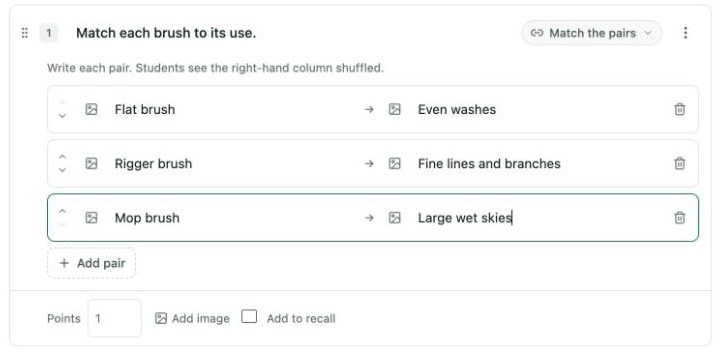
| Match the pairs | Students join each left item to its right one. |
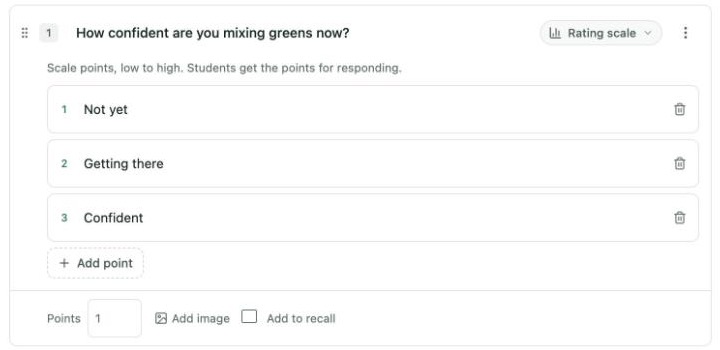
| Rating scale | A Likert scale. No answer is correct. |
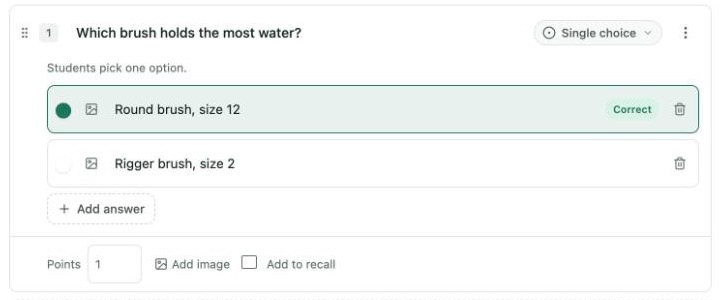
Single choice
Students pick one option. Click the circle next to the right answer to mark it Correct. Use Add answer for more options.
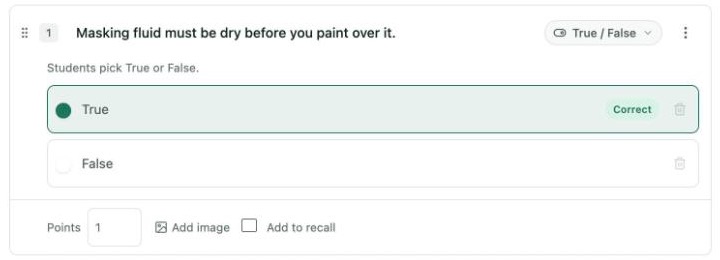
True / False
Students pick True or False. Click the circle next to the right one. If the question still shows No correct answer marked, click the other option and back again.
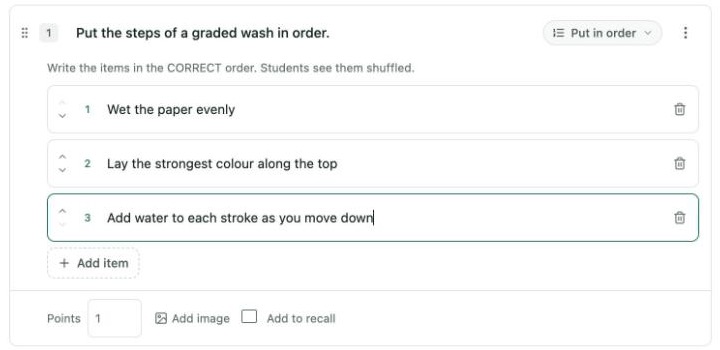
Put in order
Write the items in the correct order. Students see them shuffled. Use Add item for more, and the arrows to reorder. A question needs at least two items.
Match the pairs
Write each pair, left and right. Students see the right-hand column shuffled. Use Add pair for more. Every pair needs both sides.
Rating scale
Write the scale points from low to high. Students get the question's points for responding, since no answer is correct. Use Add point for more.
Switching types keeps your text
When you switch a question to another type, the answer text you typed is kept and reused in the new layout. Check each row after switching.
Points
Each question has a Points box. The default is 1. Set a higher number to weigh a question more heavily. The quiz block shows the total, such as "1 question · 1 pts".
Mark the correct answer
The editor warns you when a question has no correct answer. The warning reads No correct answer marked. A correct answer is shown with a Correct label.
Add a question to recall
Turn on Add to recall under a question to send it to the learner's recall schedule. See Daily recall.