
How to create a quiz in RootWright LMS
A quiz is a lesson whose content is one or more questions. Create the quiz lesson in the course builder, add questions in the lesson's Blocks section, then set the pass percentage and attempts in the quiz settings.
Before you start
- The course must exist. See Add a course.
- Quizzes must be turned on. They are on by default under Settings → Quizzes & assessments.
Create the quiz lesson
- In Curriculum, open a module and choose Quiz from the lesson type dropdown.
- Type the quiz name and press Enter. The lesson builder opens with Lesson Type set to Quiz.
- Open Blocks from the left menu.
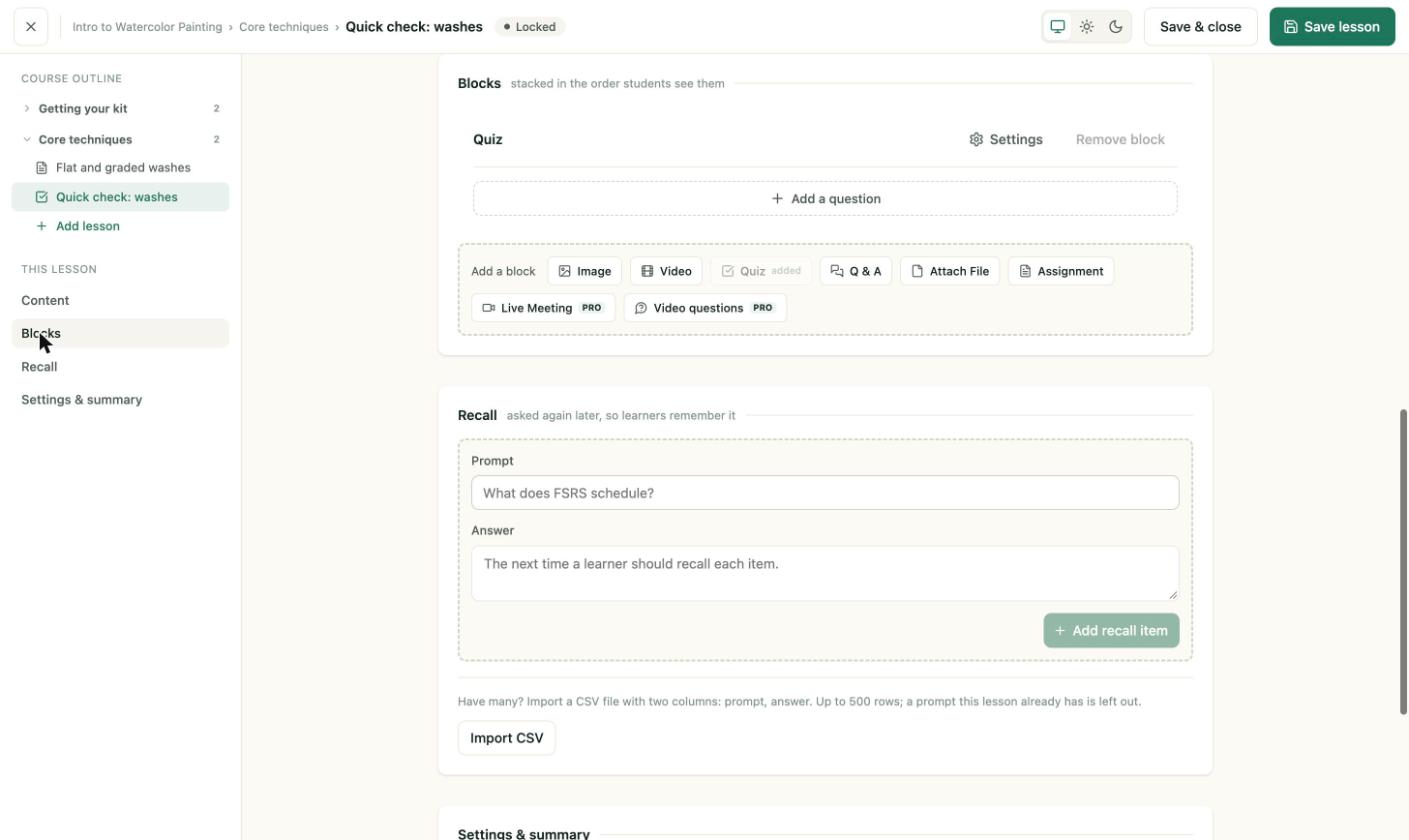
The Blocks section. The Quiz block holds the questions. Add-a-block buttons sit below it.
Add a question
- Click Add a question.
- Type the question in Write a question here.
- Click Add answer to add answers. Type each answer in its row.
- Click the circle next to the correct answer. It shows Correct.
- Set Points for the question, and optionally tick Add to recall.
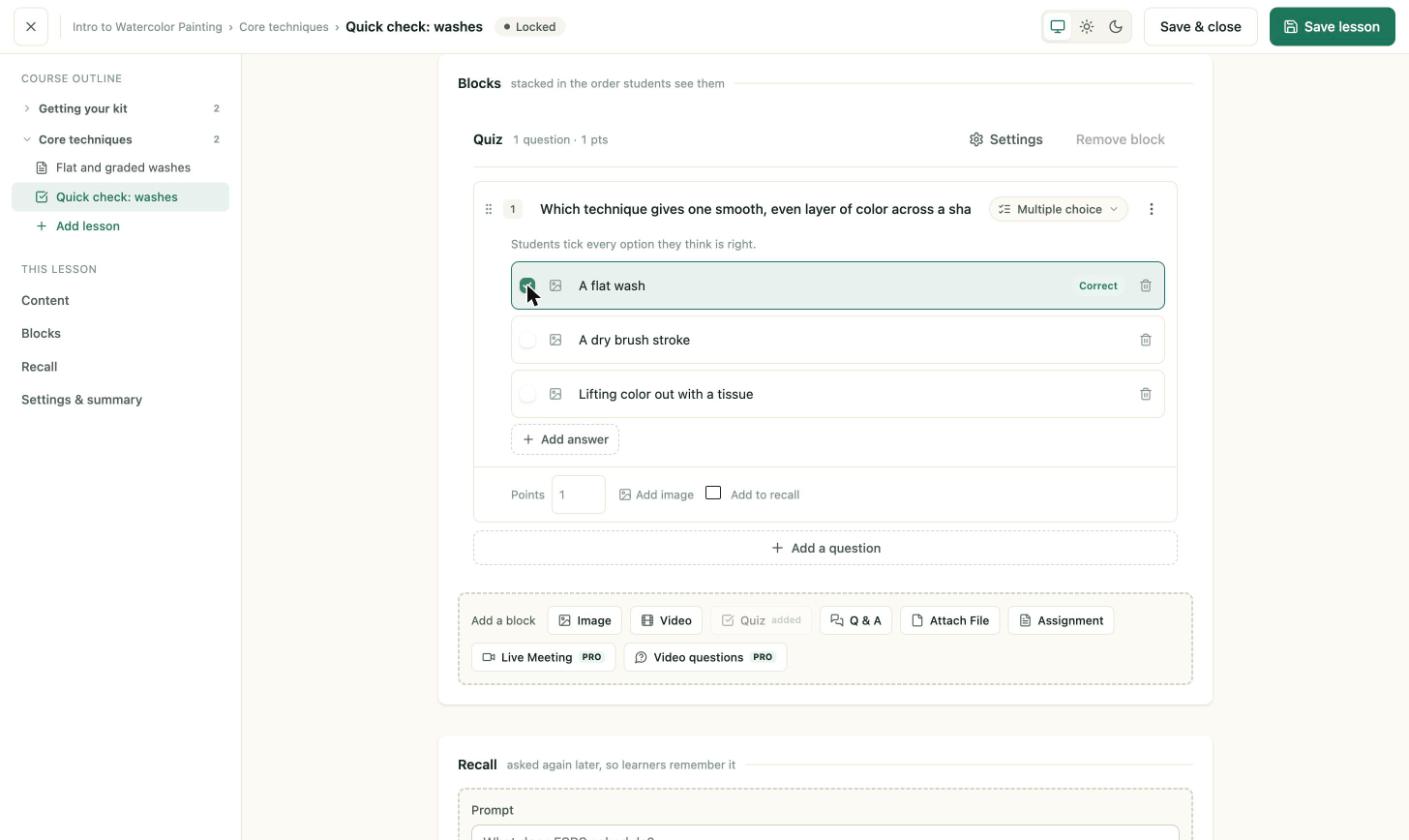
Three answers. The first is marked Correct. The question type is Multiple choice, where students tick every option they think is right.
If no answer is marked, the question shows "No correct answer marked" until you mark one.
Quiz settings
Click Settings on the Quiz block. The settings apply to this quiz only, and fields marked with a dot override the site defaults.
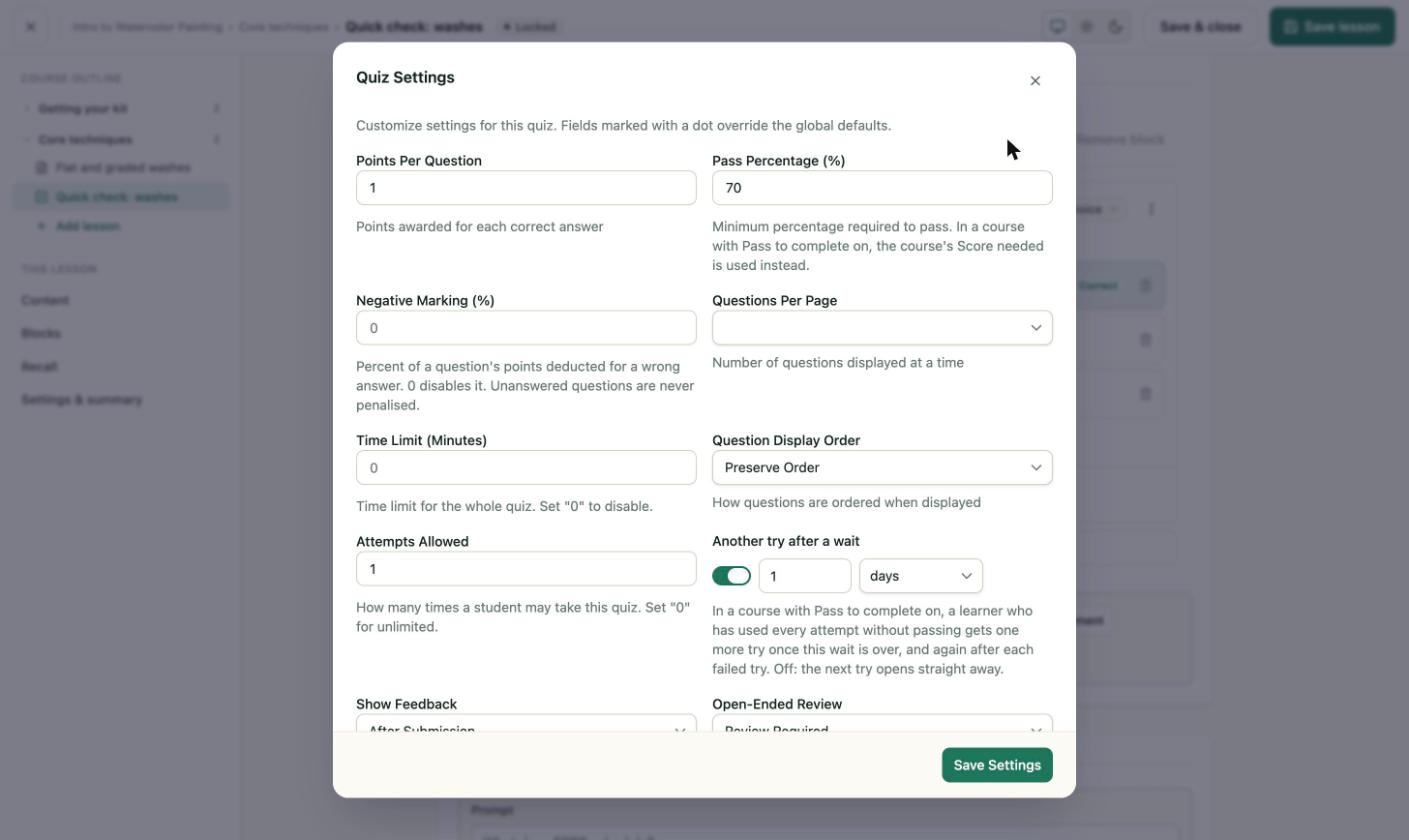
Quiz Settings. Pass percentage defaults to 70.
| Setting | Default | What it does |
|---|---|---|
| Points Per Question | 1 | Points for each correct answer. |
| Pass Percentage (%) | 70 | Minimum score to pass. In a course with a pass requirement, the course score needed is used instead. |
| Negative Marking (%) | 0 | Percentage of a question's points taken off for a wrong answer. 0 turns it off. |
| Questions Per Page | empty | 1, 2, 5 or 10 questions on screen at once. |
| Time Limit (Minutes) | 0 | Time limit for the whole quiz. 0 turns it off. |
| Question Display Order | Preserve Order | Preserve, Ascending, Descending or Randomized. |
| Attempts Allowed | 1 | How many times a student may try. 0 means unlimited. |
| Another try after a wait | On, 1 day | A wait before another attempt, in days, hours or minutes. |
| Show Feedback | After Submission | After Submission, Correct/Incorrect, No Feedback or On request. |
| Open-Ended Review | Review Required | Whether written answers need manual review. |
Click Save Settings, then Save lesson.
Test it
Open the course as a student, or use a test account, and take the quiz. Check the score against the pass percentage. See Grading and results.