
How to add and grade assignments in RootWright LMS
An assignment asks students to hand in work, such as a written answer or a link, which you then grade by hand. To add one in RootWright LMS, add a lesson of type Assignment to your course, set the points and instructions, and save. Submissions arrive in Teaching → Grading.
Before you start
- Assignments must be switched on under Settings → Quizzes & assessments → Features. They are on by default. See Quizzes & assessments settings.
- You need to be an administrator or an instructor on the course.
Add an assignment
- Open the course in the course builder and click Curriculum.
- Under Lessons (or inside a module), type the lesson title, choose Assignment in the type list, and click Create. The new lesson opens in the lesson builder.
- Click Blocks in the left menu. The Assignment for students block is already added.
- Set Points (default 100) and Pass Percentage (%) (default 50).
- Under How students answer, tick Written answer, Link or both.
- Write the Instructions. Students see them above the submission form.
- Click Save lesson.
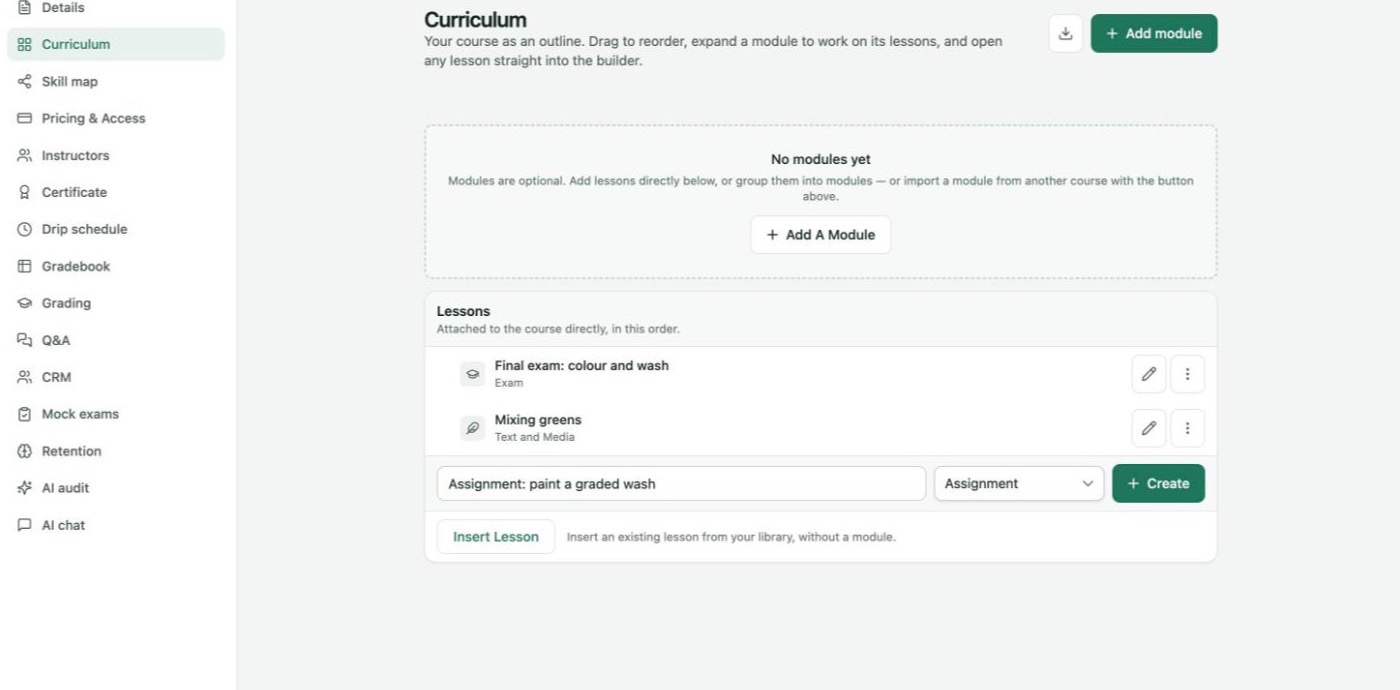
Type the title, choose Assignment, then click Create.
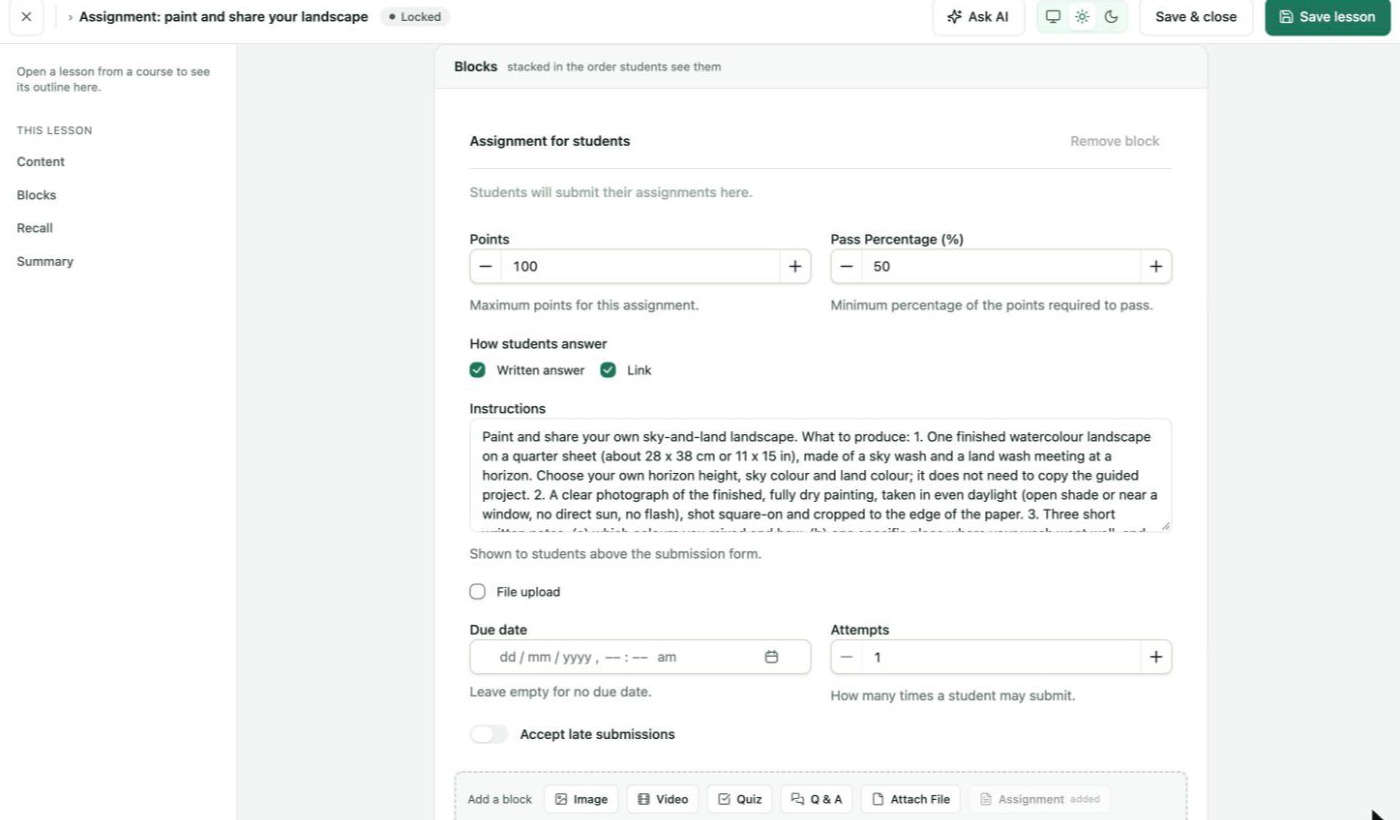
The Assignment for students block. You can also add it to any lesson with Add a block → Assignment.
To add an assignment to a lesson of another type, open the lesson, go to Blocks, and click Assignment under Add a block. A lesson holds one assignment. Once it is added, the button reads Assignment added.
Assignment options
| Option | What it does | Default | Plan |
|---|---|---|---|
| Points | The maximum score. | 100 | Free |
| Pass Percentage (%) | The share of the points needed to pass. | 50 | Free |
| How students answer | Written answer (up to 20,000 characters) and Link. | Both | Free |
| Instructions | Shown to students above the submission form. | Empty | Free |
| File upload | Lets students upload files. Shows Largest file (MB) and Allowed file types. | Off | Pro |
| Due date | The deadline. Leave it empty for no due date. | None | Pro |
| Attempts | How many times a student may submit. | 1 | Pro |
| Accept late submissions | Lets students submit after the due date. Shows Late penalty (%), taken off the mark of late work. | Off | Pro |
| Largest file (MB) | The biggest file a student can upload. Leave it empty to use the site default. | Site default | Pro |
| Allowed file types | PDF, DOC, DOCX, PPT, PPTX, XLS, XLSX, ZIP, PNG, JPG, JPEG, TXT, MP4 and MP3. Leave all unticked to allow any type the site allows. | All | Pro |
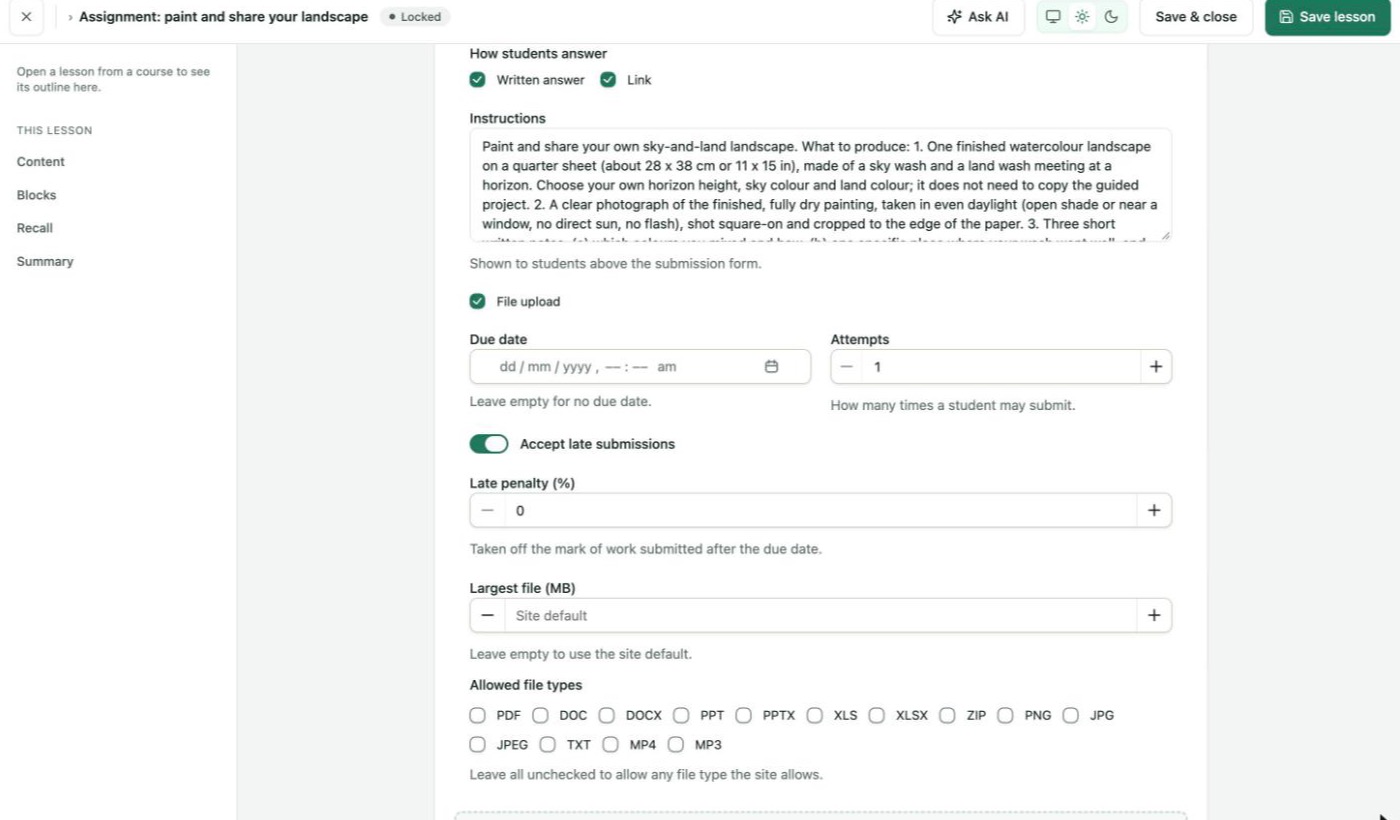
With RootWright LMS Pro, File upload and Accept late submissions show more options.
The site-wide upload size and file types are under Settings → Quizzes & assessments → Uploads.
What students see
In the course player, the student sees the points, your instructions and a Your submission form with the answer fields you chose.
- The student writes their answer and adds a link.
- They click Save draft to keep working later, or Submit for review to hand it in.
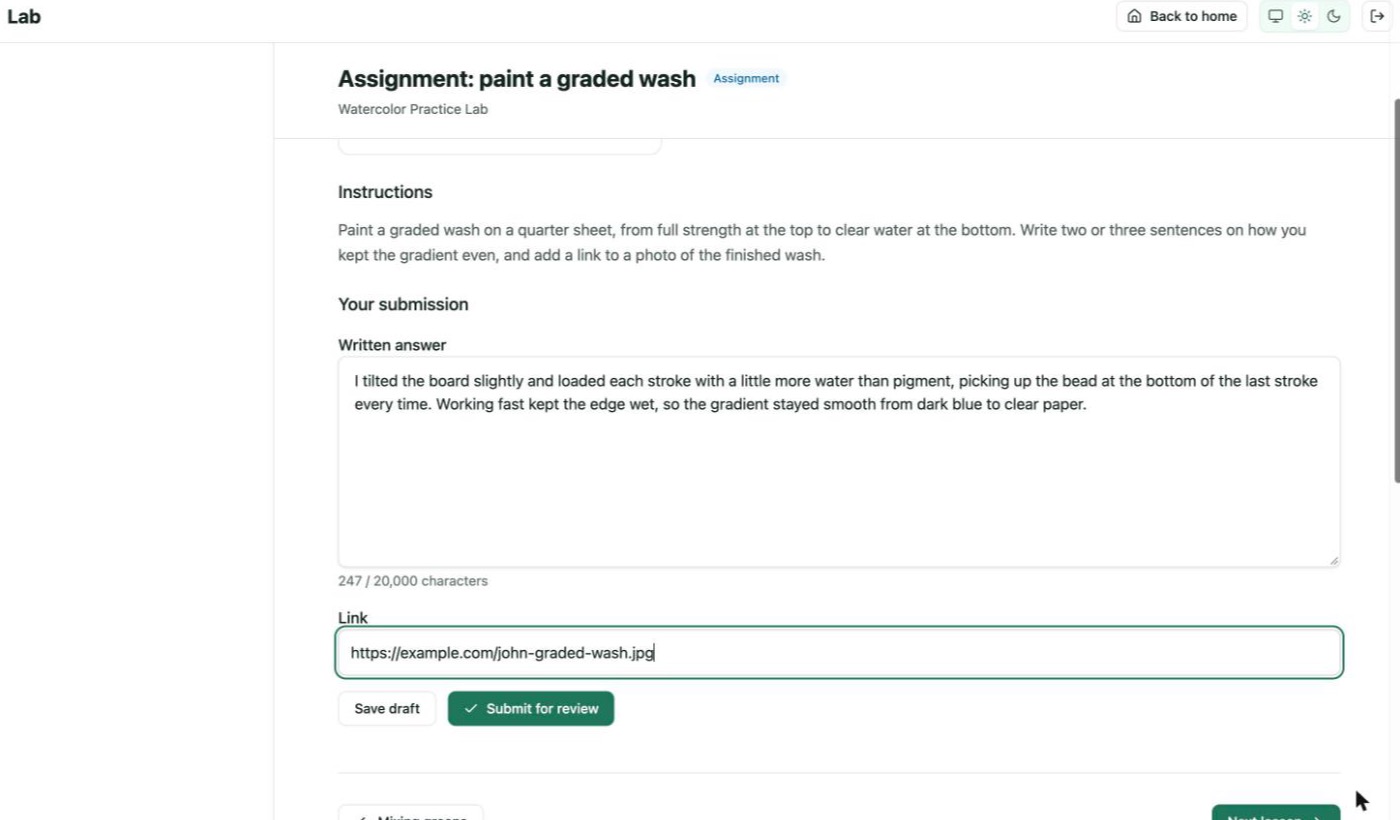
The submission form with Written answer and Link.
After they submit, the lesson shows Submitted and "awaiting review", with a copy of what they sent. Their score and feedback appear here once you grade it.
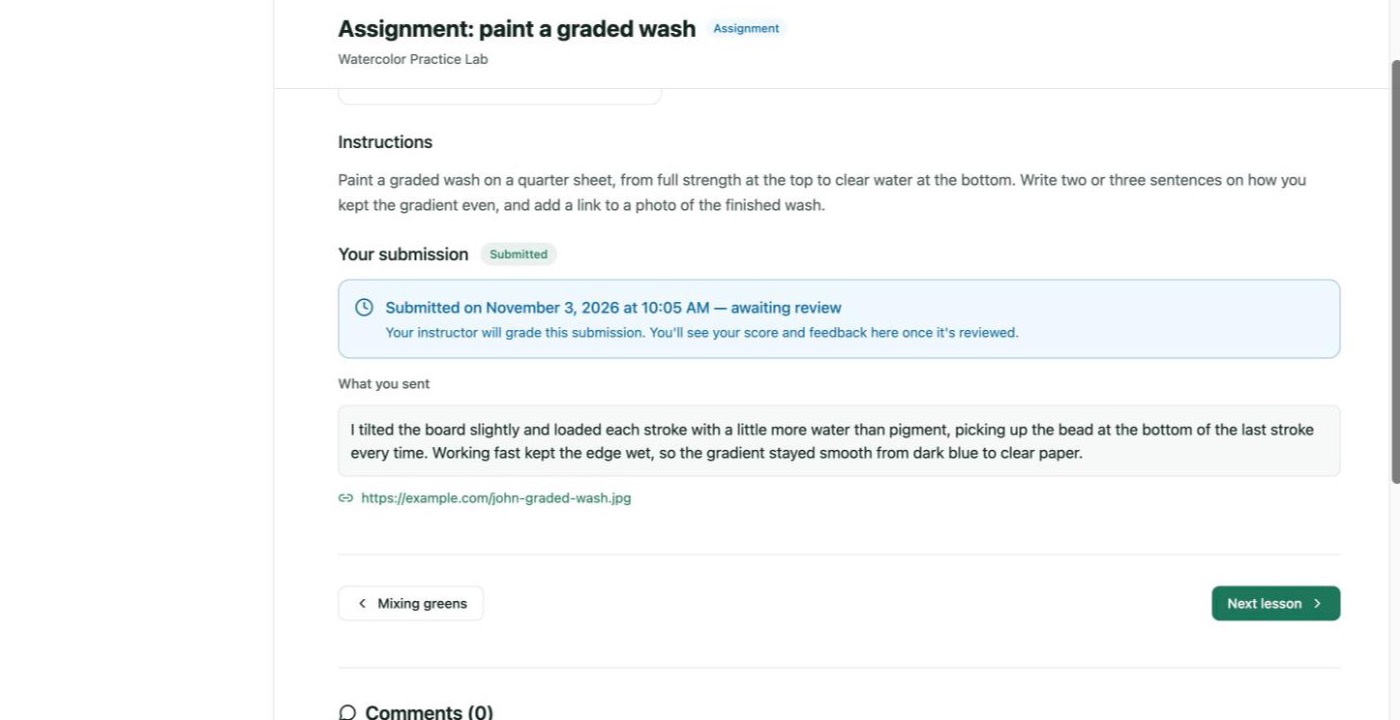
What the student sees while the submission waits for review.
Grade a submission
- Go to Teaching → Grading. Click Assignments to show only assignments.
- Click Grade on the submission. The Assignment submission screen opens with the answer and the Submission details.
- Under Grade, enter the Score, and optionally Feedback for the student.
- Click Save grade.
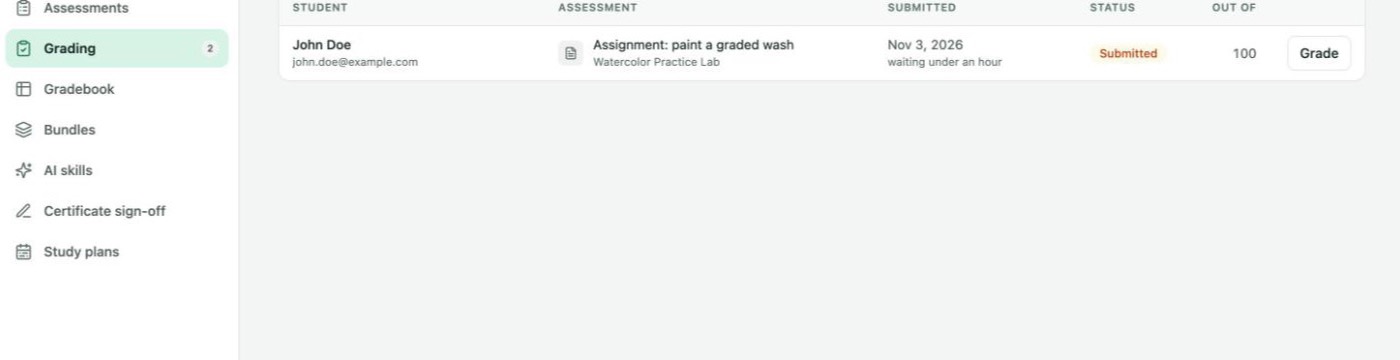
Teaching → Grading, on the Assignments tab.
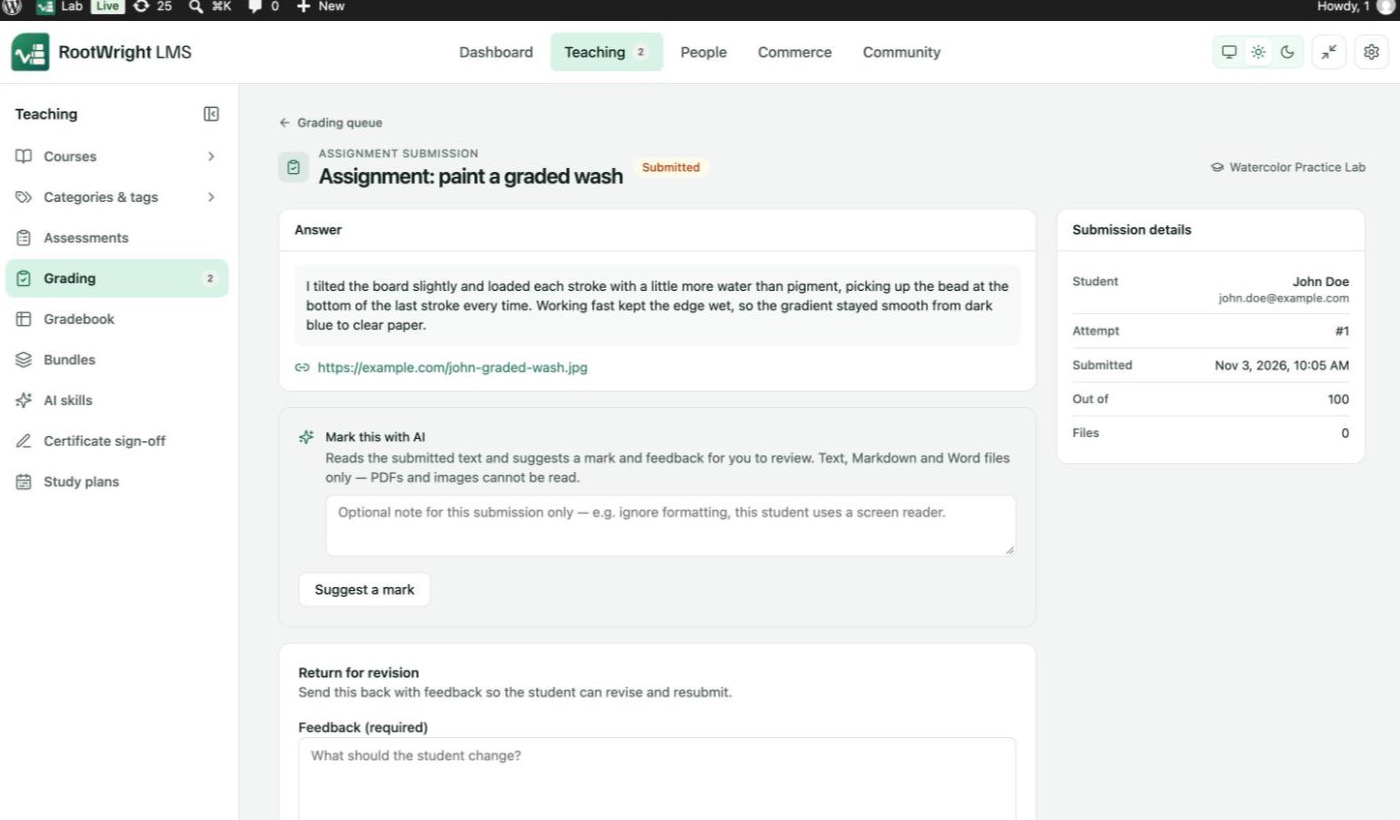
The submission screen. Submission details shows the student, attempt, submission time, points and files.
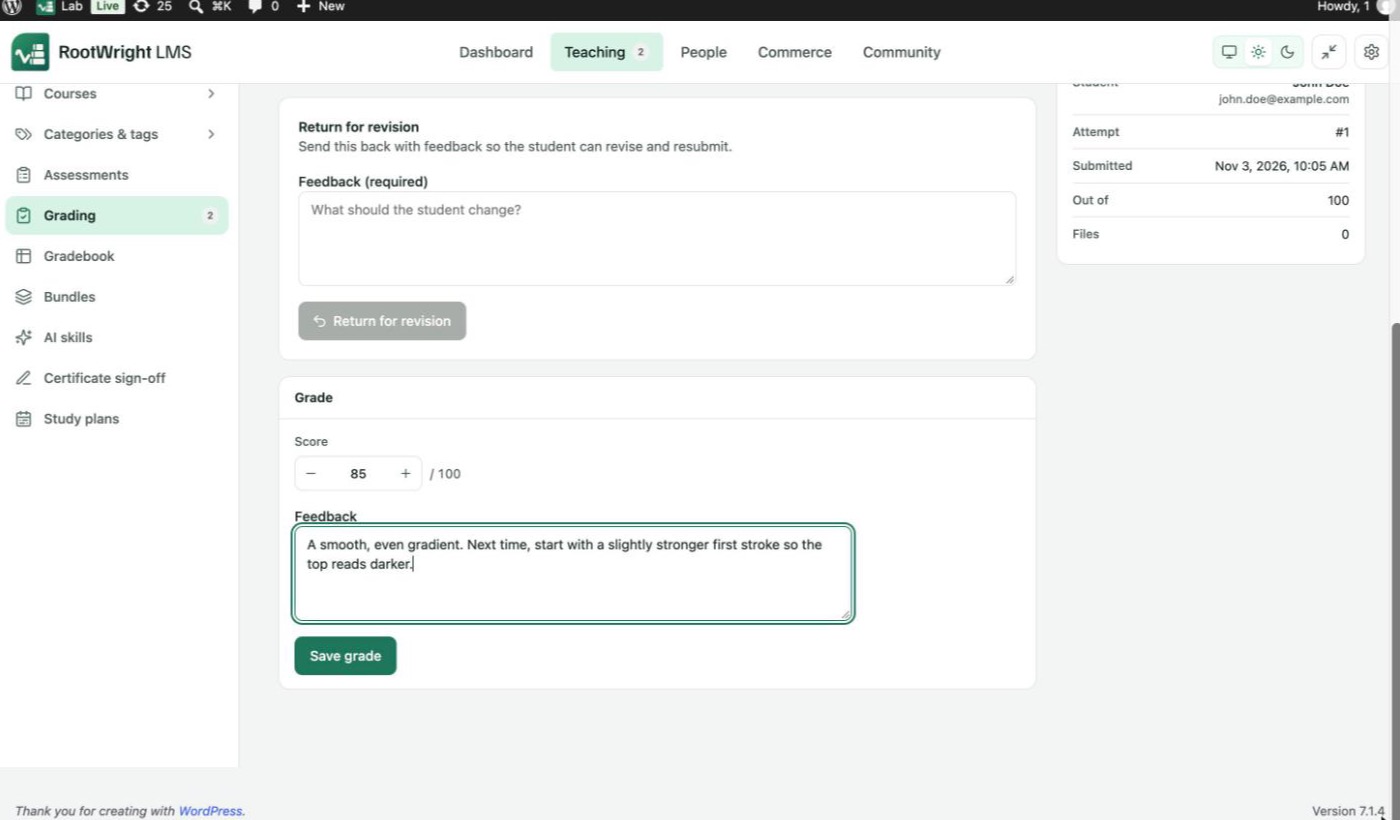
Enter the score out of the assignment's points, add feedback, and click Save grade.
The grade box then reads "This submission has been graded." To change it, click Edit grade.
You can also reach an assignment's submissions from Teaching → Assessments. See The Assessments screen.
Return work for revision
Pro
Returning work for revision needs RootWright LMS Pro.
Instead of grading, you can send the work back. Under Return for revision, write what the student should change in Feedback (required) and click Return for revision. The student then sees Returned for revision and can revise and resubmit.
Mark with AI
Pro
AI marking needs RootWright LMS Pro and a connected AI provider. See Connect your AI provider.
Mark this with AI reads the submitted text and suggests a mark and feedback for you to review. Add an optional note for this submission only, then click Suggest a mark. It reads text, Markdown and Word files. It cannot read PDFs or images. Click Use this mark to copy the suggested score and feedback into the Grade form, then check them and click Save grade.