
Email settings in RootWright LMS
Settings → Emails controls the transactional email your school sends: what gets sent, to whom, and how it looks. It has five sections: Delivery, Templates, Sender & branding, Queue & retries and Delivery log.
Delivery
Whether course email is getting out, and who it comes from.
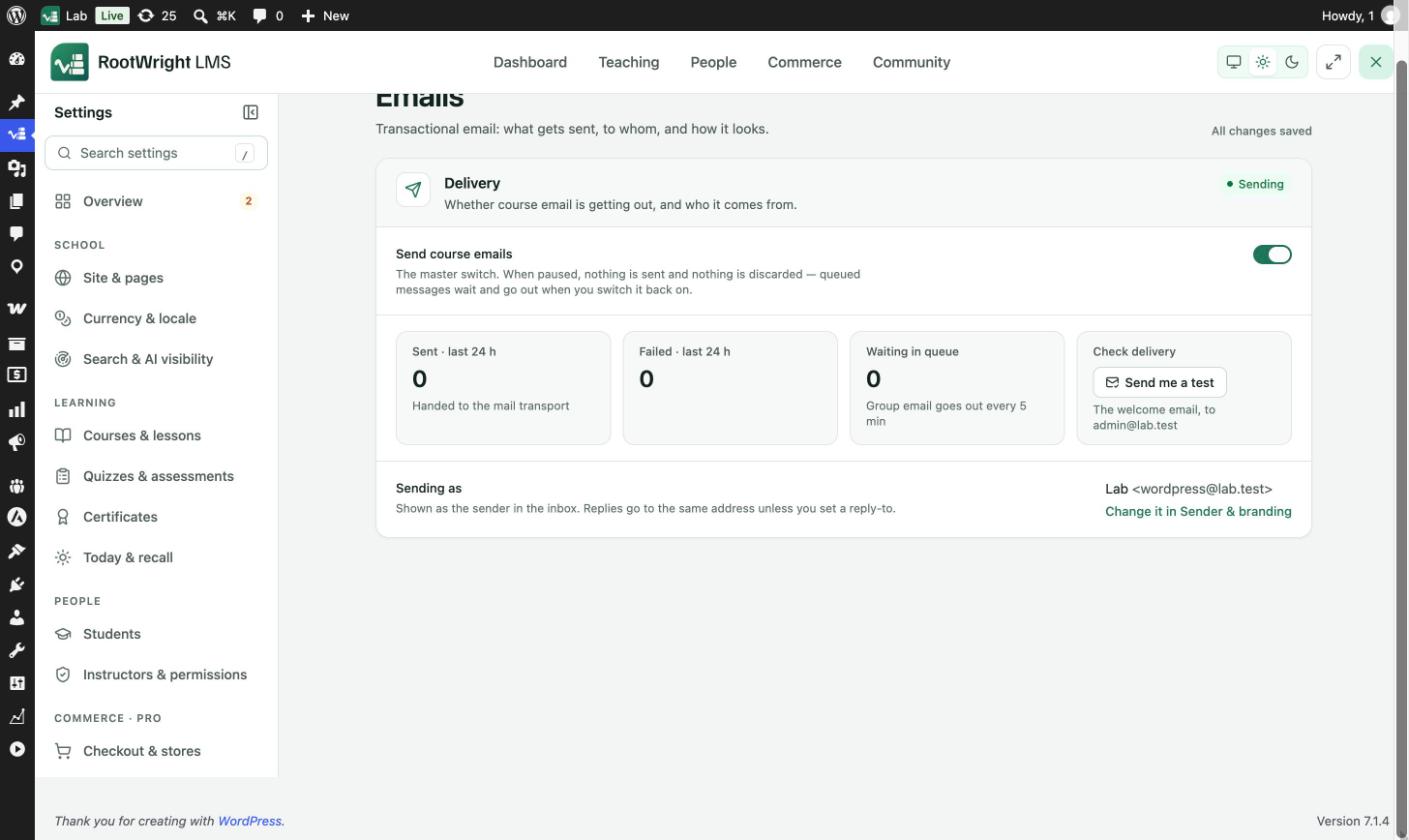
Settings → Emails → Delivery. The badge at the top right reads Sending while email is on.
- Send course emails is the master switch. When paused, nothing is sent and nothing is discarded. Queued messages wait and go out when you switch it back on.
- The cards show Sent · last 24 h, Failed · last 24 h and Waiting in queue.
- Send me a test sends the welcome email to your own address. Use it to check delivery.
- Sending as shows the sender name and address. Change it in Sender & branding.
Templates
Every email the school sends, grouped by what triggers it. The header counts how many are on, for example "61 of 71 on".
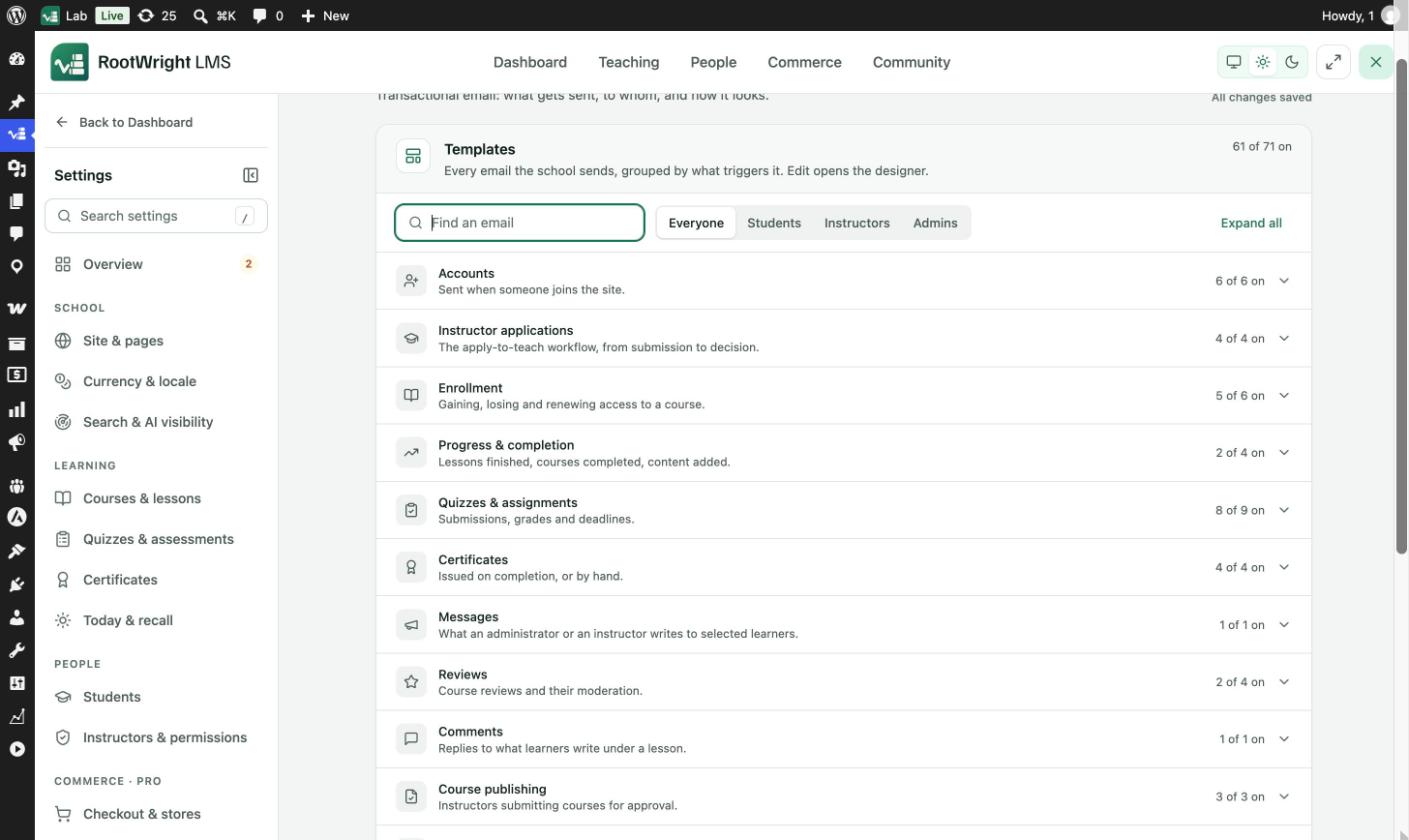
Settings → Emails → Templates. Expand a group to see its emails.
- Filter by audience: Everyone, Students, Instructors or Admins.
- Find an email searches by name.
- Expand all opens every group.
- Edit opens the email designer.
The groups are Accounts, Instructor applications, Enrollment, Progress & completion, Quizzes & assignments, Certificates, Messages, Reviews, Comments, Course publishing, Purchases, Announcements, AI, Course Q&A, Drip content and Learning reminders.
Sender & branding
| Setting | What it does |
|---|---|
| From name | Shown as the sender in the inbox. Leave blank to use your site name. |
| From address | Use an address at your own domain. A Gmail or Yahoo address fails SPF and DMARC checks and lands your course mail in spam, because your web server is not authorised to send as that domain. |
| Reply-to address | Optional. Where replies go, if different from the sender. |
| Logo | Shown at the top of the built-in templates. Click Upload logo, or paste a URL. |
| Brand colour | Used for buttons and links in the built-in templates. |
| Footer text | Appears at the bottom of every email. Leave blank for the default "you have an account on …" line. |
Queue & retries
One-to-one email, such as enrolled, graded or certificate issued, is sent immediately. Email to a group, such as a message to selected students or a deadline reminder, is queued and sent by a background job every five minutes.
| Setting | Example | What it does |
|---|---|---|
| Messages per run | 50 | How many queued emails each run sends. Lower it if your host rate-limits outgoing mail. |
| Retry attempts | 3 | How many times a message is retried before it is marked failed. |
| Keep the log for | 30 days | Delivered messages are pruned after this many days. Failed ones are kept twice as long. 0 keeps everything. |
The Queue status line counts messages waiting, sent and failed.
Quiet sites and WordPress cron
The background job is WordPress cron, which only runs when someone visits the site. On a quiet site, queued email can wait until the next visitor arrives. A real server cron that calls wp-cron.php fixes that.
Delivery log
The last messages the site tried to send, newest first. Filter by All, Waiting, Sent or Failed, and click Refresh to update. Each row shows the recipient, subject, email type, status and time.