
How to create a discount or coupon in RootWright LMS
A discount in RootWright LMS takes a fixed amount or a percentage off a course price. It is either a Coupon code that buyers type at checkout, or Automatic, with no code needed. Create discounts under Commerce → Discounts.
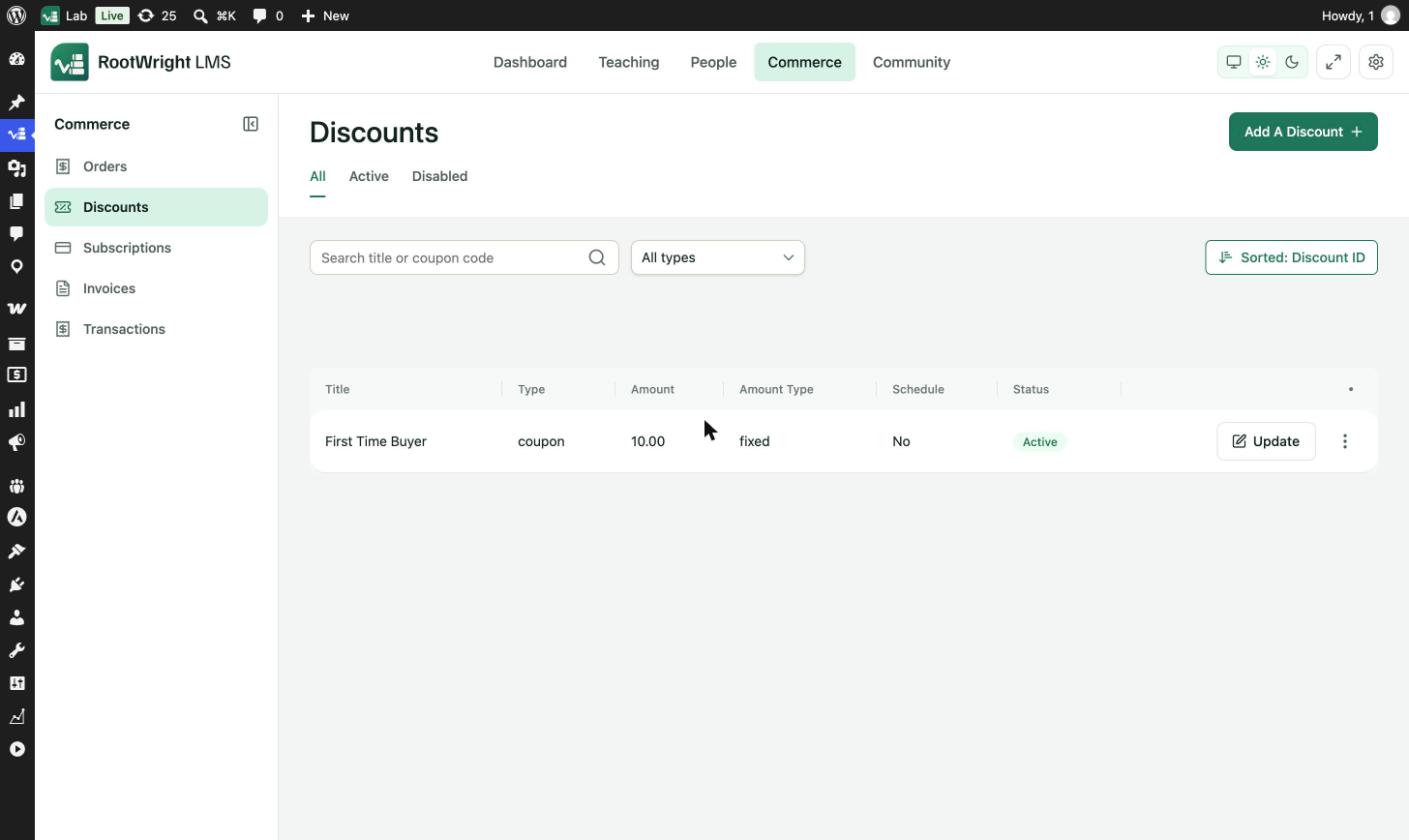
Commerce → Discounts. Each row shows the type, amount, schedule and status, with Update to edit it.
The Discounts list
- The All, Active and Disabled tabs filter by status.
- Search title or coupon code finds a discount by its name or code.
- The type filter shows All types, Automatic or Coupon code.
- Sorted: Discount ID changes the sort order.
- Update opens a discount. The ⋮ menu holds the other row actions.
Create a discount
- Go to Commerce → Discounts and click Add A Discount.
- Under Discount details, enter a Discount name. Only your team sees it.
- Enter the Amount. Choose $ for a flat amount off, or % for a percentage.
- Choose a Discount type: Automatic (no code needed) or Coupon code. For a coupon, enter the Coupon code that customers type at checkout.
- Set where it applies, which courses, and any limits. The sections are described below.
- Click Save discount.
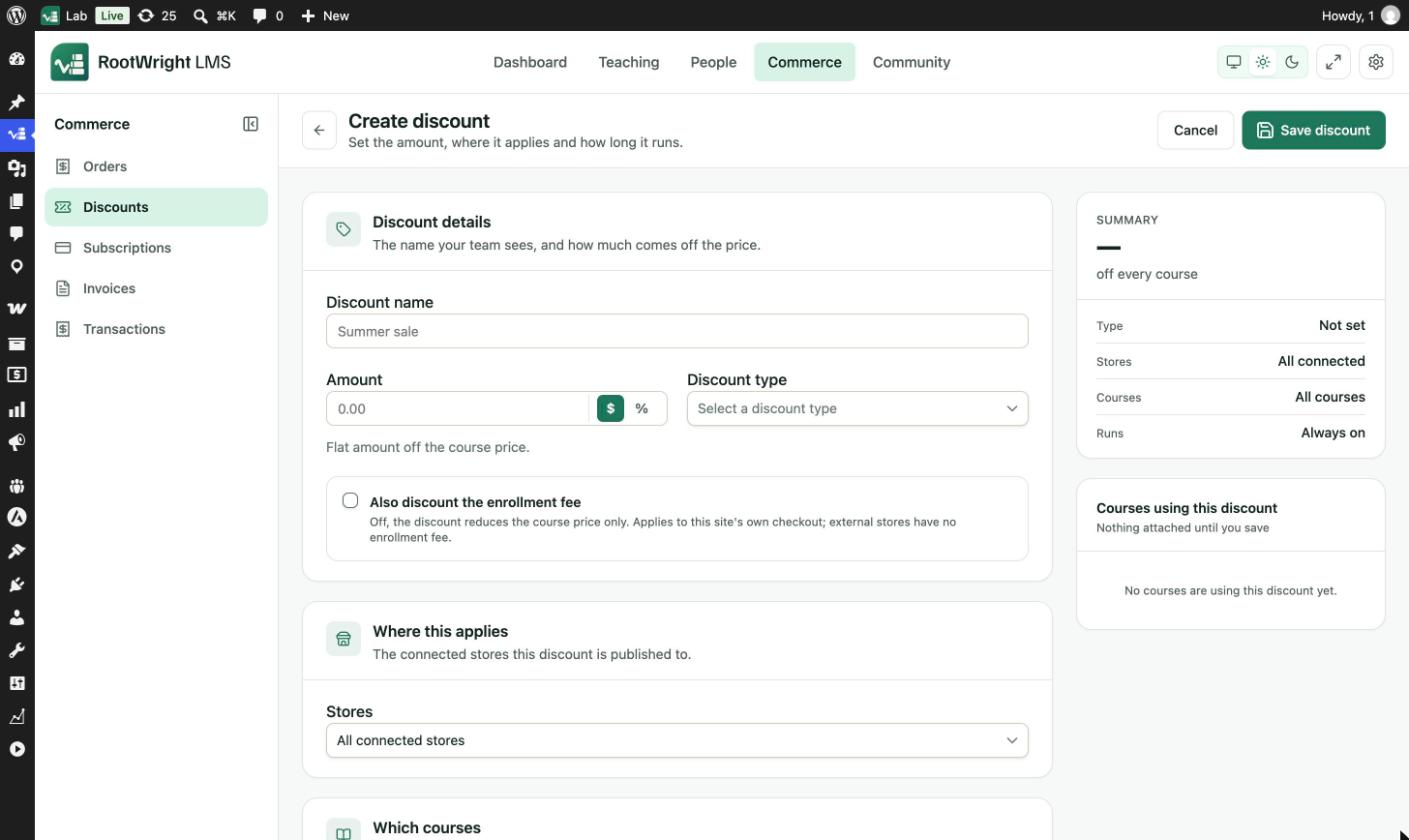
The Summary panel on the right updates as you fill in the form. Courses using this discount lists the courses once the discount is saved.
Discount options
| Section | Field | What it does |
|---|---|---|
| Discount details | Also discount the enrollment fee | Off by default, so the discount reduces the course price only. Applies to this site's own checkout. External stores have no enrollment fee. |
| Where this applies | Stores | All connected stores or Only selected stores. The discount is published to these stores. |
| Which courses | Courses | All courses or Only selected courses. |
| Usage limits | Total uses | Across all customers. |
| Usage limits | Uses per customer | Per individual account. |
| Usage limits | Uses per course | Per course, across all customers. |
| Recurring payments | Applies to | First payment only, Every payment (first purchase and all renewals) or The first few payments. The first purchase counts as payment 1. One-off purchases get the discount either way. |
| Which bundles | Bundle list | Applies the discount to course bundles too. A bundle carries one discount at a time, so ticking it here replaces the bundle's current discount. Save the discount first, then choose bundles. |
| Schedule | Schedule this discount | Runs the discount between two dates. Off means it runs until you remove it. |
| Storefront display | Show original price | Strikes through the full price beside the discounted one on the course page. |
Coupons and bundles
Coupon codes do not apply to bundles. To discount a bundle, use an Automatic discount and tick the bundle under Which bundles.