
How to add a course in RootWright LMS
To add a course in RootWright LMS, go to RootWright LMS → Courses, click Add a course, enter a course title and description, and click Save & continue. The other sections unlock after the first save. Build the curriculum, then click Publish.
Before you start
- You need the administrator role, or an instructor role with permission to manage your own courses.
- Have a title and a short description ready. Categories and tags are optional and can be added later.
Add the course details
- Go to RootWright LMS → Courses and click Add a course.
- In Course Title, enter the name students will see.
- In Course Description, write what the course covers. The editor is block-based: press / to add a block such as a heading or a list.
- In Short description, write a summary of 120 to 160 words for catalog cards and search results.
- Under Classification, set Course Level (Beginner, Intermediate or Advanced), Duration (free text, for example "4 hours") and Format (Online, Offline, Hybrid, Workshop or Seminar).
- Click Save & continue.
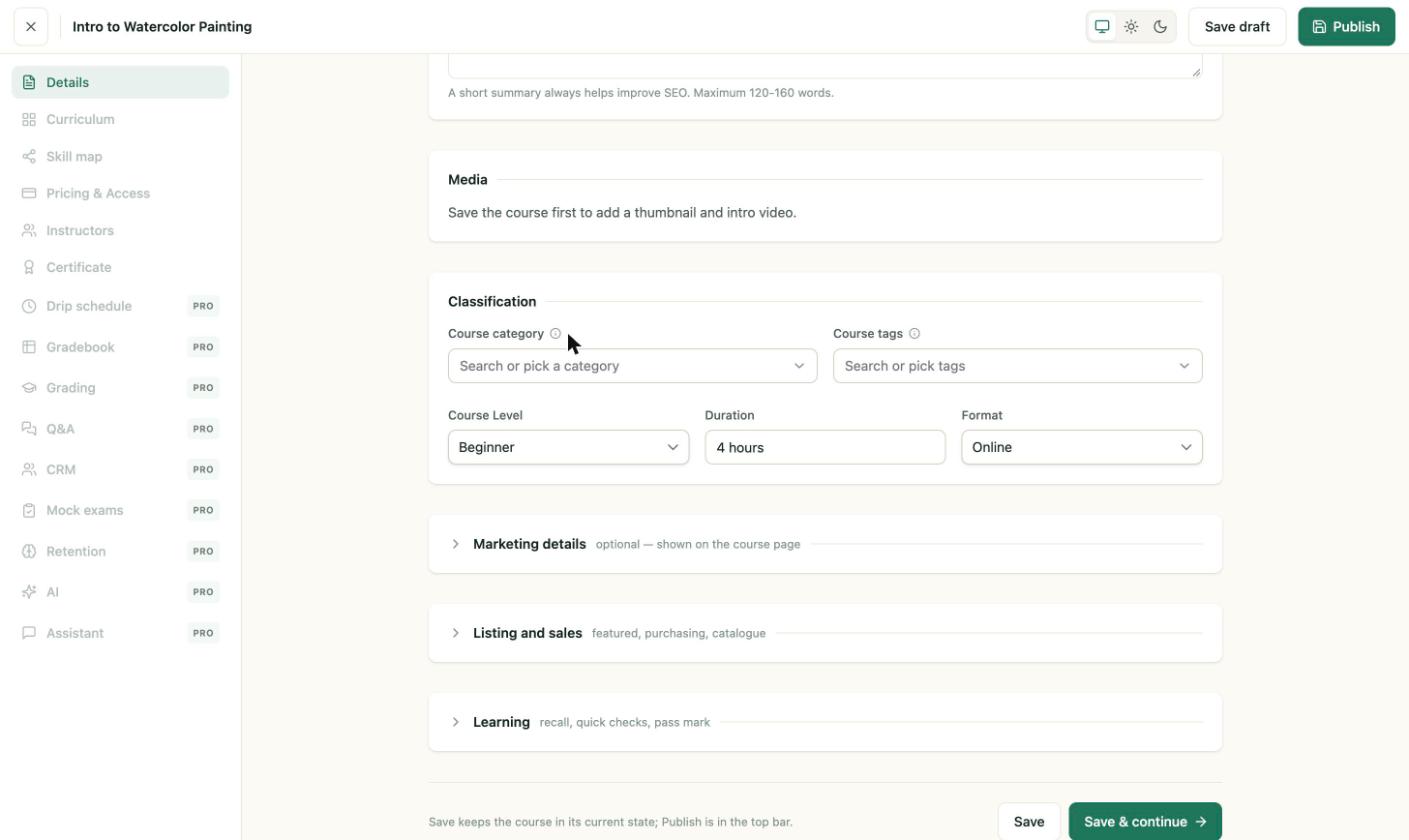
The Classification fields after saving. Duration is free text.
What the other sections are for
After the first save, the left menu shows the sections you will use next:
- Curriculum to add modules and lessons. See Course builder.
- Skill map to link the course to skills.
- Pricing & Access to set a price, a discount, an enrollment cap and an open or close date. See Course settings and access.
- Instructors to add co-teachers.
- Certificate to choose the certificate students earn.
Publish or save a draft
Click Save draft to keep the course hidden while you work. Click Publish when the course is ready. The button changes to Update after the first publish, and the status badge reads Published.
Note
A new course starts as a draft with the status Unpublished. The status badge in the top bar shows whether the course is live.
Troubleshooting
- Curriculum, Pricing and other sections are greyed out. Save the course first. The message reads "Save the course first to unlock Curriculum, Pricing and the other sections."
- The category list is empty. Create a category first at Teaching → Categories & tags.