
How to add co-instructors to a course in RootWright LMS
A course can have more than one instructor. In RootWright LMS Pro, open the course in the course builder, click Instructors, then Add Instructor, search for the person, and choose their role and commission. You can also change what each instructor may do on this one course.
Pro
Course teams need RootWright LMS Pro.
Roles on a course
| Role | What they do |
|---|---|
| Lead Instructor | The person who created the course. A course has one lead. |
| Co-Instructor | Helps the lead. Can teach and manage content, but cannot remove the lead. |
| Assistant Instructor | Supports the lead and co-instructors. Typically grades work and helps students, with limited content editing. |
What each role may do by default is set site-wide under Settings → People → Instructors & permissions. See Roles and permissions.
Add an instructor to a course
- Open the course in the course builder and click Instructors in the left menu.
- Click Add Instructor. The Add New Instructor panel opens.
- In Search Instructors, type a name or email and pick the person.
- Choose their Role.
- Optional: enter a Commission Rate (%), their share of every sale. Leave it empty for none. Only administrators can set a commission.
- Click Add Instructor. The message "name has been added to this course." appears.
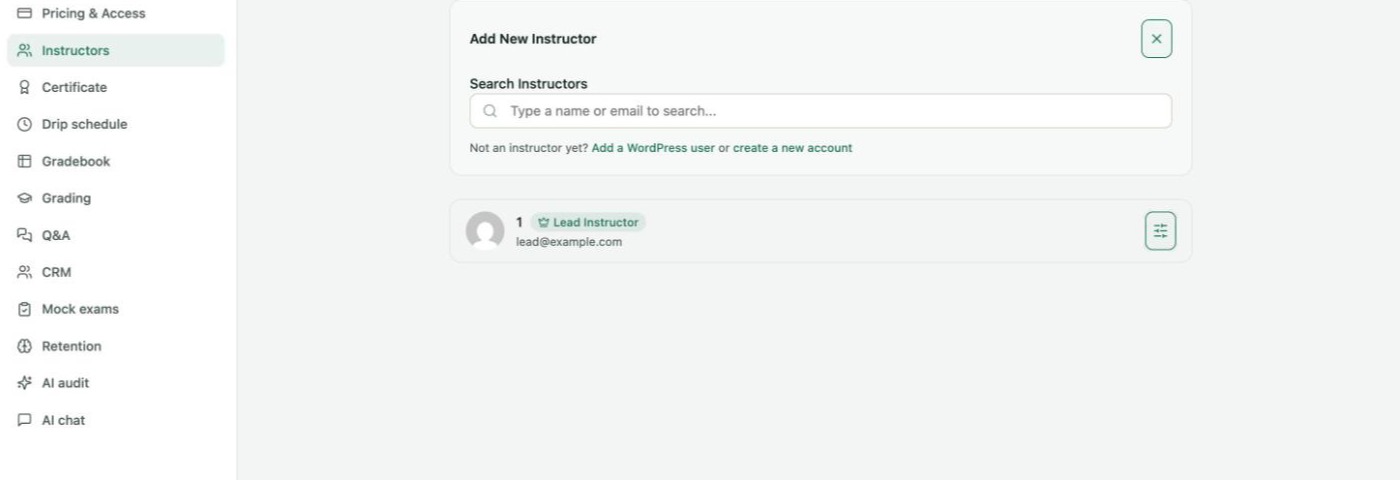
Course builder → Instructors → Add Instructor.
Only people who are already instructors appear in the search. If the person is not an instructor yet, use Add a WordPress user or create a new account under the search box. See Instructors.
Change permissions on one course
Each instructor follows their role's defaults. To change that for one course only:
- On the instructor's row, click the adjust icon. Permissions on this course opens.
- For each permission, choose Role default, Allow or Deny. Each row shows the role's default, for example "Role default for lead: allow".
- Click Save permissions.
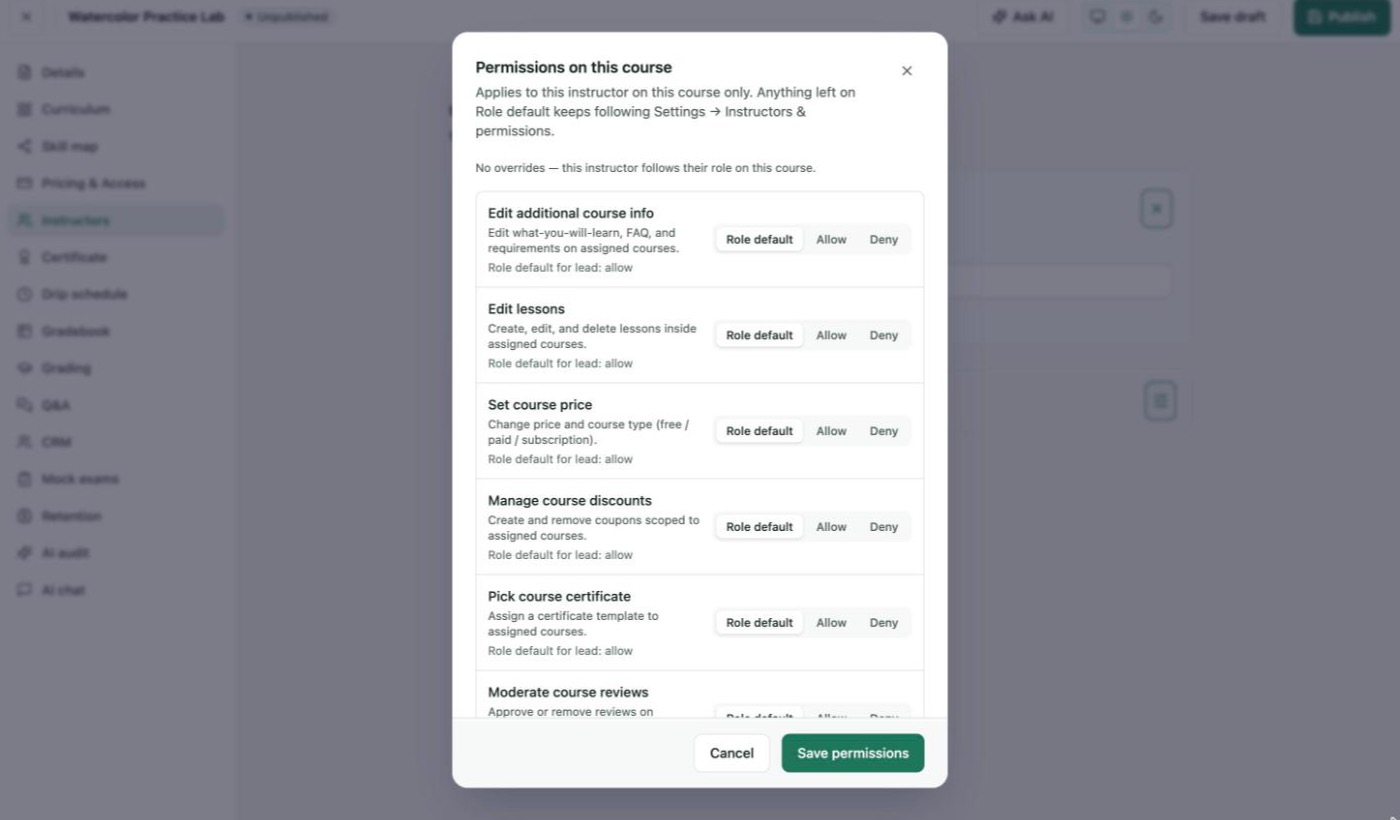
Anything left on Role default keeps following Settings → Instructors & permissions.
The permissions you can set per course:
| Permission | What it allows |
|---|---|
| Edit additional course info | Edit what-you-will-learn, FAQ and requirements. |
| Edit lessons | Create, edit and delete lessons in the course. |
| Set course price | Change the price and course type (free, paid or subscription). |
| Manage course discounts | Create and remove coupons for the course. |
| Pick course certificate | Choose the course's certificate template. |
| Moderate course reviews | Approve or remove reviews. |
| Moderate lesson comments | Approve, reply to, spam or remove lesson comments. |
| Enroll / unenroll students | Enrol or unenrol students by hand. |
| Post announcements | Send announcements to the course's learners. |
| Duplicate own courses | Make a copy of the course. |
| Delete courses | Permanently delete the course. |
| Configure drip schedule | Set drip rules and overrides. |
| Answer course Q&A | See and answer student questions. |
| Manage instructors | Add or remove co-instructors and assistants. |
Remove an instructor
Click the bin icon on the instructor's row on the Instructors section, then confirm "Remove name from this course?". The message "name has been removed from this course." appears. A co-instructor cannot remove the lead instructor.