
How to add an exam lesson in RootWright LMS
An exam is a lesson where students answer written questions. Nothing in an exam is marked automatically. You read each answer and grade it yourself.
For quizzes that mark answers automatically, see Create a quiz.
Add an exam lesson
- Open the course in the course builder and click Curriculum.
- Add a lesson, or open an existing one, and open it in the lesson builder.
- Open Lesson Type and choose Exam.
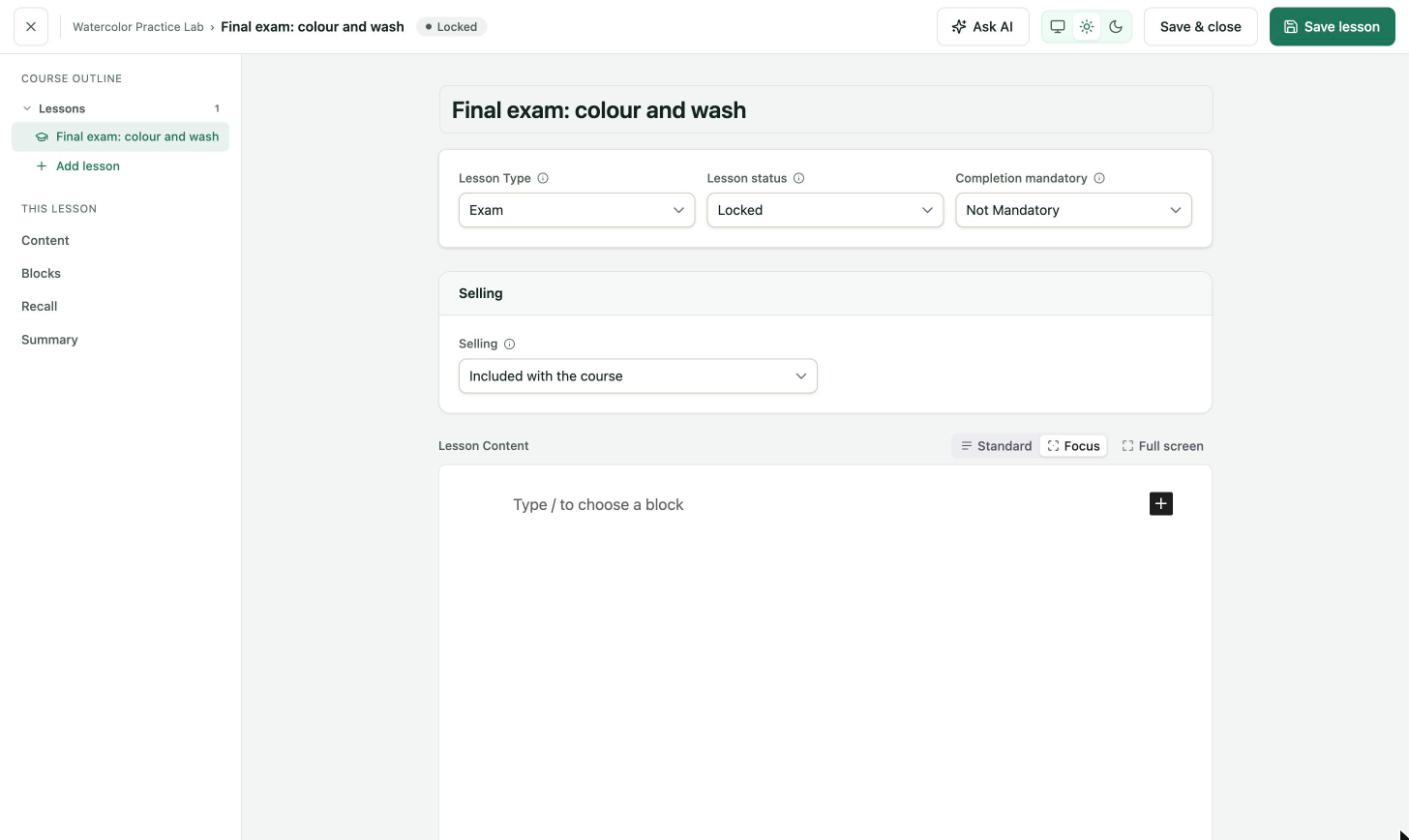
The lesson builder for an exam lesson. Lesson Type reads Exam.
An exam lesson starts with two blocks in its Blocks section: a Quiz block for automatically marked questions, and a Question block for written answers. Questions in the Question block use the answer type Written answer, which reads "Students write an answer. Nothing is marked automatically."
Add questions
- In the Question block, click Add a question and enter the question text.
- Optional: write a model answer in the box below. It is for whoever marks the exam. Students never see it.
- Set Points for the question. The default is 1.
- Click Add a question to add another question.
- Click Save lesson.
A question that has no text shows Needs a question until you write one.
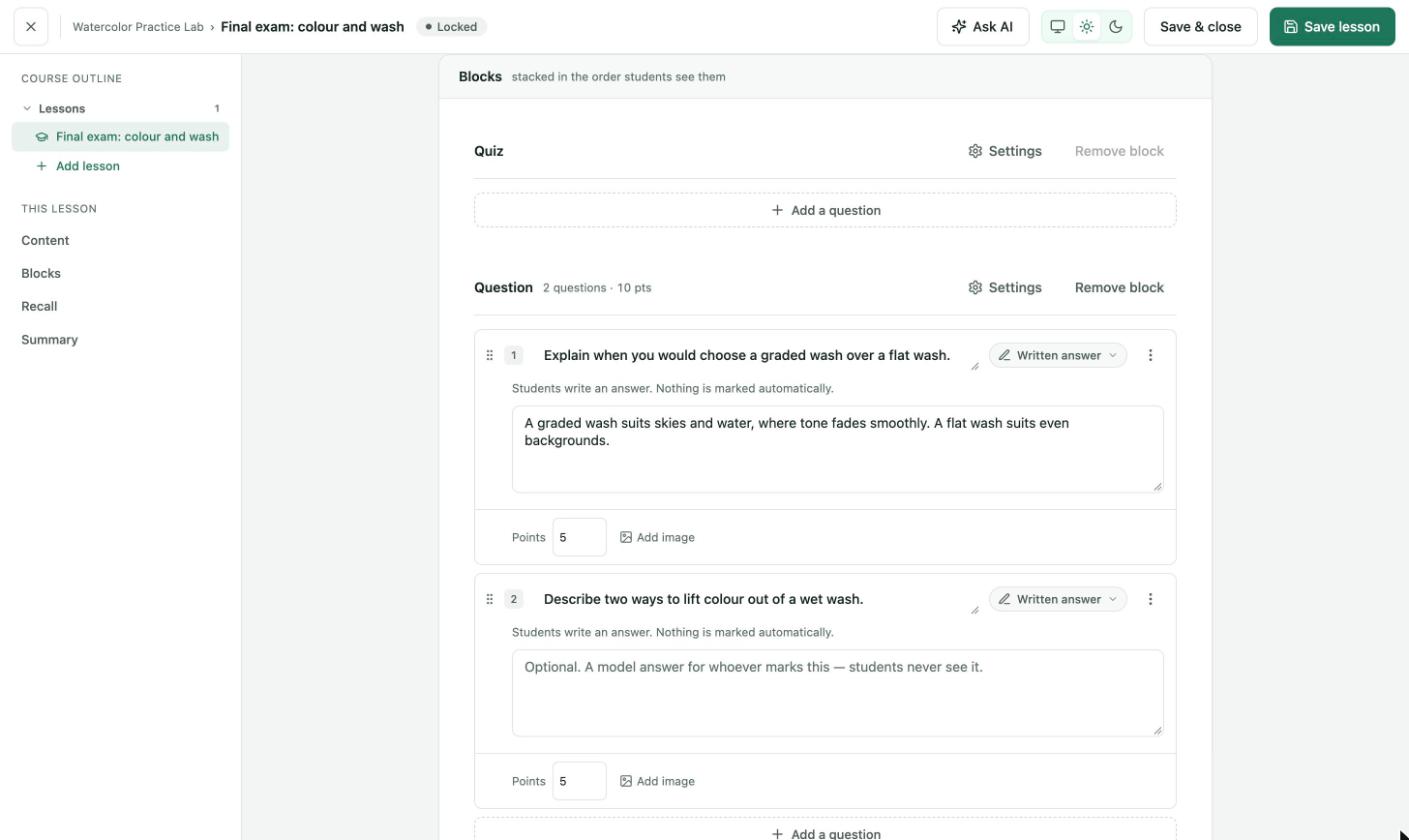
The Question block header totals the questions and points, here "2 questions · 10 pts". The first question has a model answer.
What the student sees
After submitting, the student sees Submitted — awaiting review, with their score so far. Questions that mark themselves, such as a rating scale, count straight away. The score goes up once you grade the written answers.
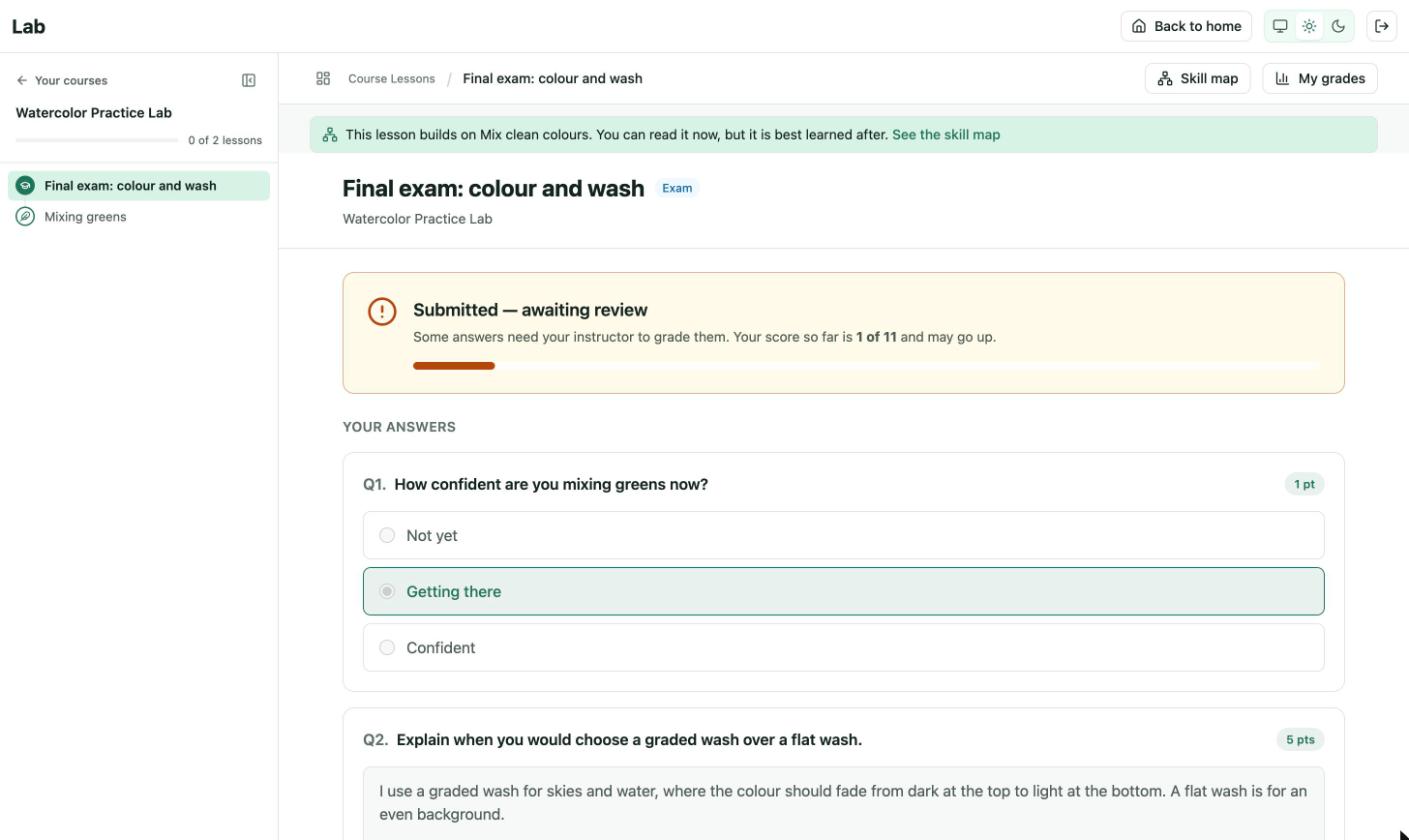
The student's view after submitting. Here the score so far is 1 of 11.
Grade the answers
Written answers are not marked automatically. They wait for you in the grading queue.
- Go to Teaching → Grading. The Teaching tab and the Grading menu item show how many submissions are waiting.
- On the Waiting tab, find the student's exam. Its status reads Grading.
- Click Grade to open the attempt.
- For each answer marked Needs grading, read the Student's answer, set the Score and, if you like, write Feedback.
- Click Save under each answer.
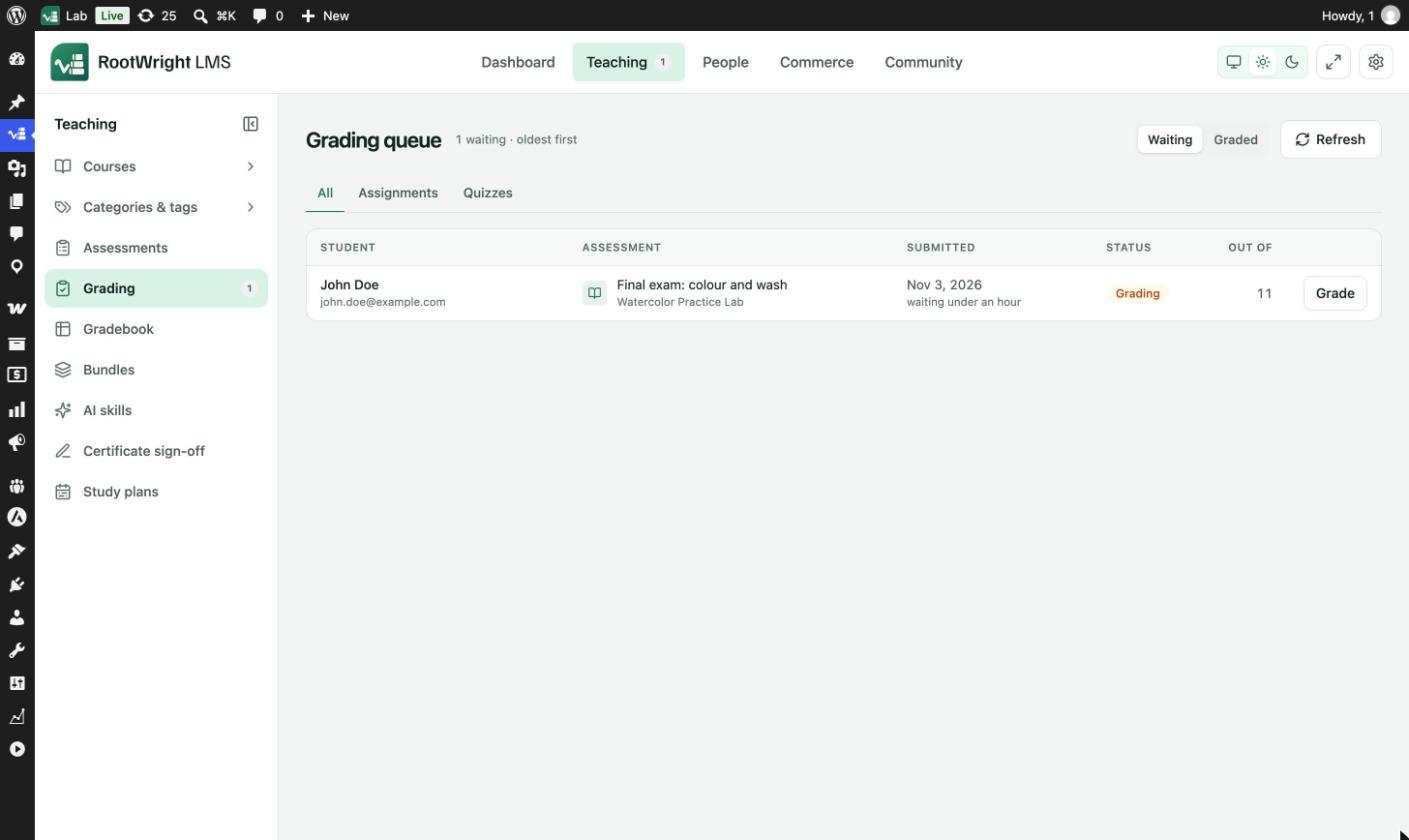
Teaching → Grading. The queue lists the oldest submissions first. Filter by All, Assignments or Quizzes.
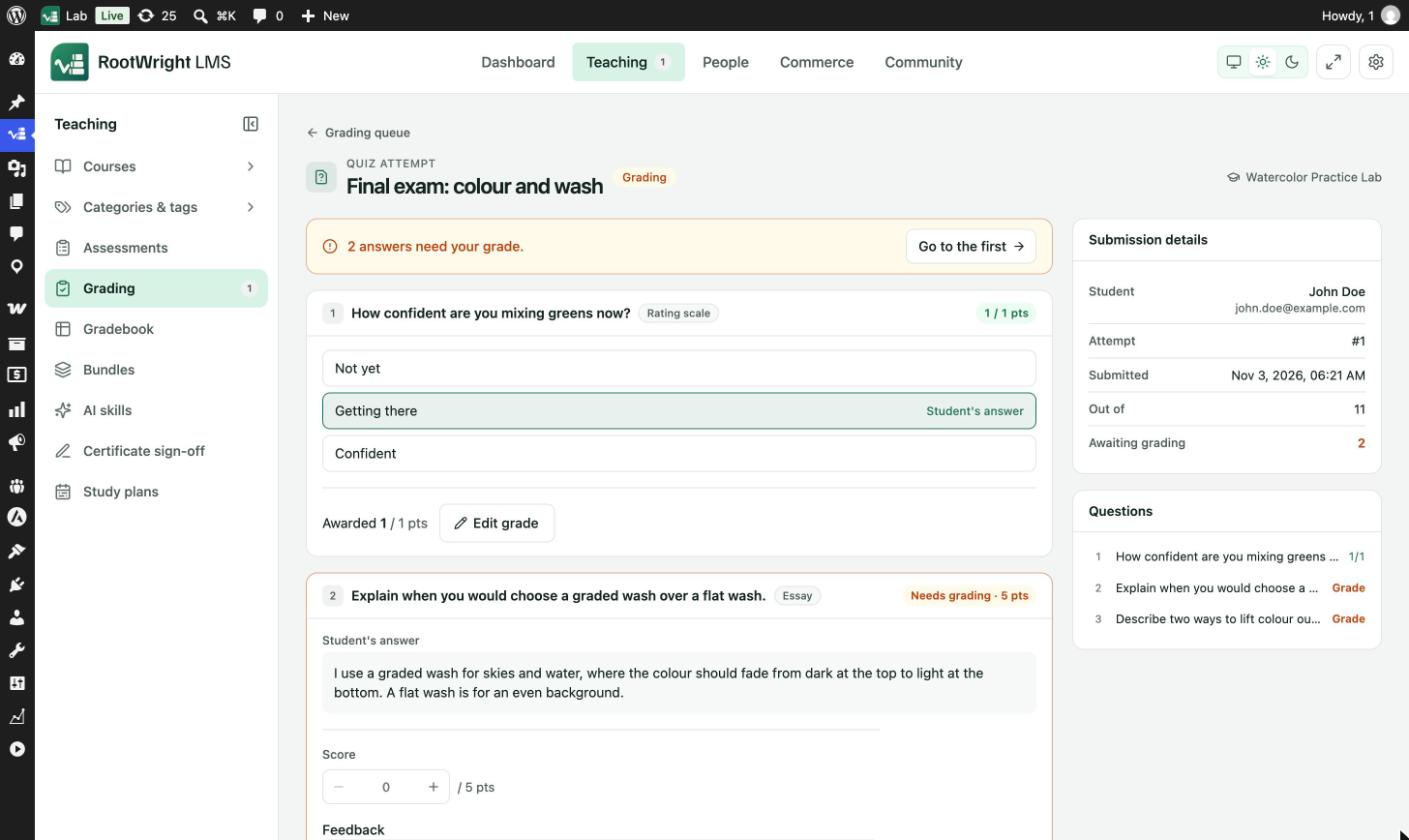
The attempt screen. The banner counts the answers that still need a grade, and Go to the first jumps to it. Submission details and Questions on the right show the student, the attempt and each question's status.
Answers that were marked automatically show Awarded with an Edit grade button, in case you want to change the mark. Graded attempts move to the Graded tab.