
Open Badges for course certificates in RootWright LMS
With Open Badges on, learners can download each certificate as a signed Open Badges 3.0 credential and add it to a digital wallet or a profile such as LinkedIn. In RootWright LMS Pro, switch on Issue Open Badges under Settings → Learning → Certificates → Open Badges. It is on by default.
Pro
Open Badges need RootWright LMS Pro. The switch is greyed out if your server's PHP has no OpenSSL extension.
Turn Open Badges on or off
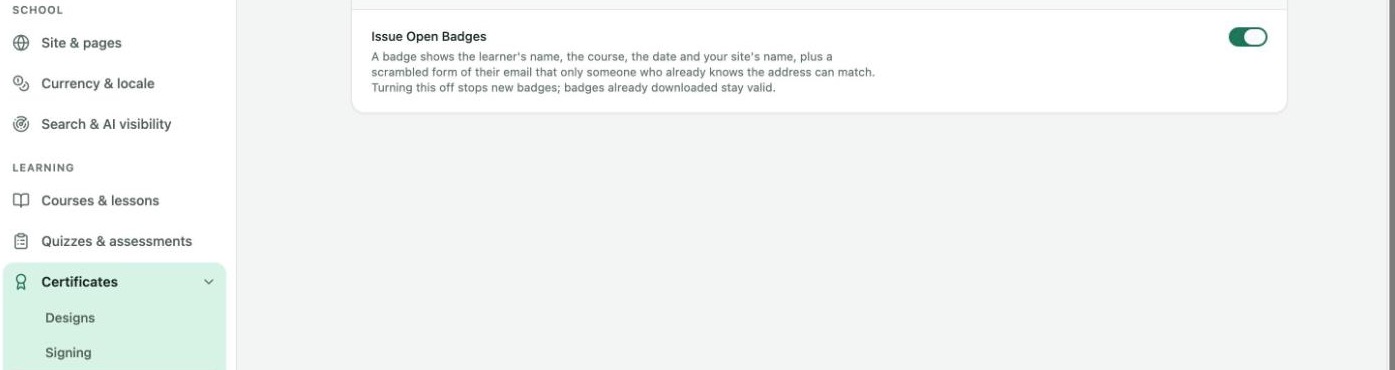
Settings → Certificates → Open Badges.
A badge shows the learner's name, the course, the date and your site's name, plus a scrambled form of their email that only someone who already knows the address can match.
Turning Issue Open Badges off stops new badges. Badges learners already downloaded stay valid.
Choose the badge type for a course
Each course that awards a certificate has an Open Badge type, under the course's Certificate section. It decides how wallets and profiles file the badge.
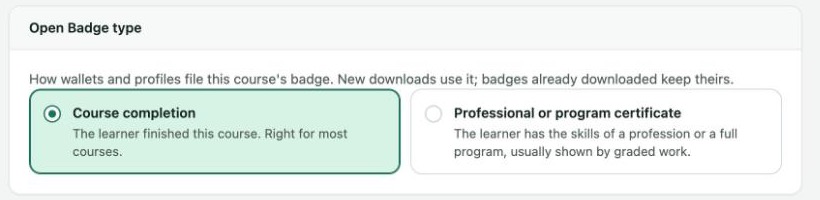
Course builder → Certificate → Open Badge type.
| Type | Use it when |
|---|---|
| Course completion | The learner finished this course. Right for most courses. The default. |
| Professional or program certificate | The learner has the skills of a profession or a full program, usually shown by graded work. |
New downloads use the type you pick. Badges already downloaded keep theirs.
What learners see
Learners find the badge buttons on each certificate under Achievements on their dashboard. The buttons below are from the plugin code.
- Download badge downloads the badge.
- Add to LinkedIn opens LinkedIn in a new tab to add the certificate to their profile.
- The ⋯ button (More badge options) has Download .jwt, the signed credential for a wallet, and Copy badge link.
The buttons only appear while Issue Open Badges is on.