
How to create course categories in RootWright LMS
Categories group courses in the catalog. Create them once under Teaching → Categories & tags, then pick one for each course in its Course category field.
Create a category
- Go to RootWright LMS → Teaching, then open Categories & tags.
- Click New category.
- Enter a Category name, for example "Art and Craft".
- Click New category in the dialog. The category appears in the list with its slug, such as
art-and-craft.
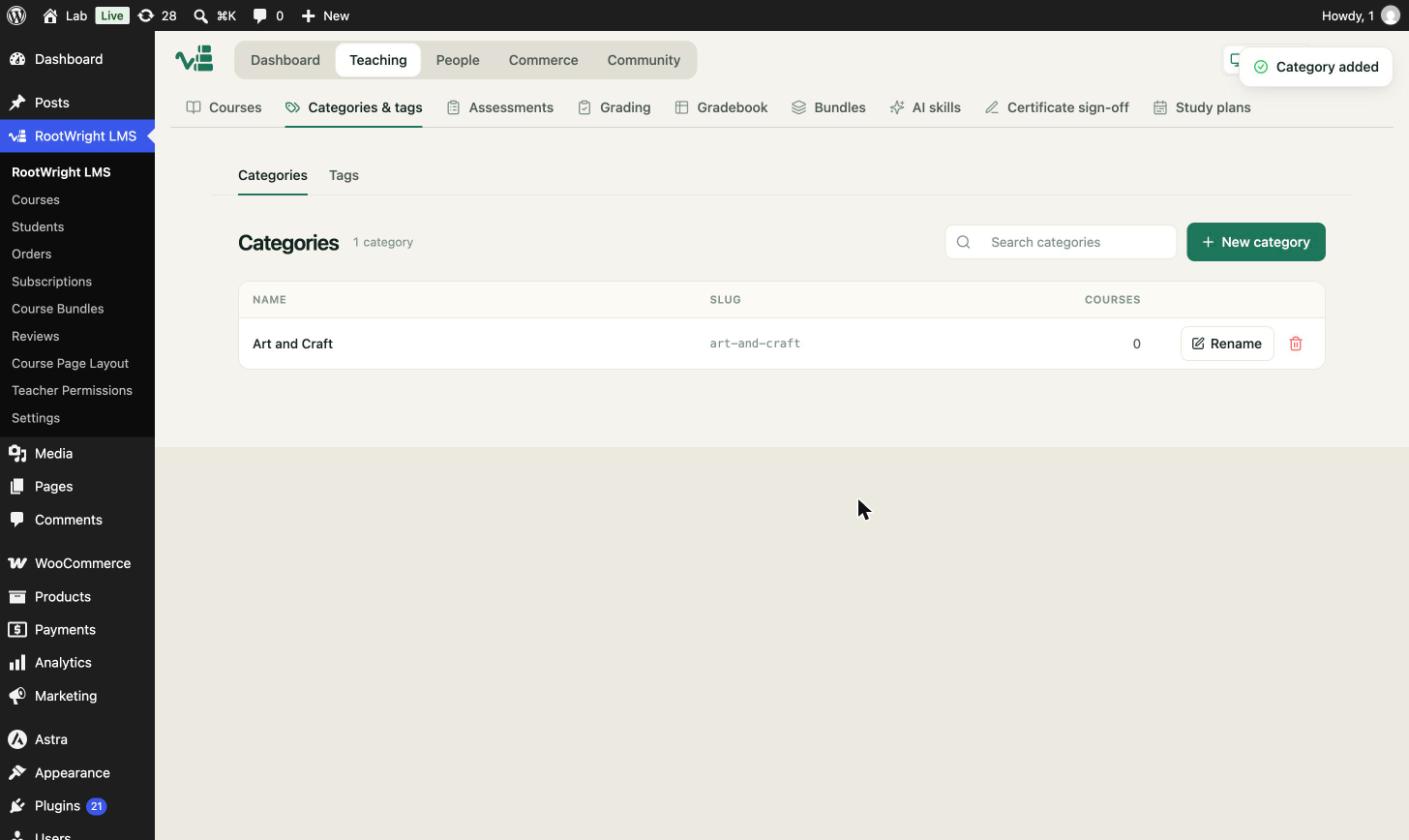
The list shows each category, its slug and how many courses use it.
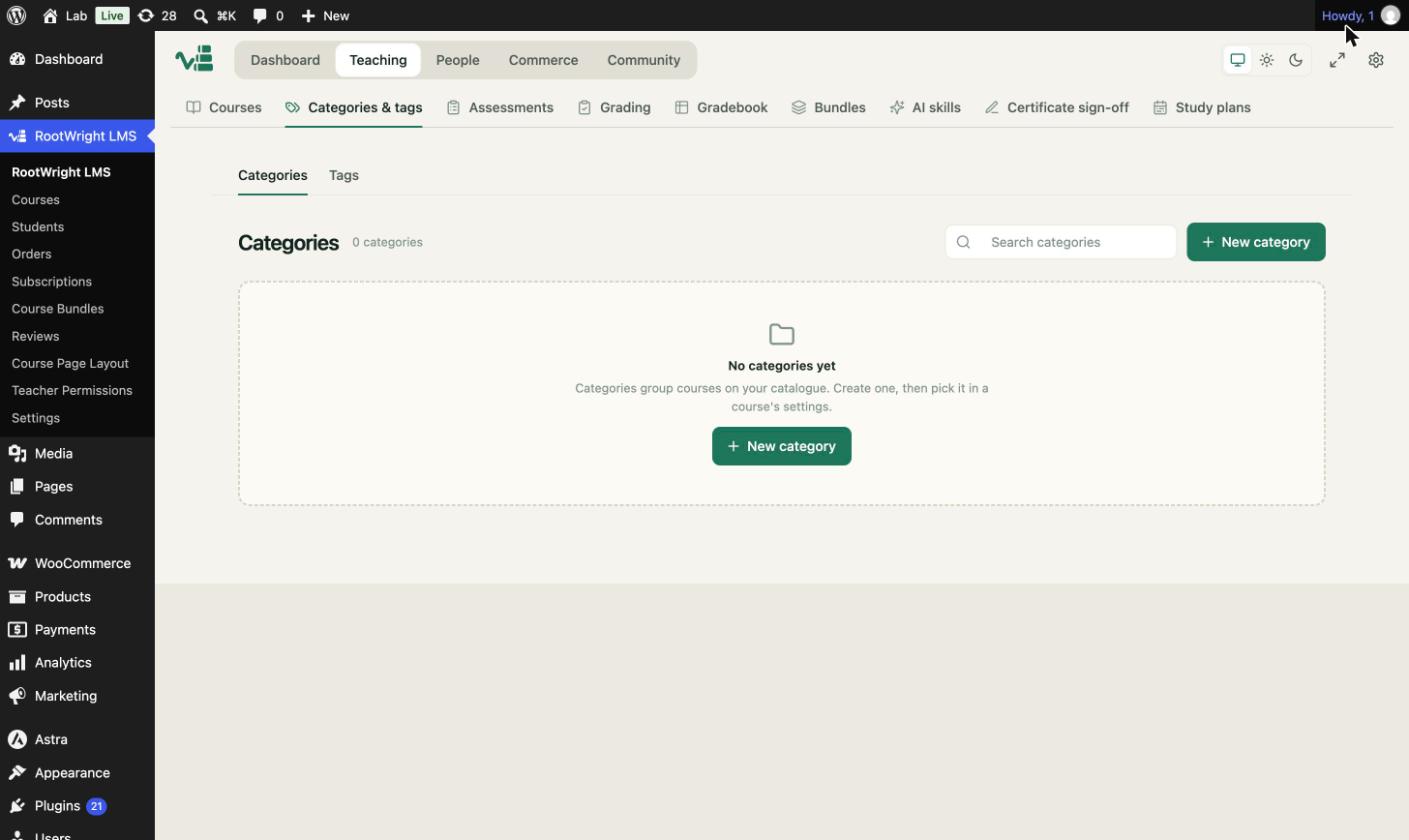
The Categories screen with no categories. Use New category to add one.
Assign a category to a course
Open the course in the editor, go to Details, and choose a value in Course category. The field searches existing categories. If it shows "No results found", create the category first.
Rename a category
Use Rename next to a category to change its name.
Related
- Course tags add a second layer of filtering.
- The Courses screen.