
Quizzes & assessments settings in RootWright LMS
Settings → Quizzes & assessments covers assignments, quizzes, the gradebook, and the defaults every new quiz starts from. It has five sections: Features, Quiz defaults, Uploads, Grading & publishing and Grade scale.
Features
Turn the assessment features on or off for the whole site.
| Feature | When it is off |
|---|---|
| Assignments | Teachers cannot create assignments and learners cannot submit work. All assignment endpoints are blocked site-wide. |
| Quizzes | Quiz and question endpoints are blocked, and learners cannot start attempts. |
| Gradebook | The teacher gradebook (RootWright LMS Pro) and the grades panel students see on the course page both return 403 Forbidden. |
Quiz defaults
Scoring, pacing and review defaults. Each quiz can override them.
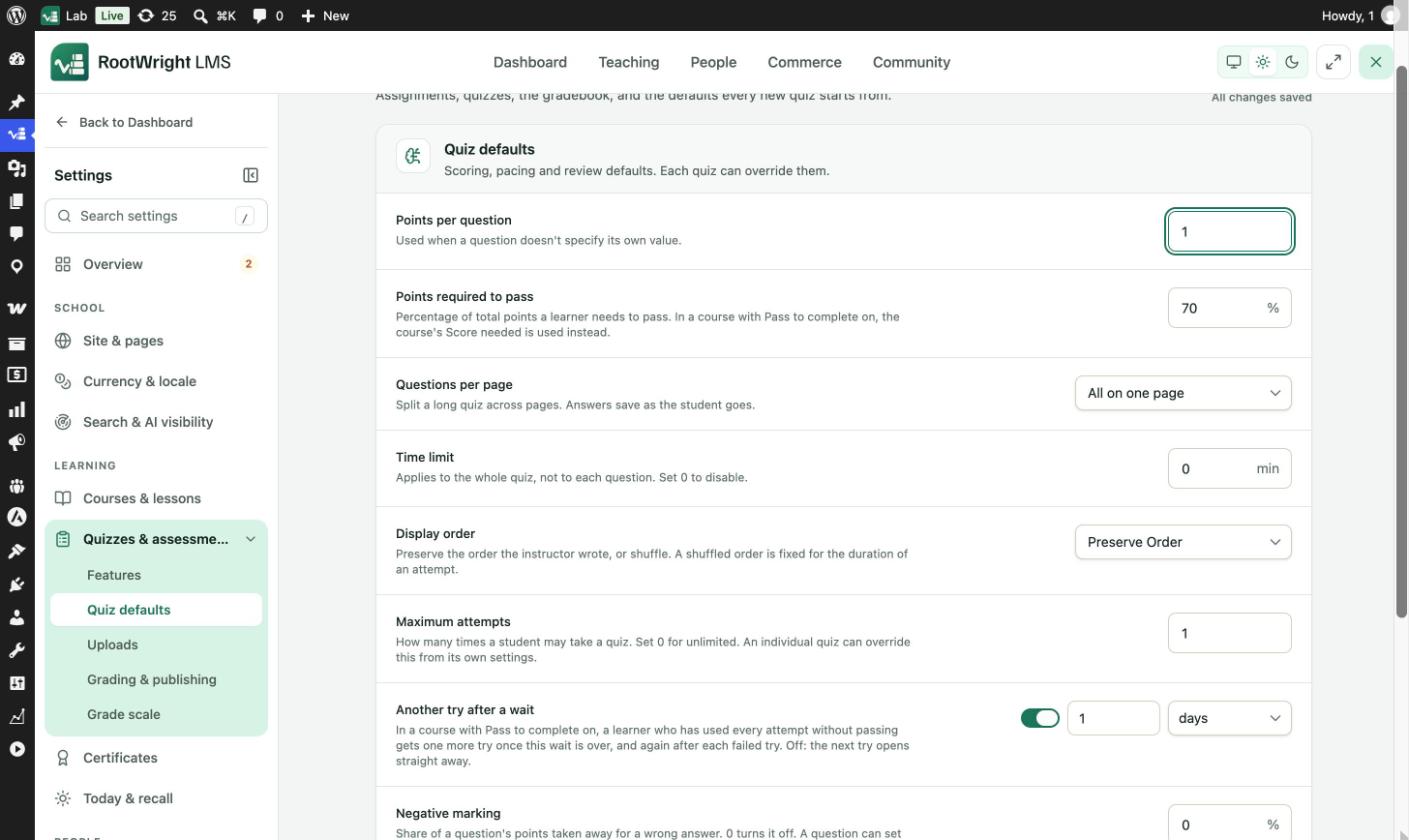
Settings → Quizzes & assessments → Quiz defaults.
| Setting | Example | What it does |
|---|---|---|
| Points per question | 1 | Used when a question doesn't set its own value. |
| Points required to pass | 70% | The share of total points a learner needs to pass. In a course with Pass to complete on, the course's Score needed is used instead. |
| Questions per page | All on one page | Split a long quiz into pages of 1, 2, 5 or 10 questions. Answers save as the student goes. |
| Time limit | 0 min | Applies to the whole quiz, not each question. 0 turns it off. |
| Display order | Preserve Order | Or Ascending, Descending or Randomized. A shuffled order is fixed for the length of an attempt. |
| Maximum attempts | 1 | How many times a student may take a quiz. 0 for unlimited. |
| Another try after a wait | On, 1 day | In a course with Pass to complete on, a learner who has used every attempt without passing gets one more try after this wait, and again after each failed try. Off: the next try opens straight away. |
| Negative marking | 0% | The share of a question's points taken away for a wrong answer. 0 turns it off. A question can set its own. |
| Feedback mode | After Submission | What a student sees after an attempt is graded. Or Correct/Incorrect, No Feedback or On request. |
| Open-ended review | Review Required | With No Review, open-ended questions are left out of scoring. |
The values shown are examples. Your site may use different ones.
Uploads
The default size and type limits for files uploaded through the LMS. Course and lesson files have their own limits, under Courses & lessons.
| Setting | What it does |
|---|---|
| Max file size (MB) | The largest file anyone can upload where nothing sets its own limit. 0 leaves only your server's limit. |
| Allowed file types | A list of file extensions anyone may upload. The defaults are pdf, doc, docx, ppt, pptx, xls, xlsx, zip, png, jpg, jpeg and txt. Anything not listed is rejected. |
Grading & publishing
| Setting | What it does |
|---|---|
| Quiz attempt retention (days) | How long quiz attempts are kept. 0 keeps them forever. Assignment submissions and grades are always kept for as long as the account exists. Grades are worked out from attempts, so removing old attempts can lower them. |
| Deadline timezone | Site timezone or UTC, for showing assignment and quiz deadlines to learners. |
Grade scale
The grades a course percentage turns into, and how a grade is shown. A course can use its own scale instead.
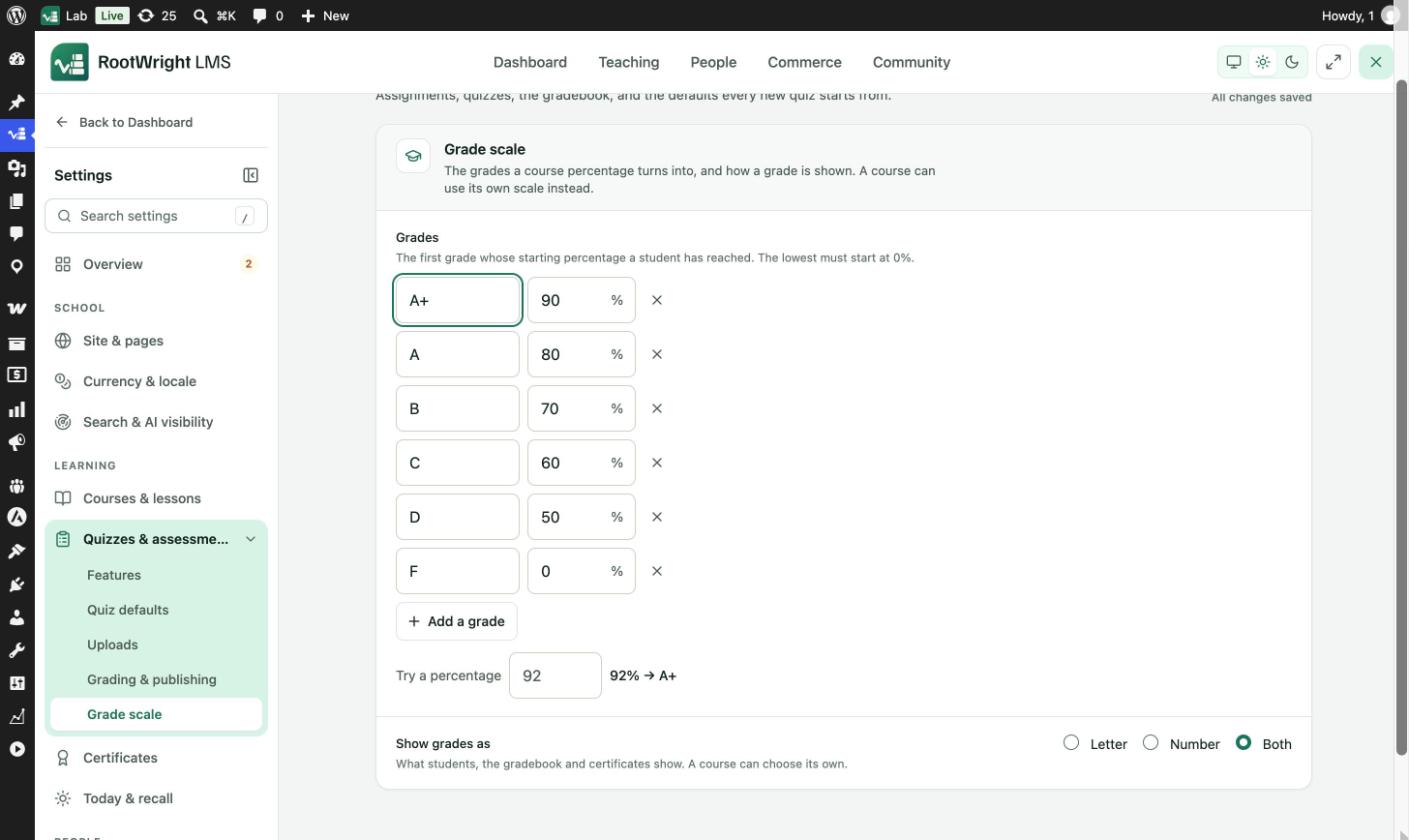
Settings → Quizzes & assessments → Grade scale. Try a percentage shows which grade a score gets.
- Each grade has a name and a starting percentage. A student gets the first grade whose starting percentage they have reached. The lowest grade must start at 0%.
- A typical scale is A+ from 90%, A from 80%, B from 70%, C from 60%, D from 50% and F from 0%.
- Add a grade adds a row. The × removes one.
- Show grades as sets what students, the gradebook and certificates show: Letter, Number or Both. A course can choose its own.